
Blueleaf Billing: Archiving Clients and Accounts
Archiving removes a client or account from Blueleaf Billing’s active lists, but does not delete the record or any billing history. Fees billed on past runs remain visible in those runs.
To archive a client or account, use Blueleaf, see Archiving Households
Show archived:
By default, Clients & Accounts hides archived clients and accounts. Select Archived Only to view archived clients and accounts on your lists
You can find Archived Data in three places:
- List View: The checkbox appears above the client list. Select it to show all archived clients in the sidebar.
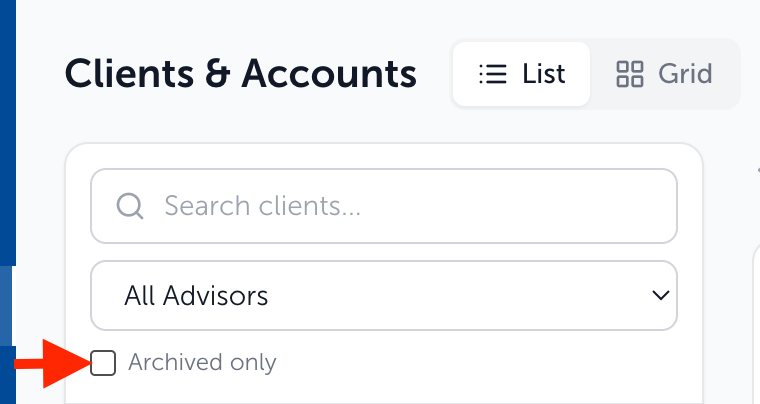
- Grid View: The checkbox appears in the top-right corner and applies to both the Clients and Accounts tabs. On the Accounts tab, it also shows accounts belonging to archived clients.

- Client card (list view): The checkbox appears in the bottom right corner below the accounts table. It applies only to that client's accounts.
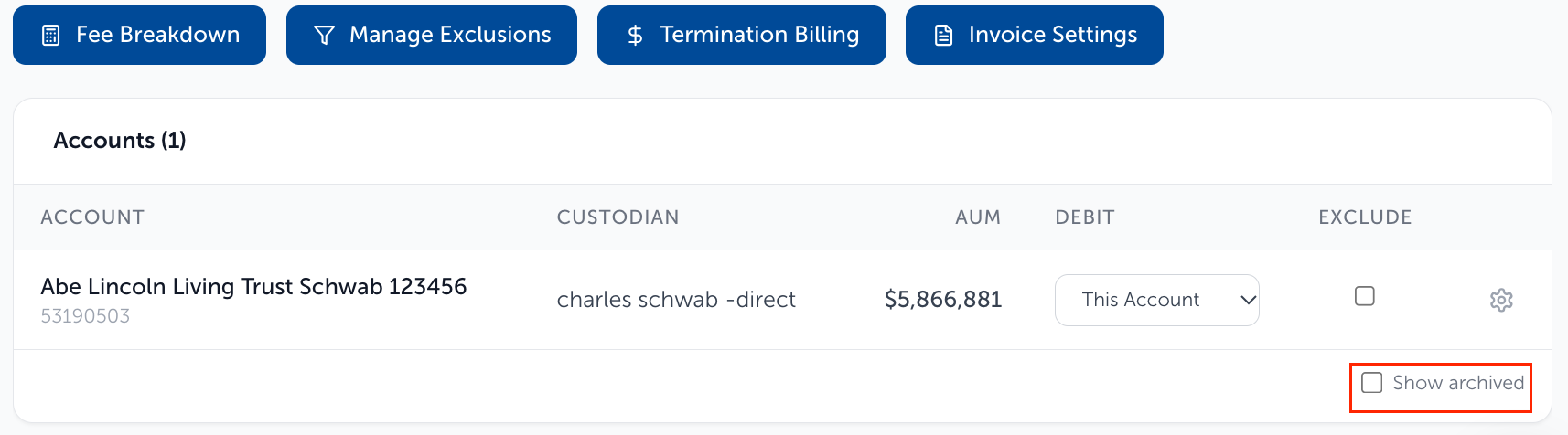
The List and Grid settings are shared and saved in the page address, so a copied link preserves the setting. The client page setting is separate and is cleared by default.
What you see:
- To identify an archived account, look for the Archived badge beside its name. The account row is also greyed out.
- To identify an archived client, check the client’s status. Archived appears as the status even if the client would otherwise have another status.
- In Grid, select Show archived to include archived clients.
- In the Status column filter, select Archived to show only archived clients.
What changes:
- Archived accounts cannot be modified through the Actions menu. The menu is disabled, so you cannot add an AUM schedule exception, subscription fee, or one-time fee.
- Archived accounts are excluded from New/Termination Billing. When you select accounts for a new-account billing run, archived accounts do not appear in the list.
- Archived accounts are also excluded from the Total Accounts tile on the Billing Readiness Dashboard.
Need help? Email vipsupport@blueleaf.com with any billing questions, feedback, or issues.