
Create a custom sign-in page
Getting Started
You can get started quickly with a custom sign-in page in just a few steps:
-
Fill out your client experience settings, including your firm logo, firm name, and other details
-
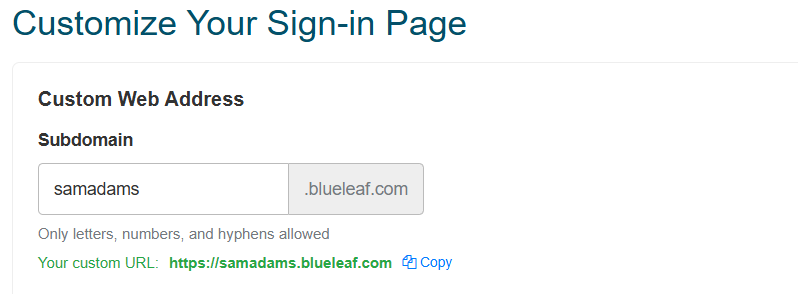
From the Dashboard click Settings -> Profile, then scroll to the "Custom Web Address" field. Choose a subdomain that matches your brand. In the example below, the subdomain "samadams" creates a custom URL
https://samadams.blueleaf.com. Often advisors will put a "Client Login" button on their website, which links to this URL.
-
Navigate to your custom URL to see the results. The page will be populated with your firm branding and disclosure:

Customize your sign-in page further using AI
Using AI tools such as Claude or ChatGPT, you can generate custom HTML and CSS snippets to further customize the sign-in page. For the best results, confirm your AI tool has web browsing capability (Claude, ChatGPT with browsing, Perplexity, etc.), since it can pull branding details directly from your website.
-
In the AI tool, use this prompt to get started:
I need to create a custom sign-in page for my clients' Blueleaf portal. Please visit my website at [YOUR WEBSITE URL] and extract my branding, then generate two separate code snippets - a HTML snippet and a CSS snippet - that I can paste into Blueleaf's custom sign-in page fields.
Extract the following from my website:
- Logo URL
- Primary and secondary brand colors
- Background and text colors
- Font families (headings, body, links)
- Button styles (border, fill, hover colors)
The HTML snippet must include these required elements:
```
<img src="https://secure.blueleaf.com/images/logos/poweredby_bl_hz_25px.png">
<input type="text" name="session[email]" />
<input type="password" name="session[password]" />
<input type="submit" />
<a class="forgot_password" href="/password_recoveries/new">forgot?</a>
<a href="mailto:vipsupport@blueleaf.com">email VIP Support</a>
```
Design requirements:
- Display my logo prominently at the top
- Match the fonts, colors, and button style from my website as closely as possible
- Keep the layout clean and centered, appropriate for a client-facing login page
- The "Powered by Blueleaf" logo should appear at the bottom
- Include labels for the email and password fields
- Import fonts in the CSS code only
Please output the HTML and CSS as two separate, clearly labeled code blocks.
Note: the AI tool's preview may not be able to render images, since it may block content from external sites, but you will be able to preview the page in Blueleaf.
-
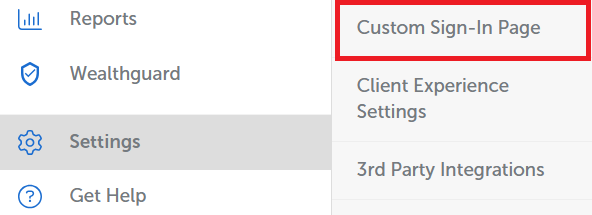
Next, go to Settings -> Custom Sign-In Page
-
If you haven't done so already, set up your custom URL where clients will access the page.
-
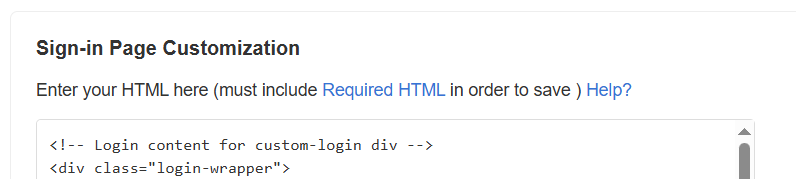
Paste the HTML and CSS code under the section for "Sign-in Page Customization"
-
Towards the bottom of the page, click the checkbox for "Apply on Login Page", then click "Save Changes". This will now apply the custom HTML/CSS code to your custom login page.
You can click the "preview" link to see what the page looks like. You can also revert back to a sign-in page without custom HTML/CSS by unchecking "Apply on Login Page".

(Optional) Working with an AI tool that doesn't have web browsing
If your AI tool can't browse the web, you can save your homepage as an .mhtml file. To do this in your browser:
- Right click anywhere on the homepage of your website
- Click "Save Page As" or "Save As"
- Select "Webpage, Single File" as the option

Upload this file alongside the original prompt, but replace your website URL with the instruction:
I've attached my website as an .mhtml file - please extract my branding from it.
(Optional) Fixing broken images or adding additional images not hosted on your website
The AI tool will attempt to grab your logo from your website, but depending on your website's content restrictions, images may not display on Blueleaf related domains. It may look something like this:

To resolve this, under Settings -> Custom Sign-In Page, there is a section for "Hosted Images". Here, you can upload any image, and click "copy URL" to get a direct link to the image. You can use these image URLs in your custom HTML code.
In your AI tool, simply provide the list of image URLs, then describe how it should be used on the page.
