
Blueleaf Billing: Creating Discounted Fee Schedules
A discounted fee schedule applies a discount to an existing fee schedule and creates a new discounted fee schedule. Build one in Fee Schedules in the left side menu, then assign it to a client.
Building a Discounted Fee Schedule:
1. Go to Fee Schedules and select the AUM Schedules tab at the top left.
2. Select + New Schedule to create a new fee schedule.
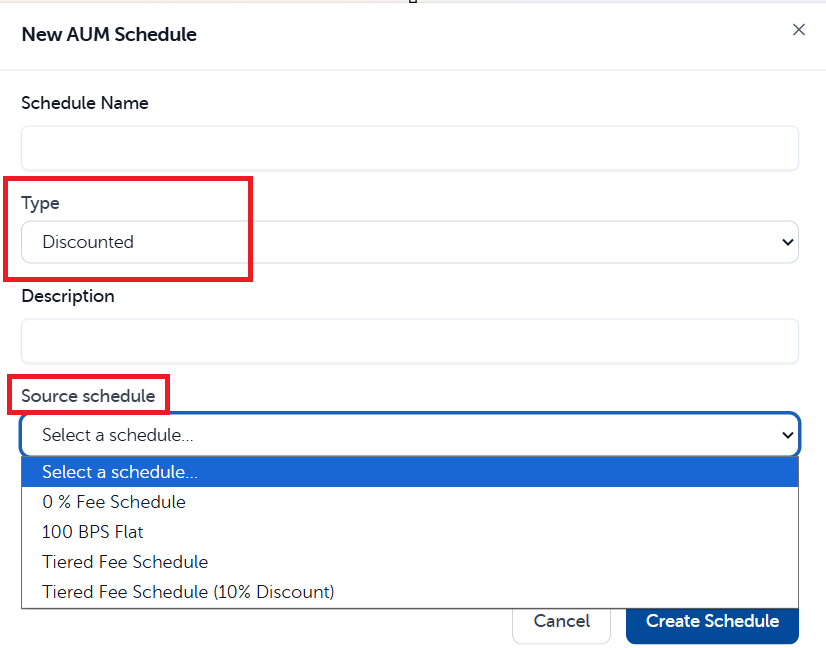
3. Enter a Schedule Name, choose Discounted for a Type, and add a Description. Once you choose "Discounted" as the Type, a Source schedule section will open up. Here you will select one of your existing fee schedules to apply a discount to.
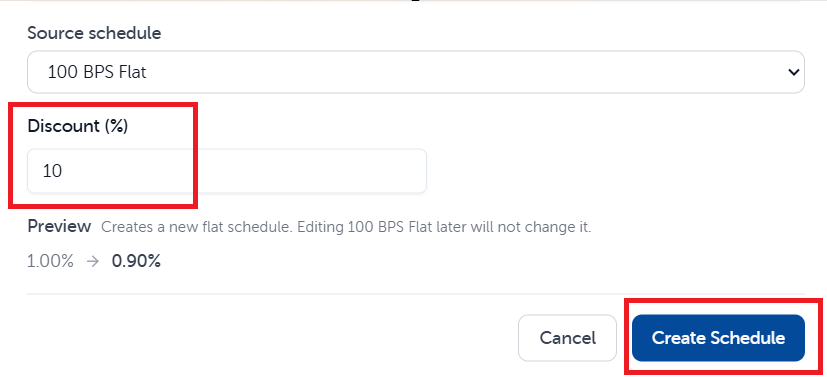
4. Enter in the Discount you want applied and then select Create Schedule to finalize the discounted fee schedule.
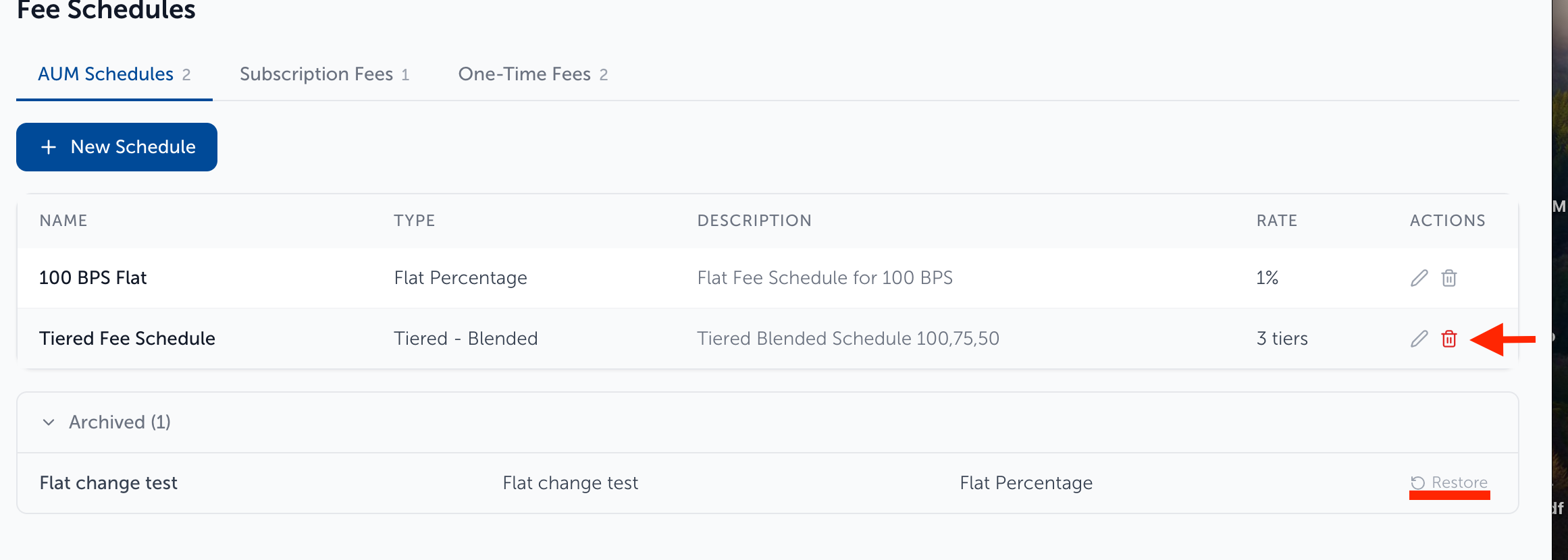
To change an existing fee schedule, click the pencil icon on its row. Once you have made the appropriate changes, select the Update Schedule button.
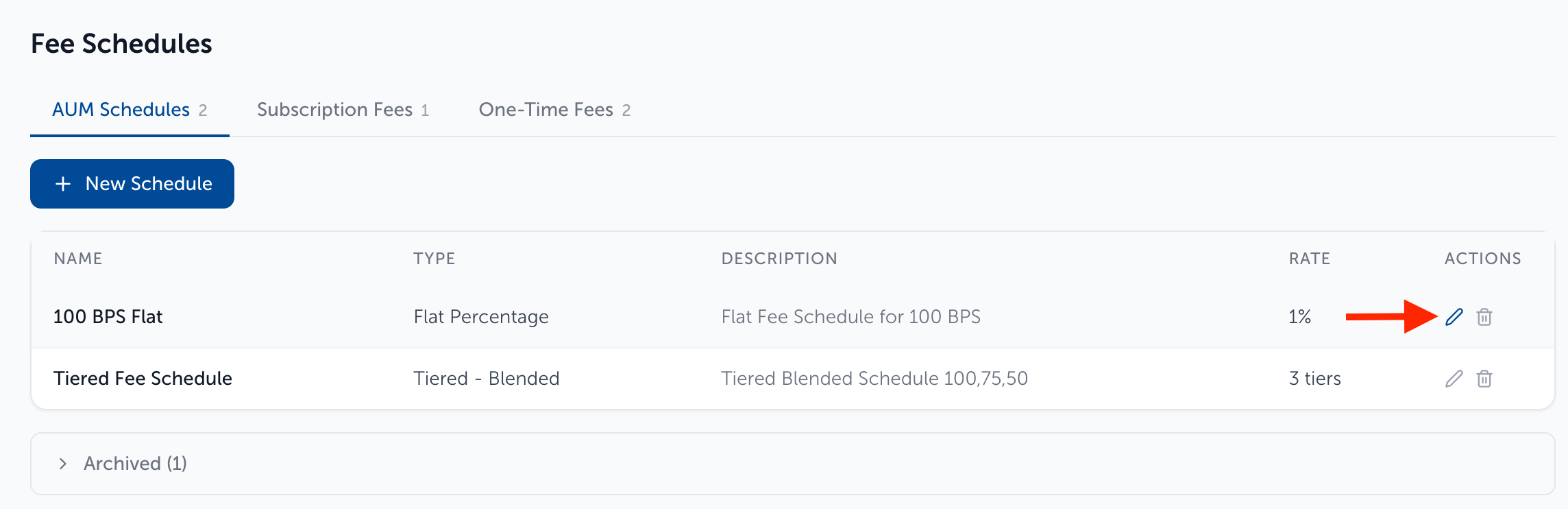
The trashbin icon on a fee schedule row archives it. Archived schedules collapse under Archived at the bottom of the tab, with Restore to bring one back.
Note: You cannot edit the schedule type or the discount amount. If it was created as Flat Percentage with 10% discount it must stay that way. The details within can be changed but not the type or discount amount. If a new discount schedule is needed, it must be created new.
Need help? Email vipsupport@blueleaf.com with any billing questions, feedback, or issues