
Blueleaf Billing: Billing Portal Reports
Reports is a feature in Blueleaf Billing which allows users the flexibly to export billing data from the billing system. There are five Report types that are currently available to export:
- Billing Details: Every line item on a billing run: what each account was billed, on what value, at what rate, and where the fee is debited, including client, advisor and repcode context.
- Billing Readiness Flags: Every actionable and FYI flag raised for a billing run, with what it was about and how it was resolved.
- Billing Adjustments: Every change applied on top of the calculated fee: cashflow adjustments, manual adjustments and min/max fee corrections
- Changelog: Every logged billing-configuration change in a date range: who or what changed which setting, when, and from what to what.
- Holding Exclusions: Holdings left out of billable value for the run, with the excluded amount and whether the rule was set at the firm, client or account level.
- Insufficient Cash: Export data related to the insufficient cash alerts, including specific details about the cash shortfall for each account

Note: this is distinct from the custodians export via the "Billing Run" page, and is not a replacement for that feature. The custodian export differs in some important ways:
- It automatically combines fees when multiple are debited from the same account
- Excludes accounts with $0 fees
- The custodian export files are permanently stored on our side, including previous versions of the files (when regenerated), as a part of the audit trail
Billing Details Report Export:
- Go to the "Reports" page
- Select "New Export" button under "Billing Details"
- Select the billing run you wish to export data from using the drop-down menu
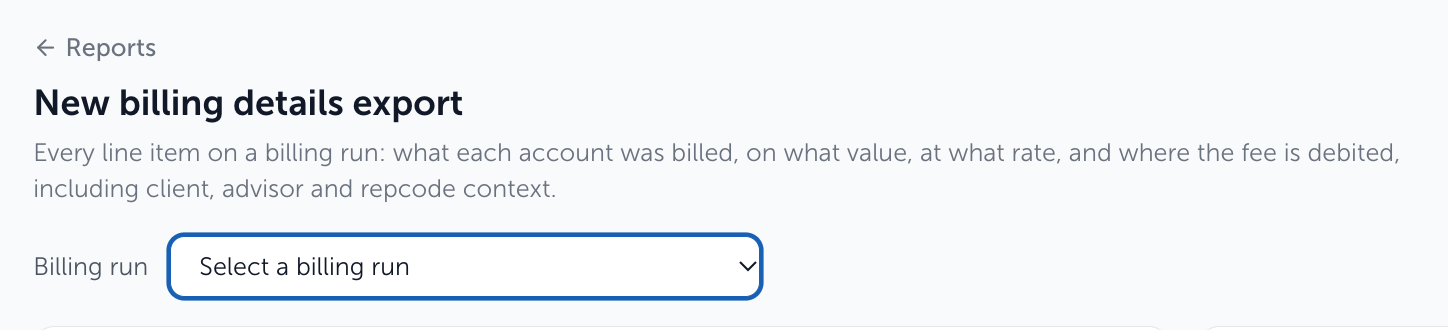
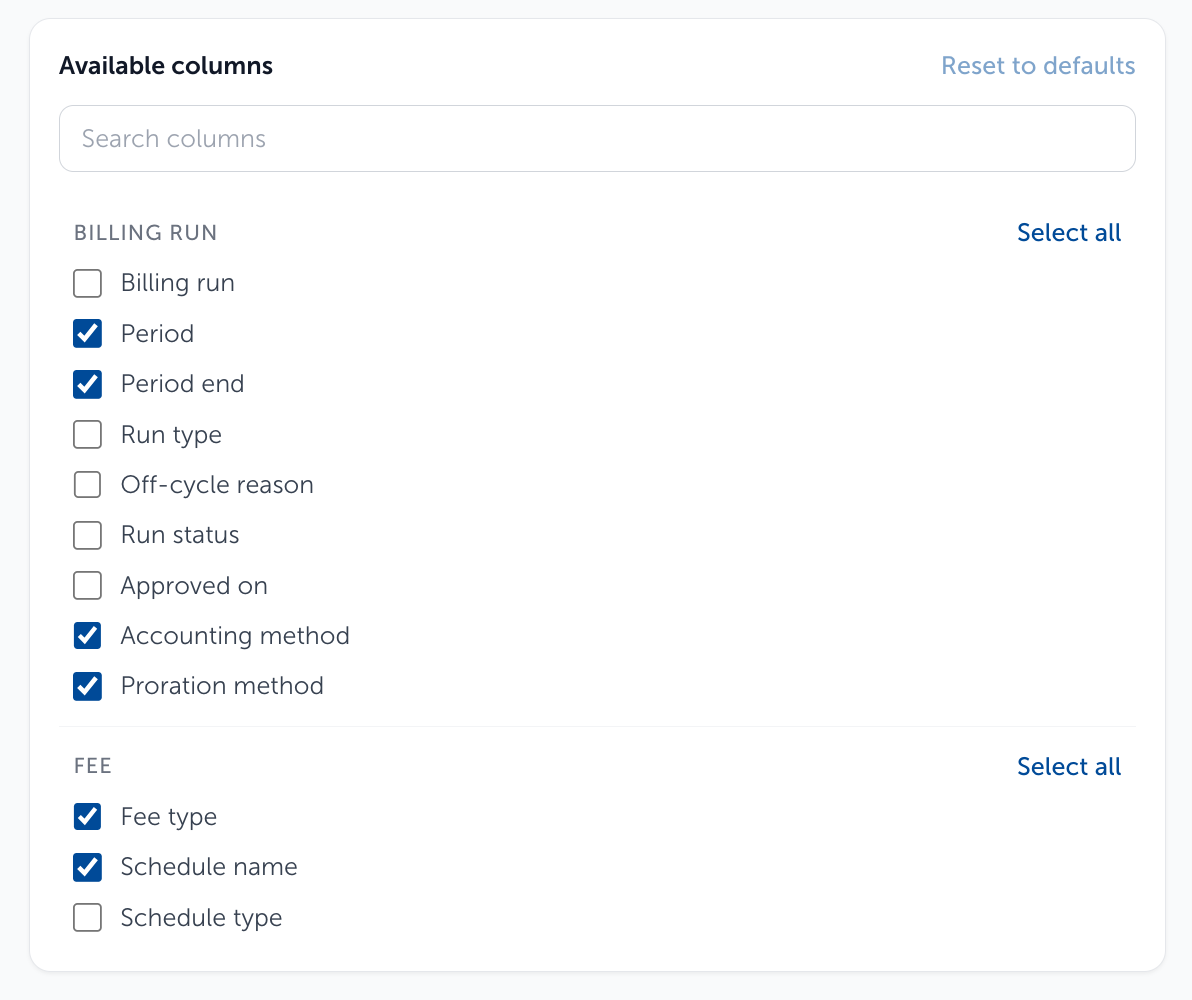
- Scroll through the "Available Columns" box to select the data you wish to include in the report. You may also unselect any boxes that are selected by default. There is a "Select All" option for each column category as well as a "Reset to defaults" option.
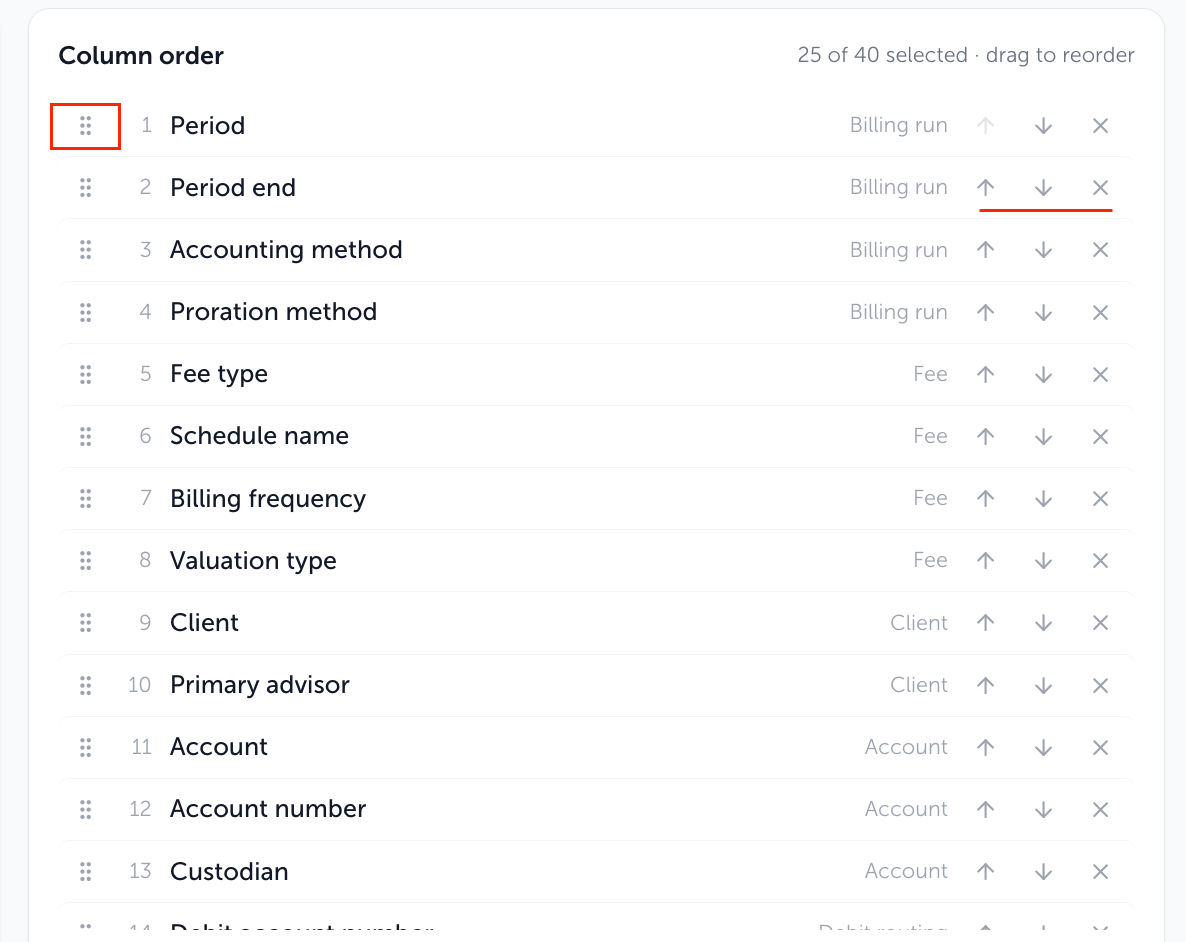
- In the "Column Order" box, you can configure the order the data appears in the csv export by using the arrows on the right-hand side or use the 3x3 dot grid to drag and drop the columns in the desired order. The X will remove the column from the export.
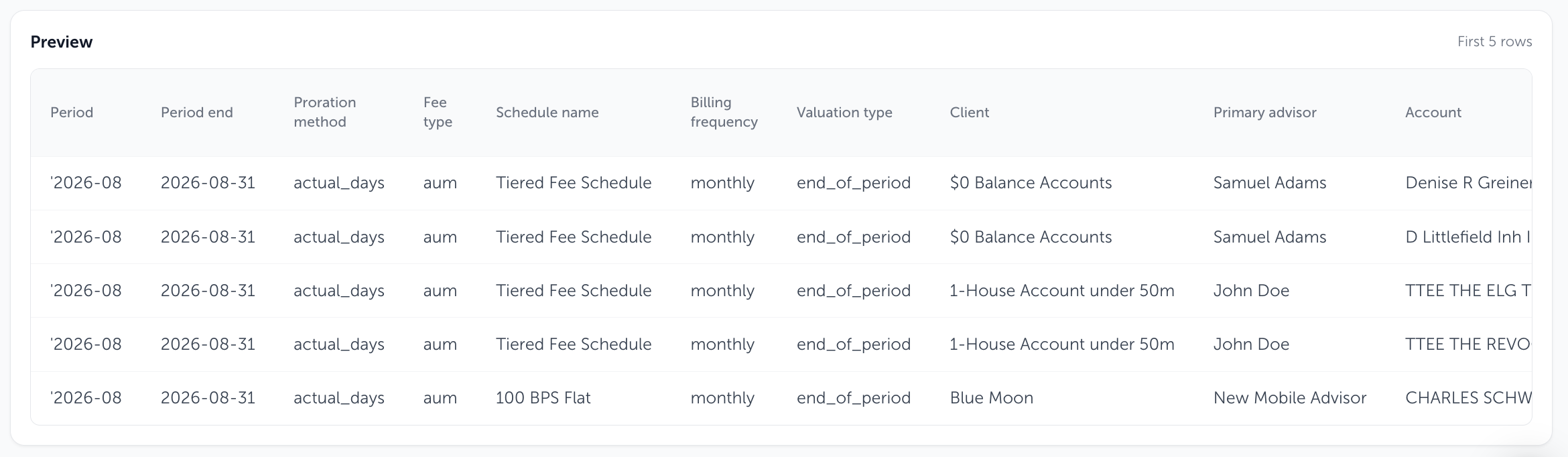
- As you edit the details outlined in steps 3-5, there is a "Preview" box (below the "Available Columns" and "Column Order" boxes) which will show you a preview of how the csv export will look
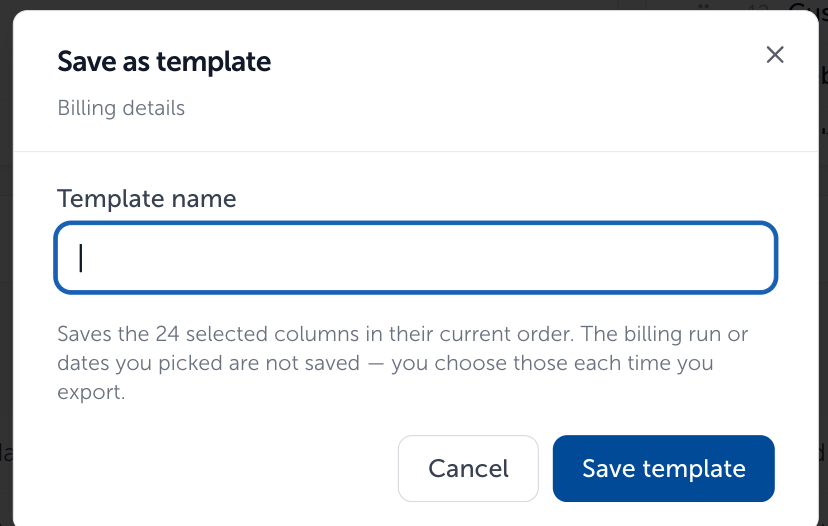
- Once the desired report export configure is setup, you have the option to "Save as Template" for future uses, and name the template accordingly

- Click "Export CSV" to download the csv Report export to your device

Billing Readiness Flags Report Export:
- Go to the "Reports" page
- Select "New Export" button under "Billing Readiness Flags"
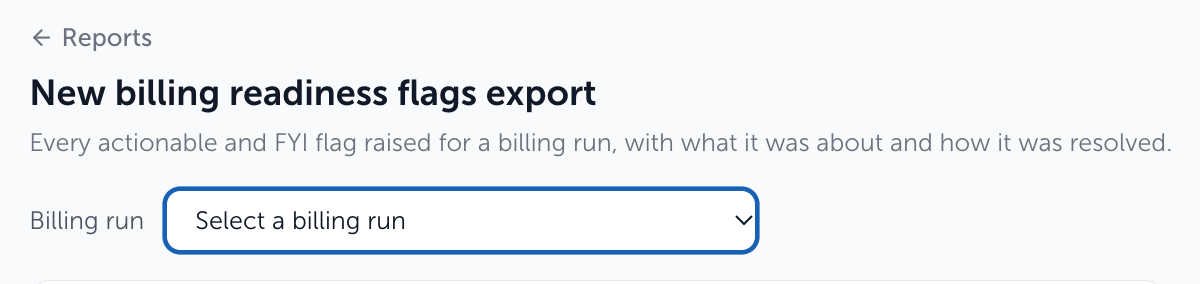
- Select the billing run you wish to export data from using the drop-down menu
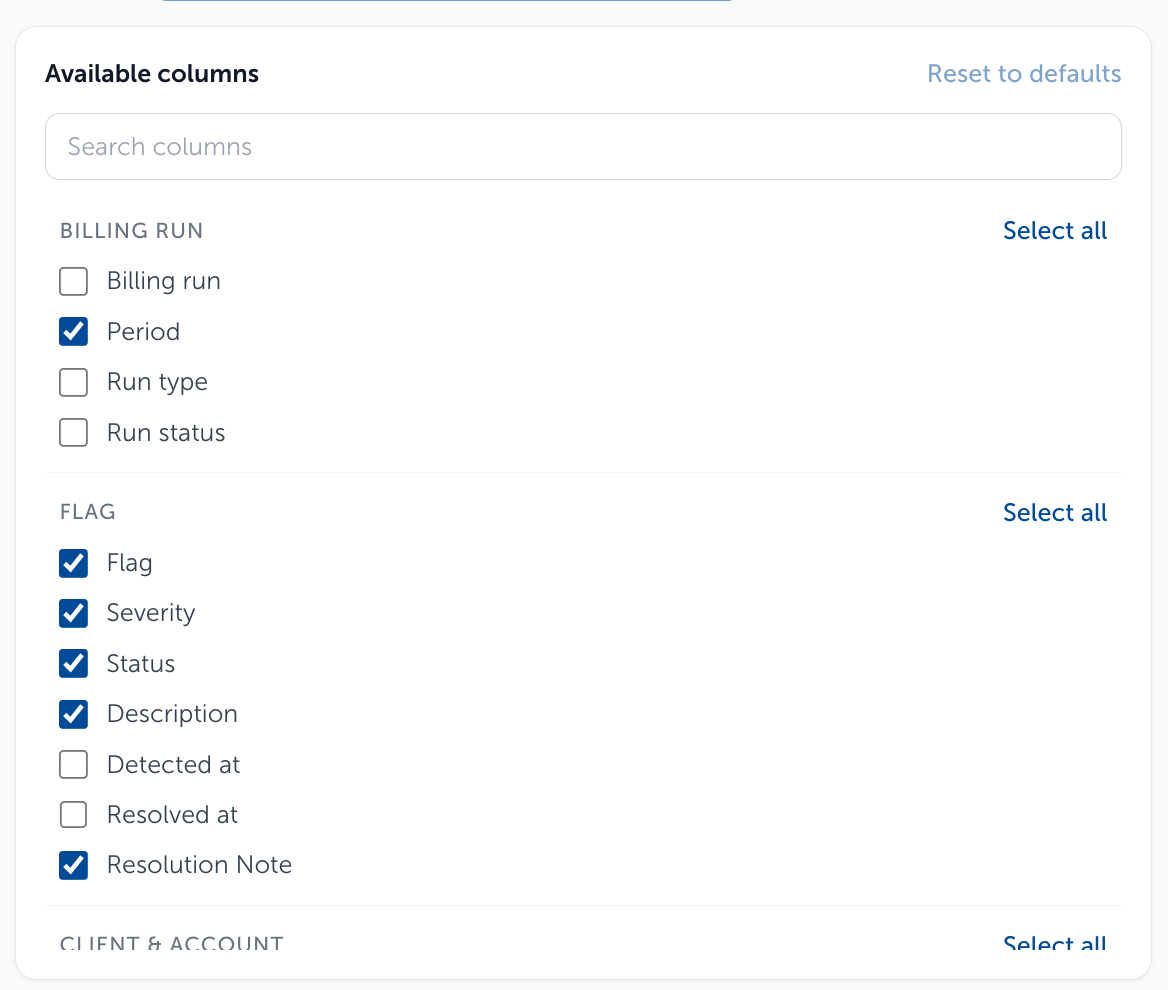
- Scroll through the "Available Columns" box to select the data you wish to include in the report. You may also unselect any boxes that are selected by default. There is a "Select All" option for each column category as well as a "Reset to defaults" option.
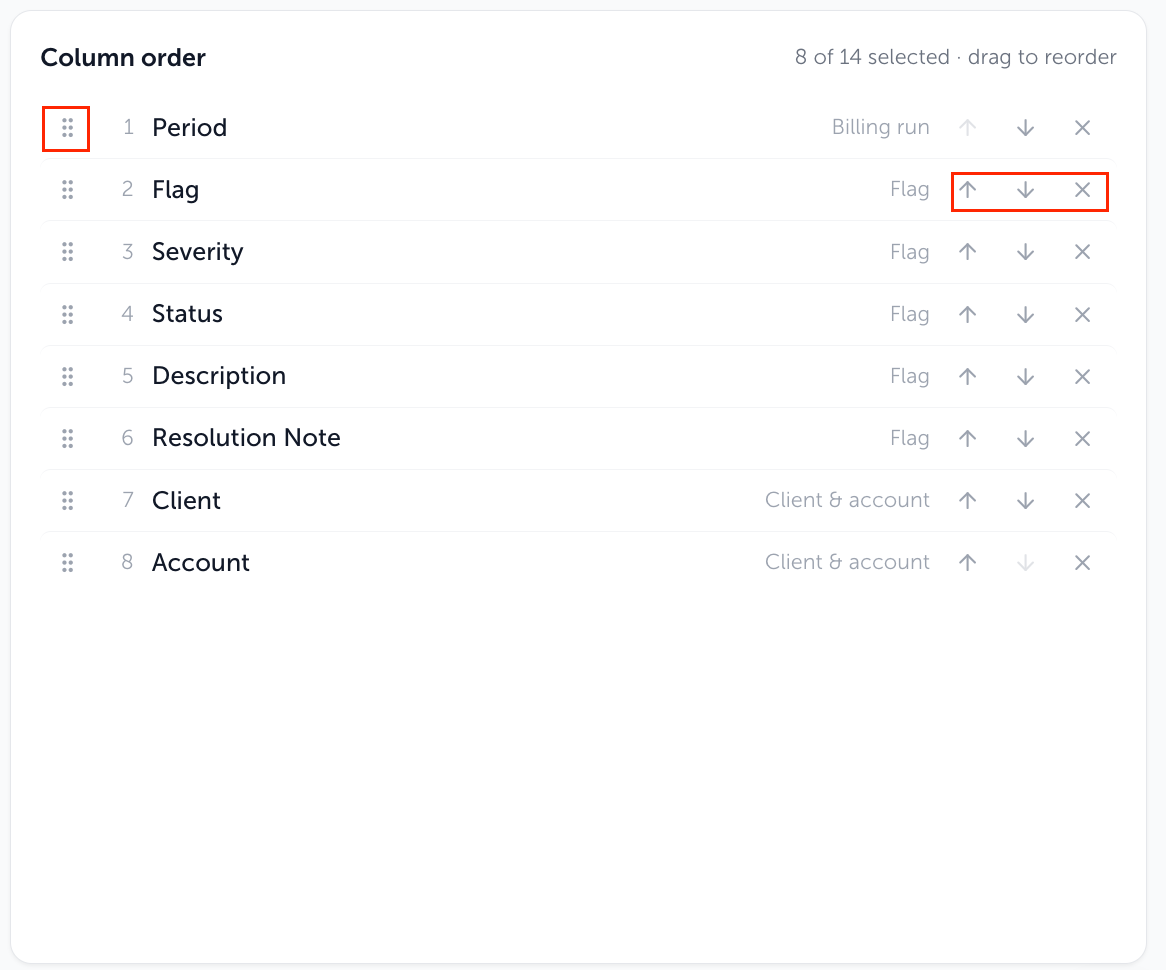
- In the "Column Order" box, you can configure the order the data appears in the csv export by using the arrows on the right-hand side or use the 3x3 dot grid to drag and drop the columns in the desired order. The X will remove the column from the export.
- As you edit the details outlined in steps 3-5, there is a "Preview" box (below the "Available Columns" and "Column Order" boxes) which will show you a preview of how the csv export will look
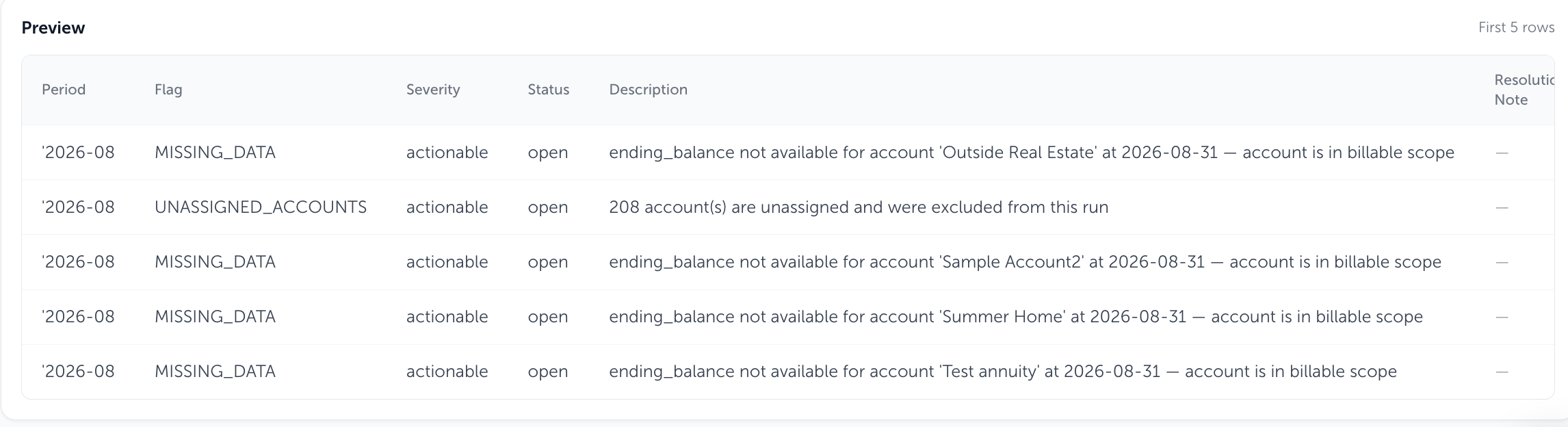
- Once the desired report export configuration is setup, you have the option to "Save as Template" for future uses, and name the template accordingly

- Click "Export CSV" to download the csv Report export to your device
Saved Templates Section:
Any report templates that are saved can be found under this section on the main Reports page
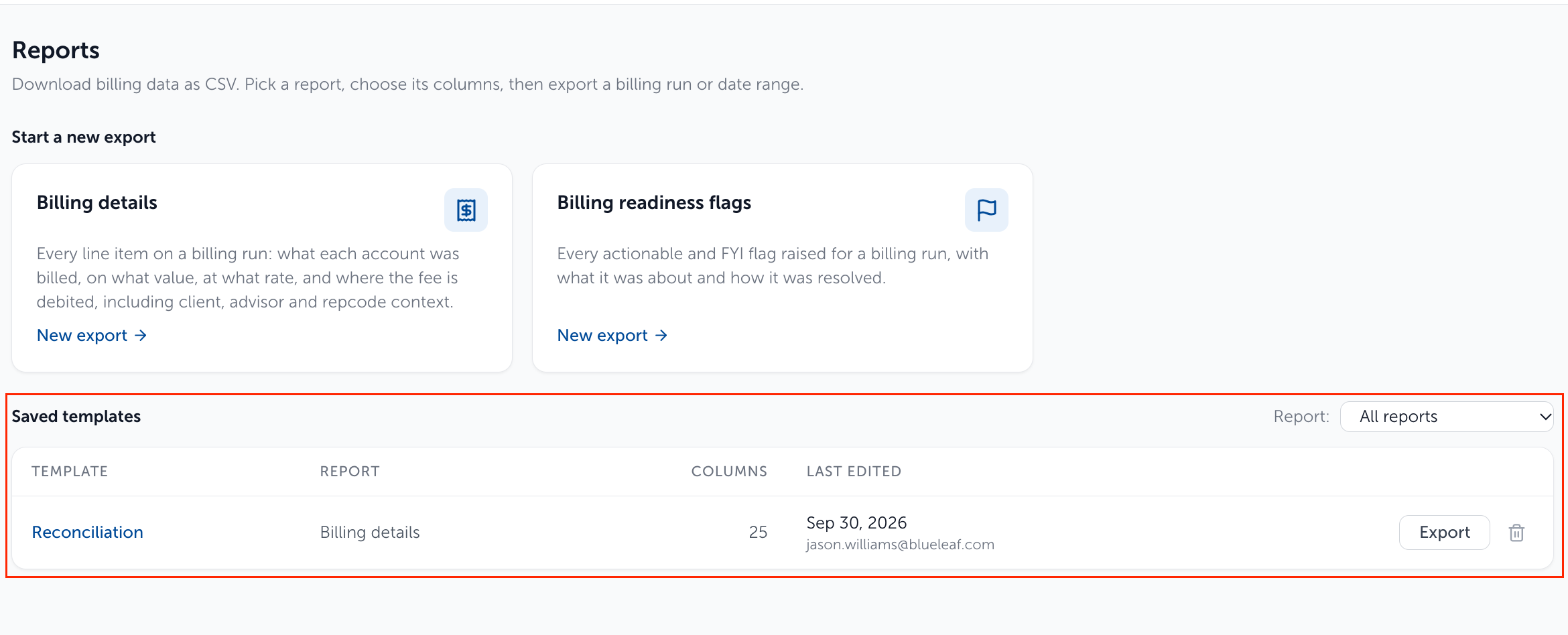
You can click "Export" to export the report exactly as it was created including the originally chosen billing run timeframe. The trash can icon allows you to delete a Report template

You can click on the template name to go into that specific template, and choose a new billing run

Need help? Email vipsupport@blueleaf.com with any billing questions, feedback, or issues.