
Blueleaf Billing: Invoice Disclosures and Displaying Fee Calculations
Invoice Disclosures:
At the bottom of the Firm Settings page, you can setup disclosure messaging to appear on every client's invoice. Simply write your message then click the "Save Settings" button

For each client on the Clients & Accounts page, there is a "Invoice Settings" button, where you can set a specific note (eg: payment instructions)

After clicking the "Invoice Settings" button, write your invoice note then click "Save"

You can also apply Invoice Notes in bulk to clients from the grid view on the Clients & Accounts page.
- Go to the Clients & Accounts page
- Select "Grid View", and make sure you are on "Clients" tab
- Check the box next to client row you wish to include in bulk change
-
From the action drop-down, choose "Set Invoice Note"
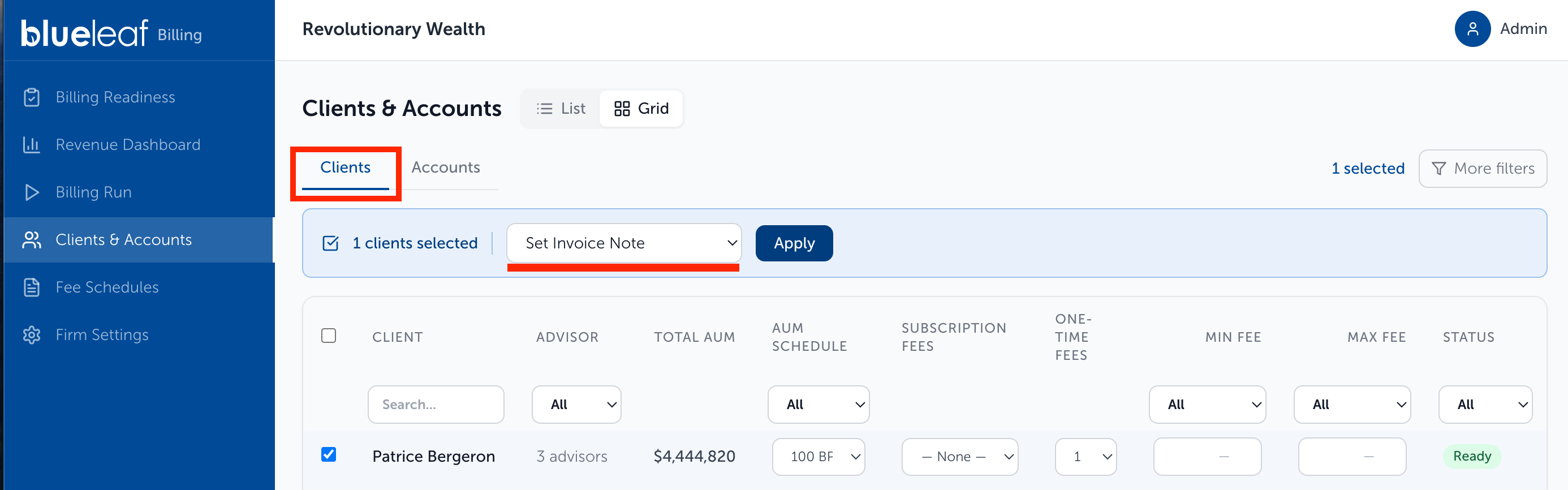
- Click "Apply"
-
Write Invoice Note then click "Apply" again to implement
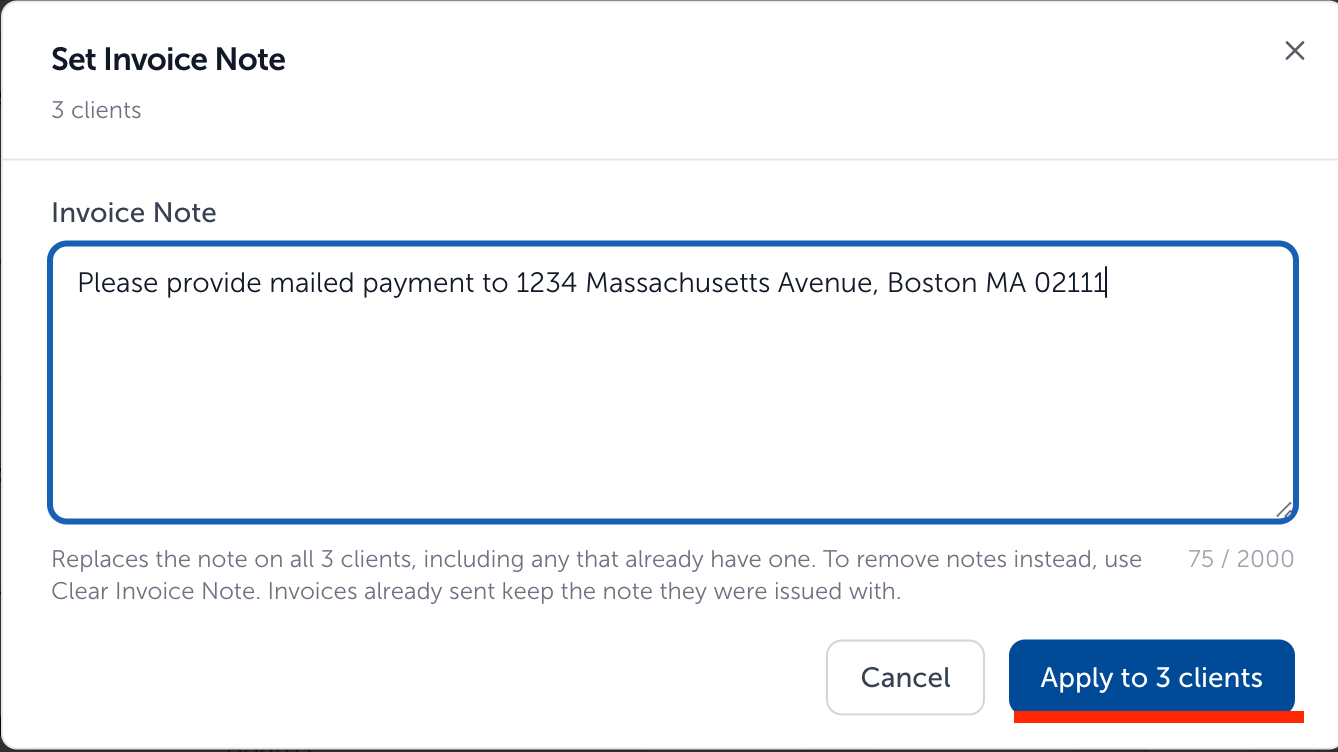
- To remove Invoice Notes in bulk, select "Clear Invoice Note" from step 4 then follow remaining steps

Including Fee Calculation on Invoices:
At the bottom of the Firm Settings page, you can enable fee calculations to display on all invoices by selecting the toggle to the right and then clicking the "Save Settings" button.

Need help? Email vipsupport@blueleaf.com with any billing questions, feedback, or issues.