
Blueleaf Billing: Generating and Sending Invoices
Go to the Billing Run page and open the approved billing run. Once it is approved it shows four tabs: Overview, Invoices, Exports, Settings.
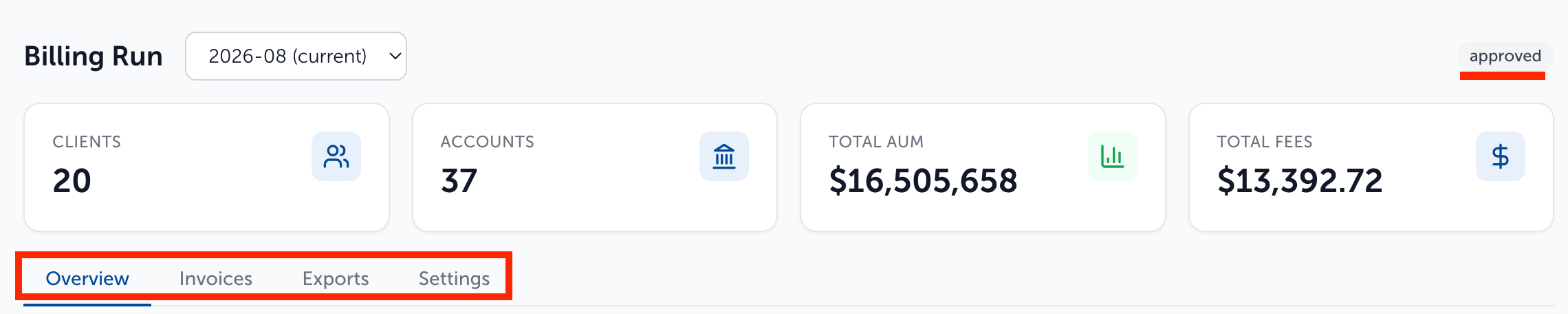
Open the Exports tab and click the "Generate Invoices/Exports" button, and follow through the steps outlined below:
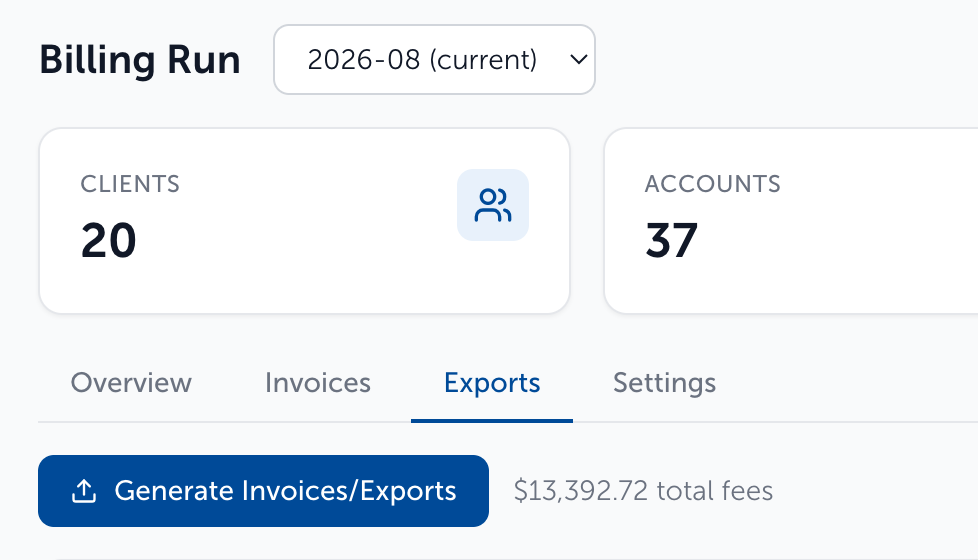
Step 1: Review Custodians - Each custodian in the run, with its account count and total fees. Click Continue.
Step 2: Configure Export Formats - Choose Generic, Custodian format, or Custom for each custodian. Click Continue.
Step 3: Confirm & Generate - Review the details selected then click “Generate Invoices/Exports”. This produces the client invoices and one export file per custodian, and marks the run exported.
Step 4: Open the Invoices tab - When a row reads Ready, the Preview button opens that client’s invoice in a new tab and the Download button saves it. The “Download all invoices” button saves the bundle as a single zip file.
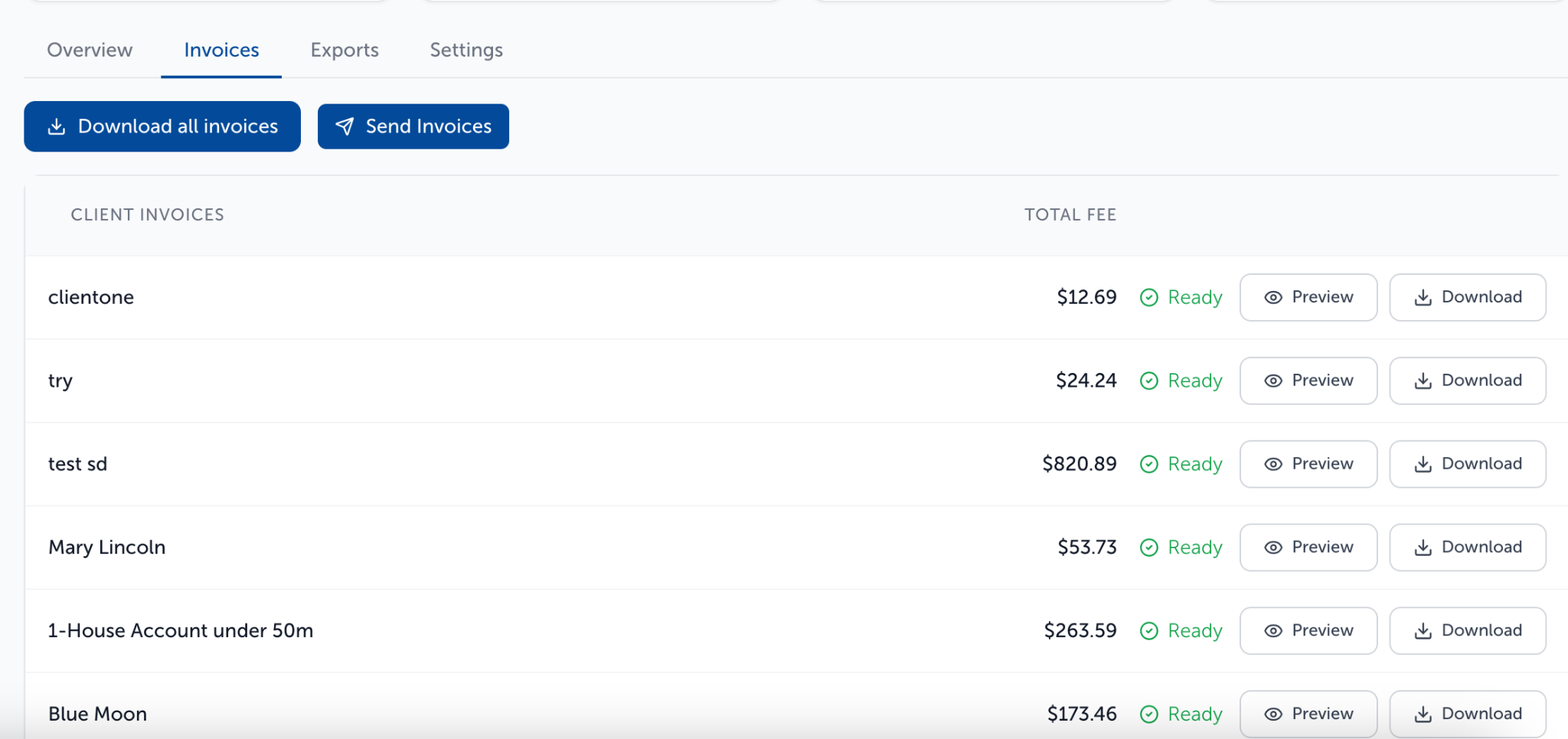
A Combined invoice bundle row sits at the bottom of the page:

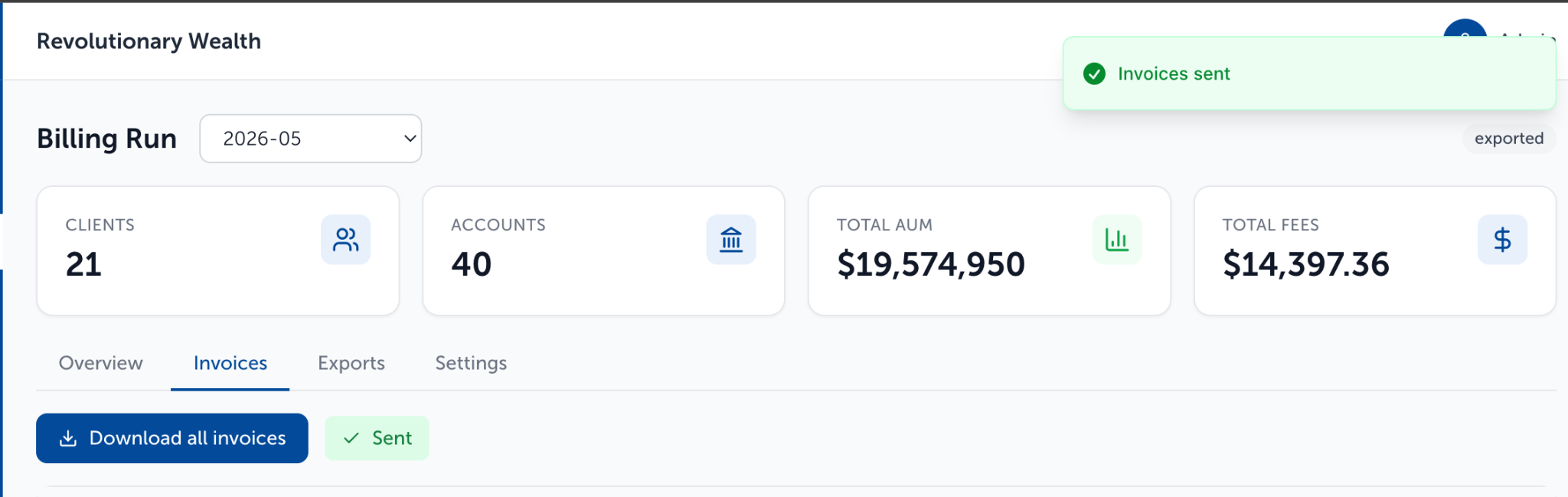
Step 5: Click Send Invoices to push the invoices to client portals - The button is disabled until every client invoice and the bundle read Ready. It reads Sent once they go, and a confirmation appears:
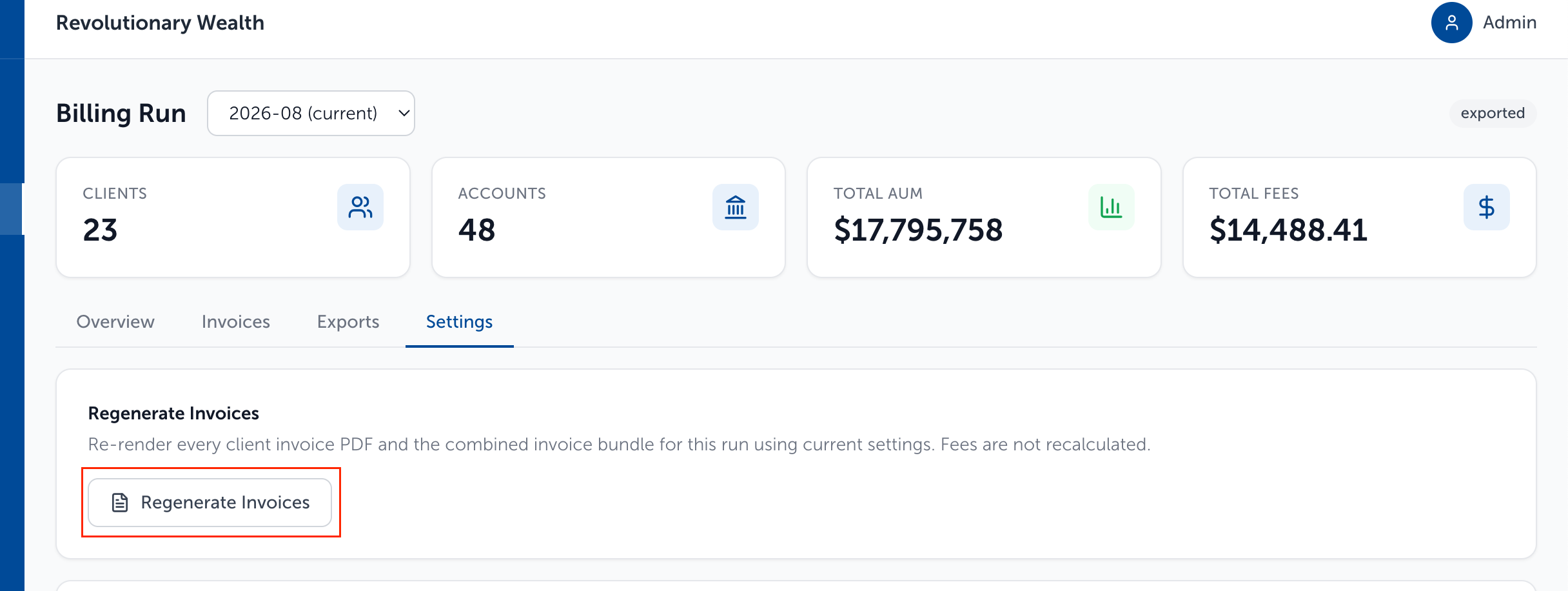
Regenerating Invoices for a Billing Run (without recalculating fees):
- Go to the Billing Run page (must be in exported status)

- Select the Settings tab
- Click the "Regenerate Invoices" button
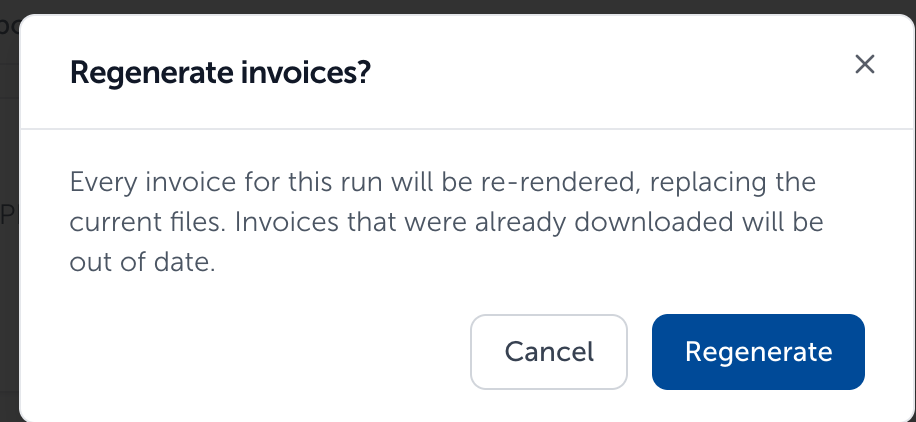
- A pop-up box will appear with more details, click "Regenerate" to begin to process
Need help? Email vipsupport@blueleaf.com with any billing questions, feedback, or issues.