
Blueleaf Billing: Recommended Billing Workflow - Step-by-Step Checklist
Clear Billing Readiness:
- Open the Billing Readiness page to the (current) period
- Open “Data Import Status” and check the feeds:
- Pending means the data is expected and has not arrived
- Inactive means the feed is stale or retired
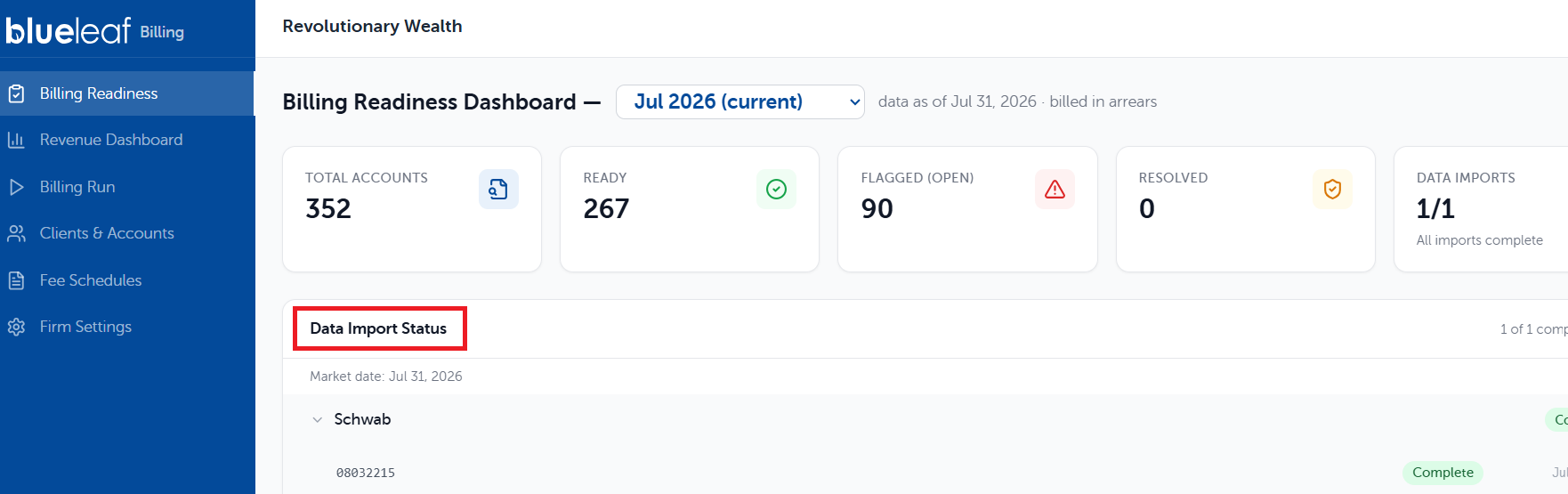
- Leave Status filter on Open and work down the list (the table sorts actionable flags above fyi flags)
- Click Resolve on each row

Work the Billing Run:
- Open the “Billing Run” page (by default this opens to the current period’s run)
The top right corner of the Billing Run will show the status - it will either be in "Draft" , "Approved" , or "Exported" status. Examples below.



- 1.Review Accounts: Check the included, excluded, and flagged counts above the table.
Included:
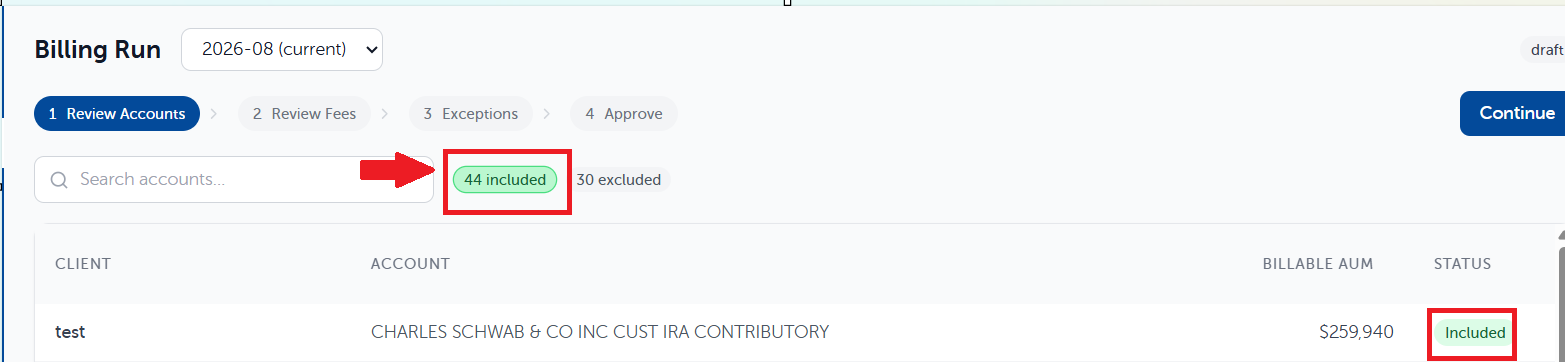
Excluded:

Flagged:

Once done, select "Continue" to move to Review Fees.
- 2.Review Fees: Fees shown by client. Expand a client for Billable AUM, Rate, Monthly/Quarterly Fees, Adjustments, and Final Fee per account. Click “Detail” for the full calculation breakdown
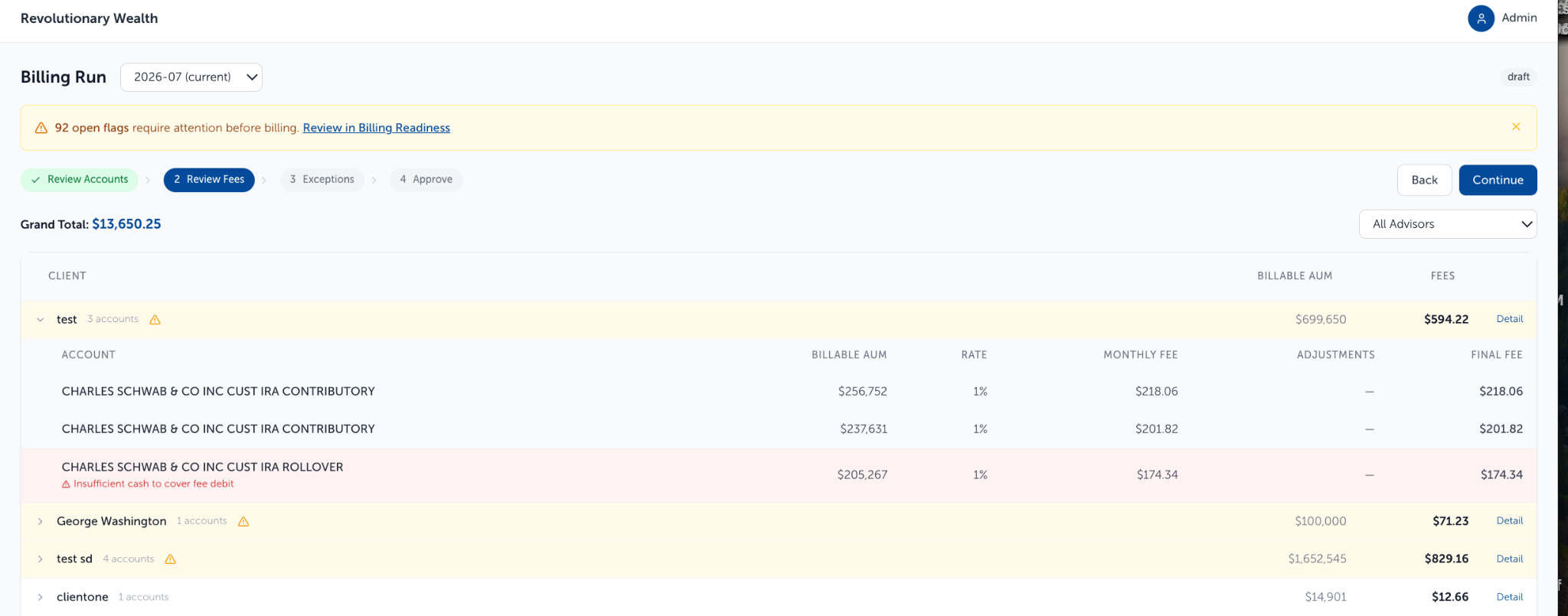
Once done, select "Continue" to move to Exceptions
- 3.Exceptions: Mid-Period Changes lists the accounts opened or closed inside the period and the Proration Factor applied to each. Click Edit to correct the effective date. On a new account, click “Bill full period only (waive proration)” instead. (Terminations take a date only)
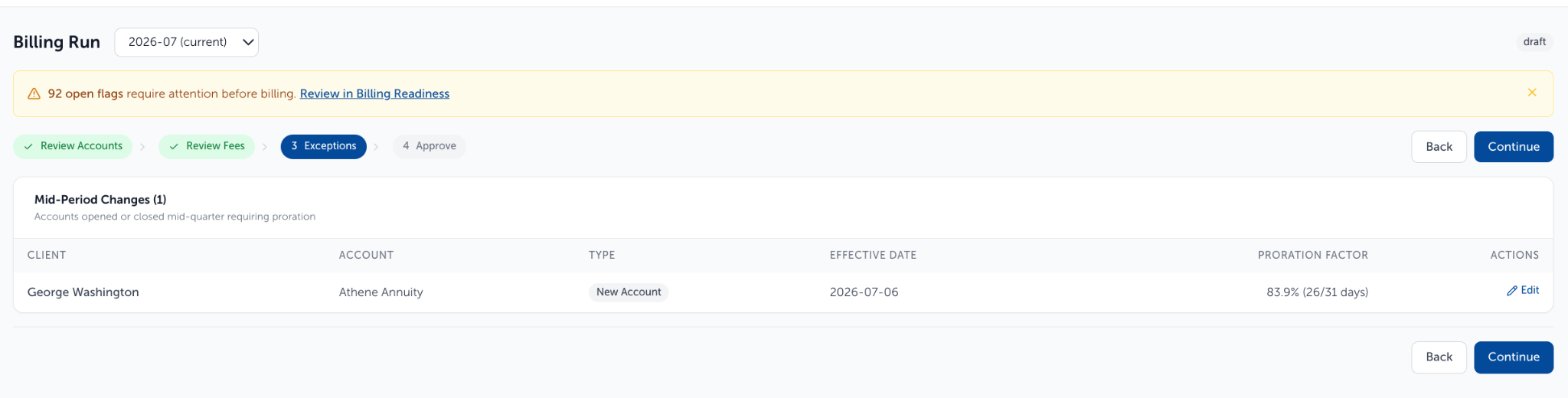
Once done, select "Continue" to move to Approve
- 4.Approve: Read the Billing Run Summary: clients, accounts, exceptions, and Grand Total. Click the “Approve Billing Run” button
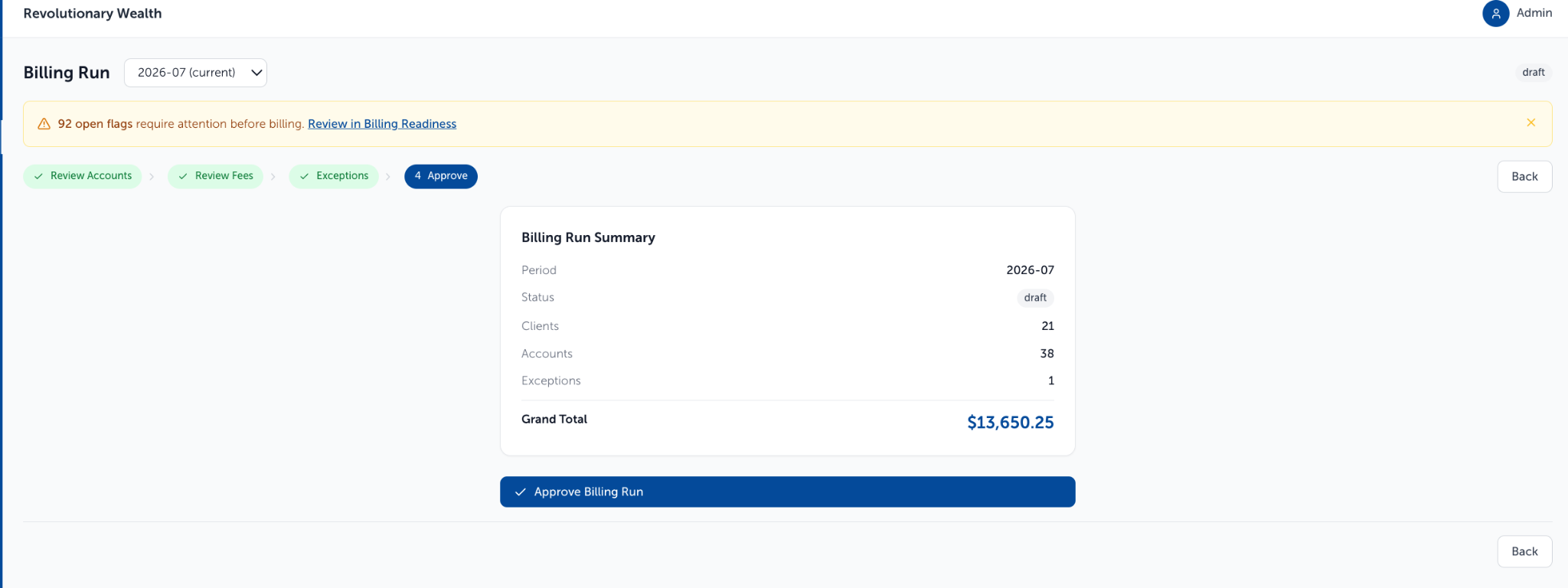
If flags are still open or imports are still incomplete, a banner sits at the top of the draft and links back to the “Billing Readiness” page. This banner does not stop you from approving the billing run.
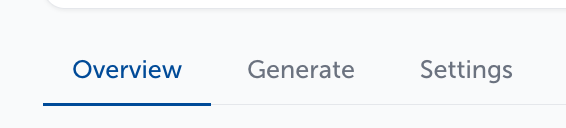
Note: Once the Billing Run is Approved the options menu at the top of the page changes from -

to -
Generate invoices and exports:
- Open the Generate tab on the approved run and click the “Generate Invoices/Exports” button.

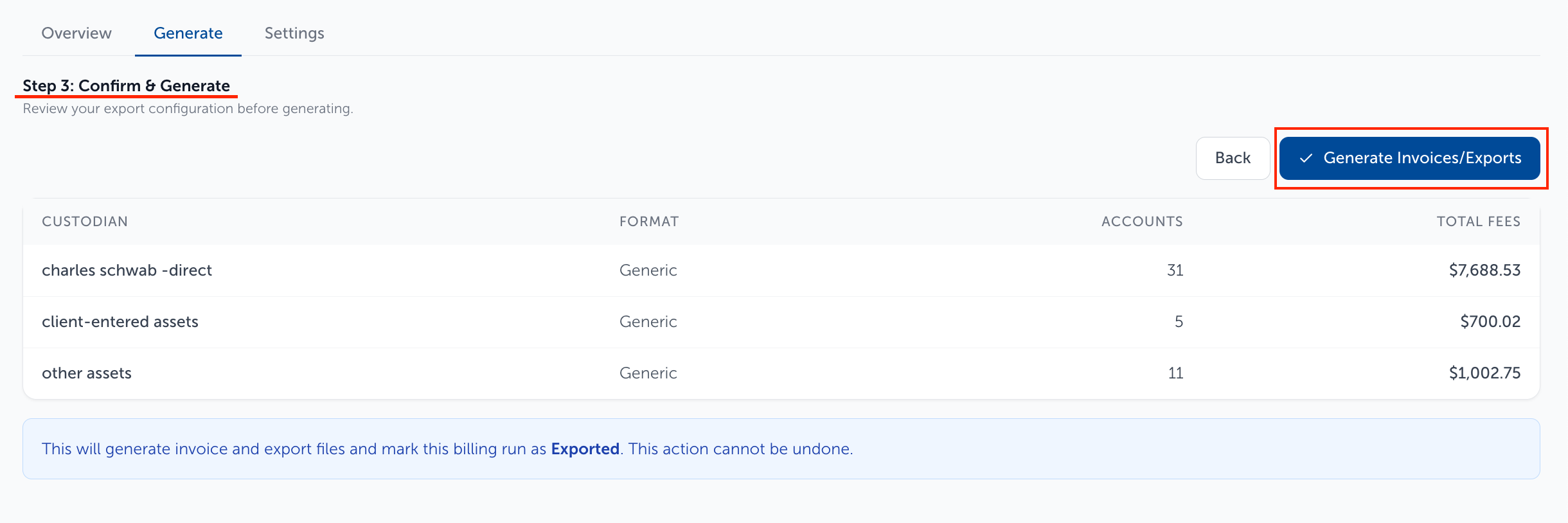
- That starts three steps: 1) Review Custodians, 2) Configure Export Formats, 3) Confirm & Generate. Select "Continue" to move through these three steps.

- Click “Generate Invoices/Exports” on the step 3) Confirm & Generate. The run is then marked exported and that cannot be undone.
Shown as Exported:

A billing run keeps the Billing Frequency, Accounting Method, Valuation Type, and Proration Method that were enabled when it was created. Changing any of these settings in Firm Settings reaches the next run, not one already under way.
Need help? Email vipsupport@blueleaf.com with any billing questions, feedback, or issues.