
Blueleaf Billing: Fixing a Rejected Custodian Upload
The rejection happens on the custodian’s side, so the run keeps its exported status and the files it already generated. If the upload broke off part way and the file itself was sound, download it again. Open the run, go to the Exports tab, and click Download beside the custodian. The date and time of the last download show beside the button.
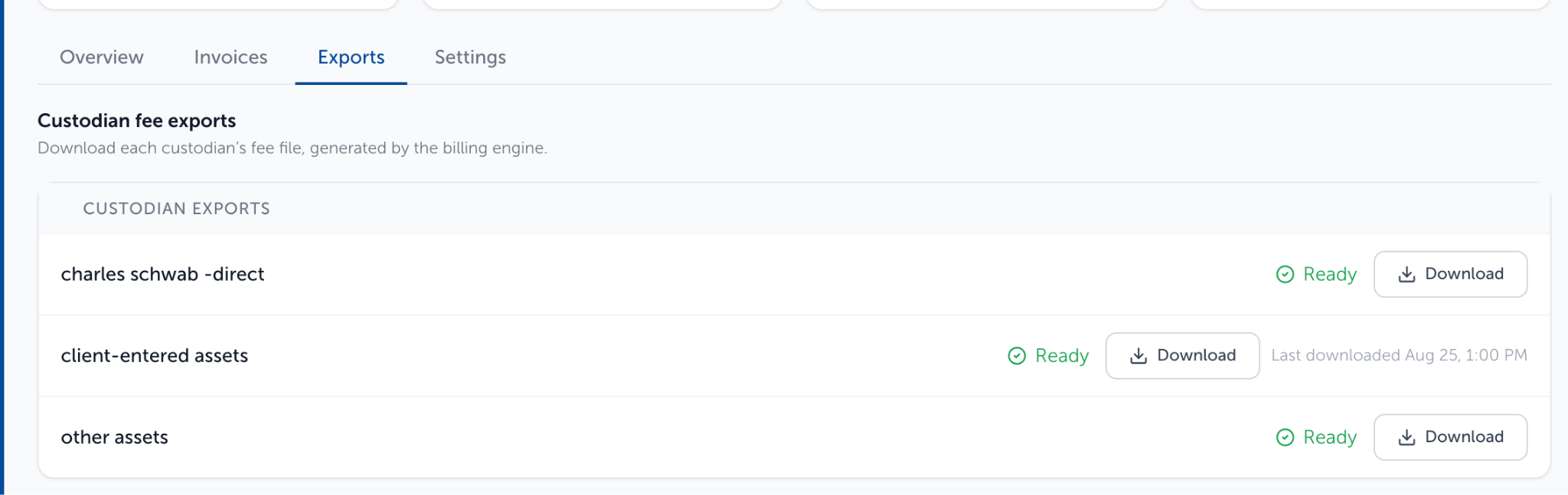
Otherwise, start from the reason the custodian gave to fix then produce a new export file.
The layout is wrong:
The format is set per custodian. On an approved run, open the "Generate" tab, click the "Generate Invoices/Exports button", then click "Continue" past “Step 1: Review Custodians” to “Step 2: Configure Export Formats”.
Each custodian gets Generic, Custodian format, or Custom

Generic - lists the account number, and fee amount
Custodian format - lists the custodian formats. The entry matching that custodian is selected for you when the list holds one, and the rest stay selectable.
Custom - uses a format you build. Choose Custom, click Manage custom formats, then New format. Set Name, set Include header row, and click the columns you need under Additional columns. Each clicked column has an available header override, so the heading matches the wording the custodian expects. Custom formats belong to the firm and stay available for later runs.
The custodian does not recognize an account number:
Account numbers come from the account record in Blueleaf. We recommend double checking that the account in question is still active at the custodian/repcode, and if it is not then proceed with the steps to exclude or terminate the account in Blueleaf Billing.
A fee is set against the wrong account:
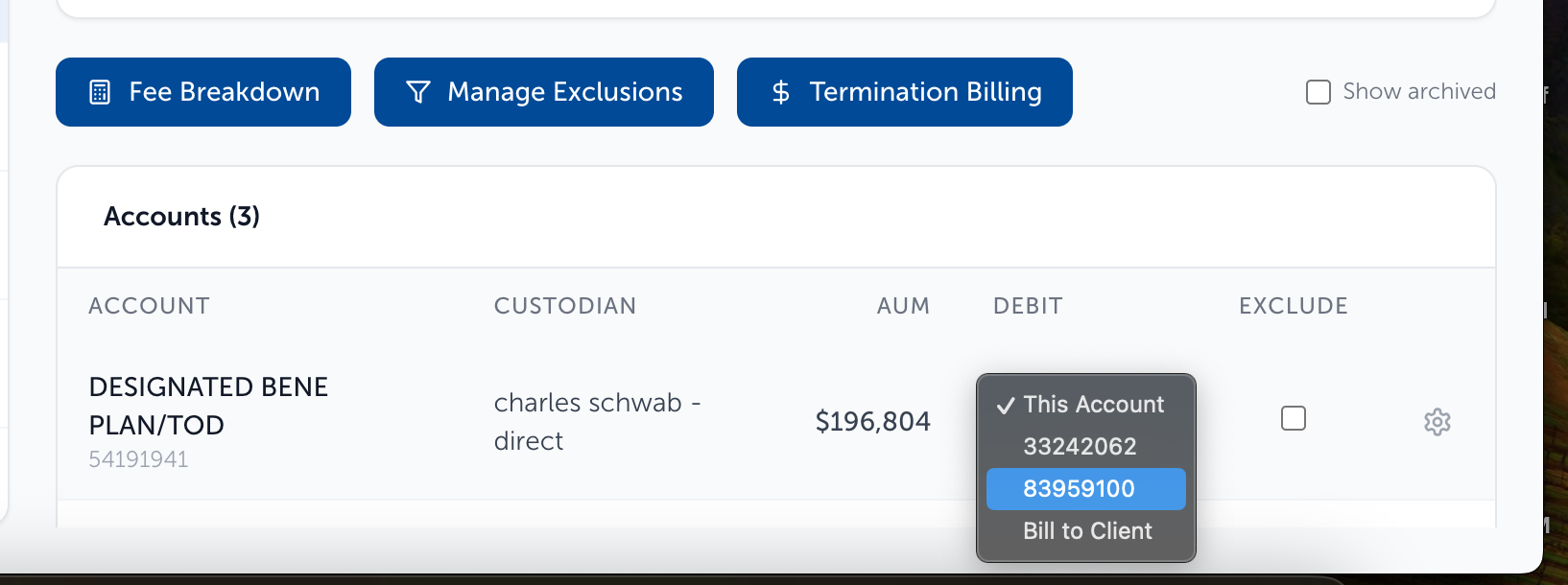
The Debit column on the client’s accounts table sets which account a fee comes out of. Pick another of the client’s account numbers to take it from that account instead, including one held at a different custodian. The “Bill to Client” option keeps the fee out of the custodian debits and groups it on its own at export.
Producing the corrected file:
Once a run is exported, its Exports tab offers downloads only. Go to the Settings tab and click "Re-run Billing". That creates a new draft billing run with recalculated fees and preserves the exported run as a historical record. Work through Review Accounts, Review Fees, Exceptions, and Approve, then generate the export again with the corrected format.
Reporting a Custodian File Format Change:
The entries under the “Custodian” format option are maintained by Blueleaf, not by your firm. Send Blueleaf support the custodian’s new specification and the entry is corrected centrally. Contact Blueleaf support at vipsupport@blueleaf.com
Send four things:
- The custodian, named as it appears in Step 1: Review Custodians.
- The name of the entry you pick under Custodian format in “Step 2: Configure Export Formats”.
- The custodian’s own specification for the new layout: the column headers, whether the file carries a header row, the delimiter, and the file extension.
- The file the custodian rejected, if they returned one.
While you wait:
If the change is an extra column or a different header on one, a “Custom” format could cover what you need. A custom format offers an Include header row toggle and six additional columns, each with its own header name. It has no delimiter or file extension setting.
After the entry is updated:
The catalogue is shared, so the corrected entry appears in your Custodian format list with nothing to set up at your end. Choose it the next time you export.
A run you already exported keeps the file it produced, and the Exports tab offers downloads from then on. To produce a fresh file for that cycle, open the run’s Settings tab and use Re-run Billing. It creates a new draft with recalculated fees. Approve that run, then export it with the corrected format.
Need help? Email vipsupport@blueleaf.com with any billing questions, feedback, or issues.