
Blueleaf Billing: Exporting Payments File
The Export tab on the Billing Run page produces one export file per custodian, and you pick the format for each one. The Exports tab offers the workflow only on an approved Billing Run.
Exporting Your Billing File:
Open the approved Billing Run and go to the Exports tab. Use the dropdown on the right to switch between each custodian and the Bill to Client bucket, and review the debit amounts you are about to send. When everything looks correct, click Generate Invoices/Exports to proceed.

- Step 1: Review Custodians - Each custodian with its account count and total fees. Click Continue.
- Step 2: Configure Export Formats - Choose Generic, Custodian format, or Custom for each custodian.Continue stays disabled until every custodian has a format chosen.
- Generic needs no further choice.
- Custodian format opens a list of the built-in formats, with the format for that custodian selected when one matches.
- Custom opens a list of your own formats, plus Manage custom formats to build one without leaving the step.

- Step 3: Confirm & Generate - The table shows the format, account count, and total fees for each custodian.

- Click the "Generate Invoices/Exports" button - this produces the invoices and the export files, and marks the run exported. It cannot be undone, but can be re-run.
The Exports tab then lists one export per custodian. Each row reads “Generating” until its file is finished, then “Ready” with a Download button, and shows when you last downloaded it.
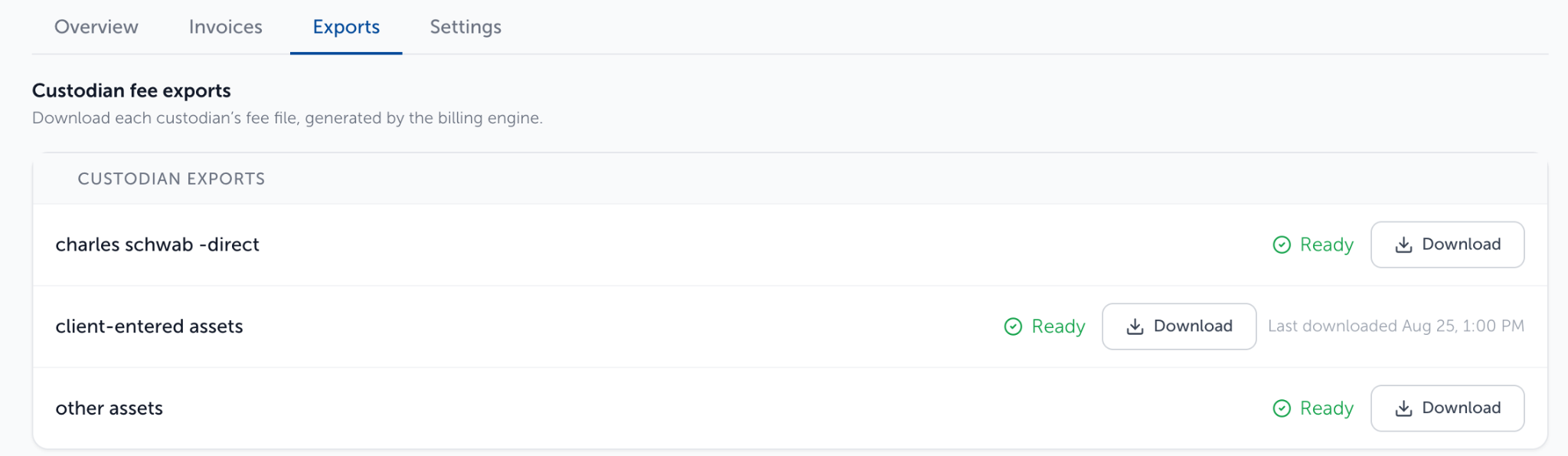
Fees set to Bill to Client sit in their own row below the custodian exports, with their account count and total, and View to see the accounts.
Regenerating Exports for a Billing Run (without recalculating fees):
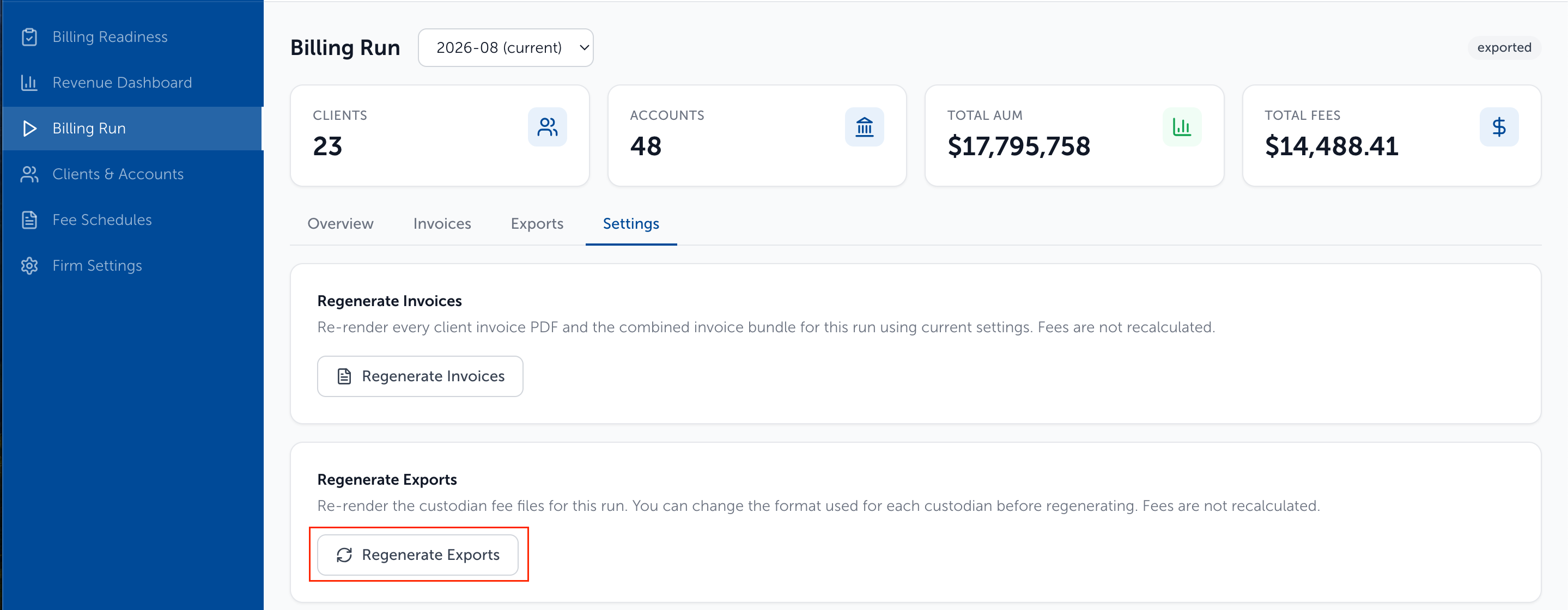
- Go to the Billing Run page (must be in exported status)

- Select the Settings tab
- Click the "Regenerate Exports" button
-
This will bring you back to the Exports tab where you can follow the steps to verify and regenerate the export files
Need help? Email vipsupport@blueleaf.com with any billing questions, feedback, or issues.