
Blueleaf Billing: Running Your Bill
When you open the Billing Run page, it always opens to the current billing run. The dropdown menu beside the title allows you to switch to previous billing runs or the projected billing run. As you navigate through each step, click "Continue" to move onto next step.
The Billing Run page moves through four steps:
- Review Accounts
- Review Fees
- Exceptions
- Approve
1. Review Accounts:
Verify the accounts that will be included in the billing run.

The filters above the grid allow you to switch between included, excluded, and flagged. There is a search box that filters by client or account name. The flagged filter appears only when the run has flagged accounts.

A banner may appear above the steps when open flags or incomplete data imports exist, but it does not stop you continuing, and the X dismisses the banner.

2. Review Fees:
In the Review Fees section, fees are grouped by client. You may filter by the “All Advisors” drop-down filter which will narrow the list to one advisor. The Grand Total amount changes with that filter.
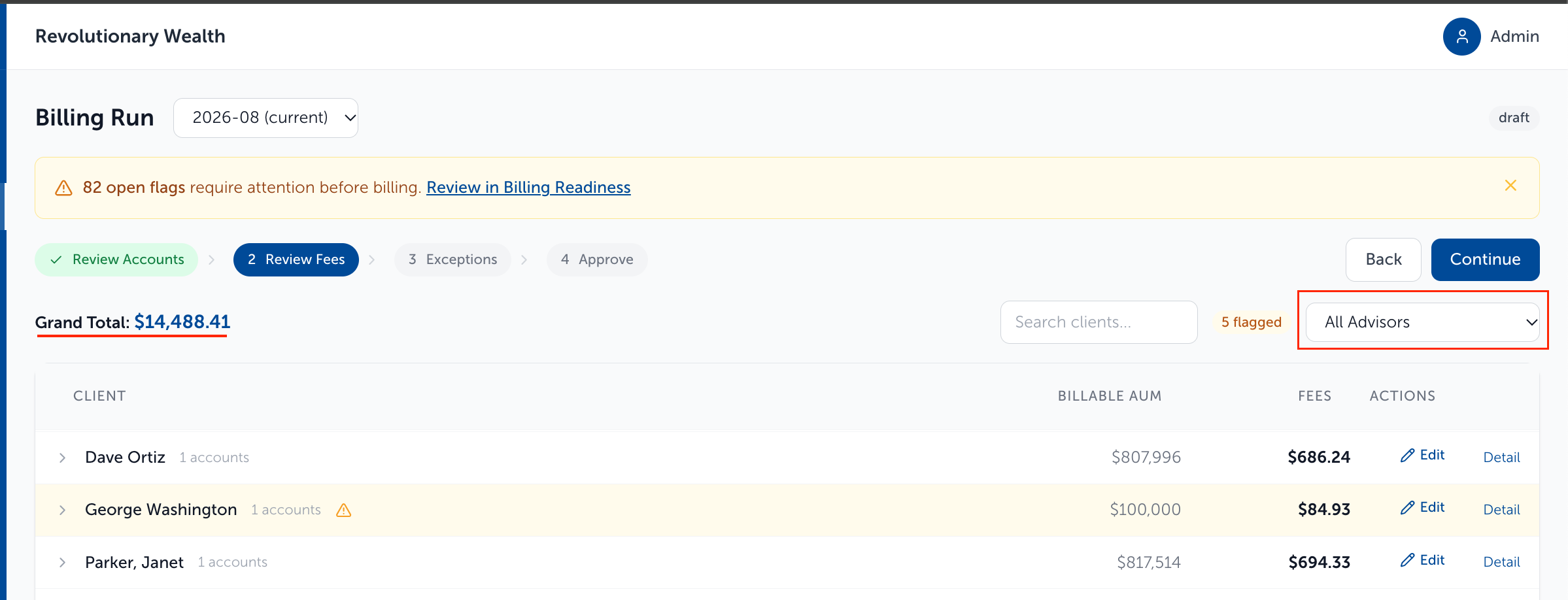
You can use the “>” icon to expand any client to see each account’s Billable AUM, Rate, Quarterly Fee, Adjustments, and Final Fee:


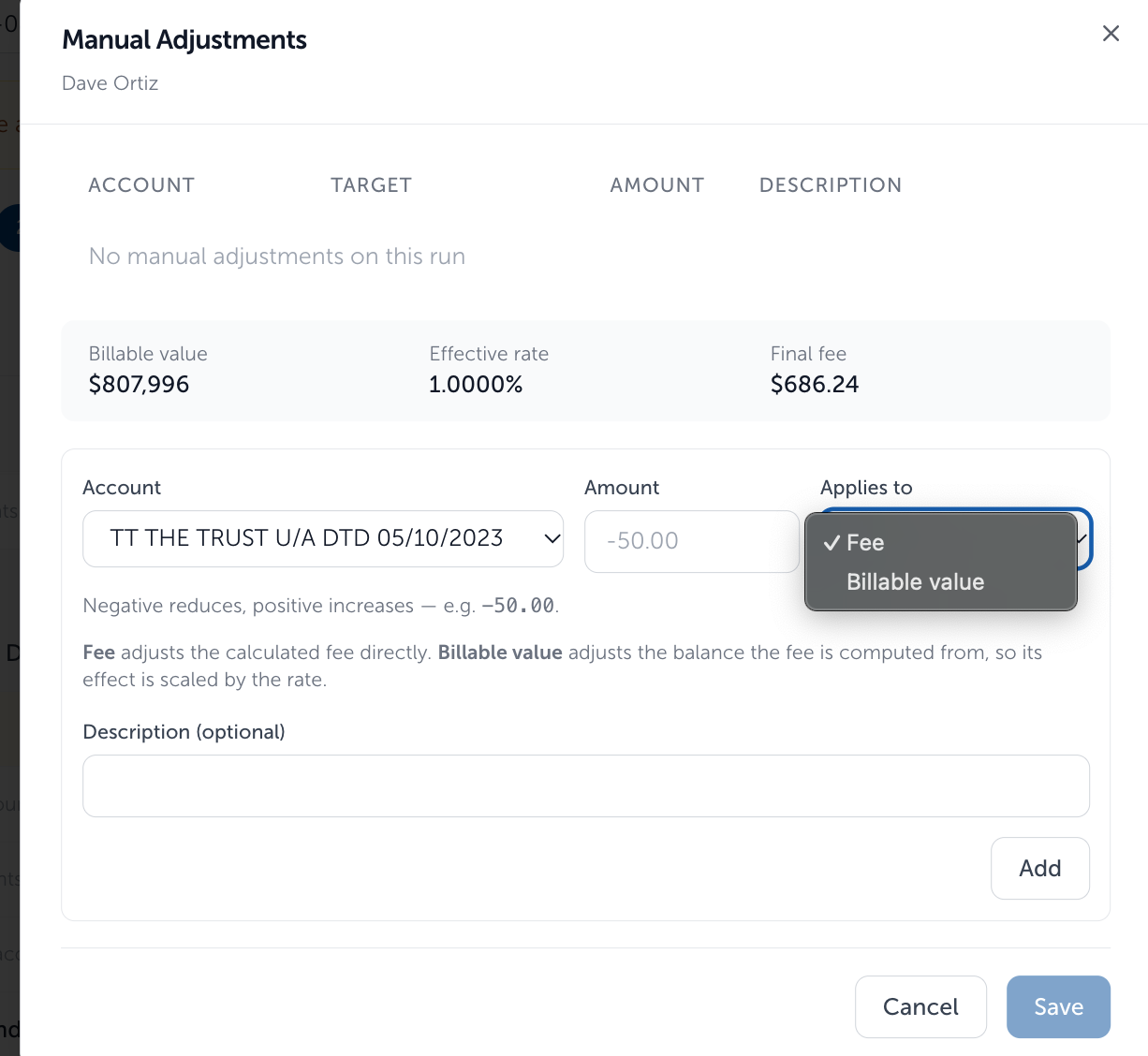
The "Edit" button allows you to edit the billable value or fee for an account. Use the Account drop-down menu to pick the account, enter an amount, and select "Fee" or "Billable value" from the Applies to drop-down menu. You can enter an optional description note. Click "Save" to make the change.
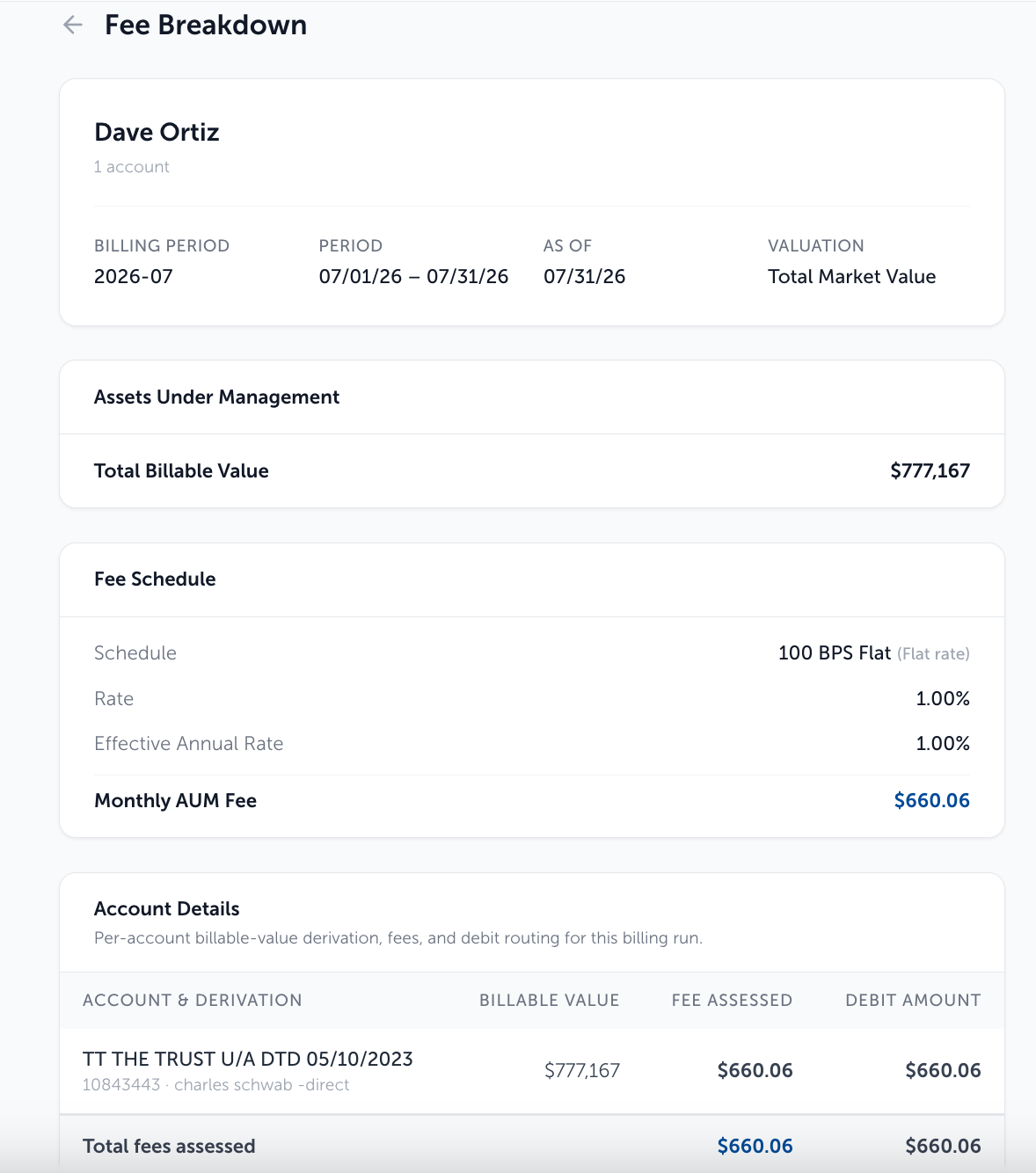
The “Detail” button opens the Fee Breakdown for that client:
3. Exceptions:
In the Exceptions step, the Mid-Period Changes lists accounts opened or closed inside the period including descriptors such as Type, Effective Date, and Proration Factor (shown as a percentage and a day count)
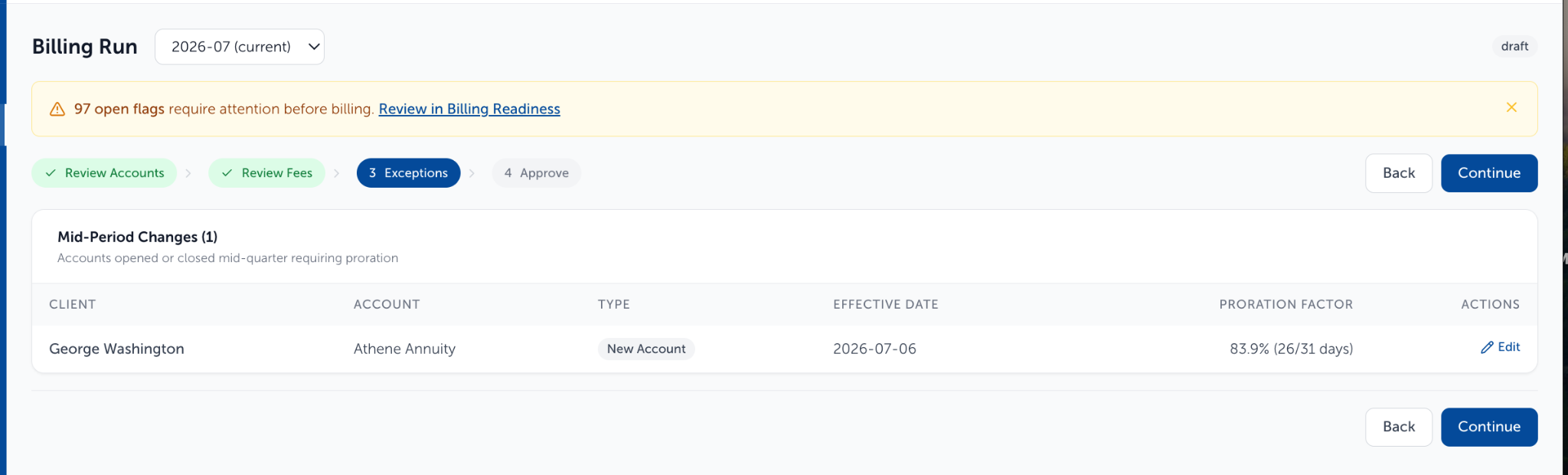
Click “Edit” to open Edit Effective Date and correct the date if needed. The date has to fall inside the run’s period.
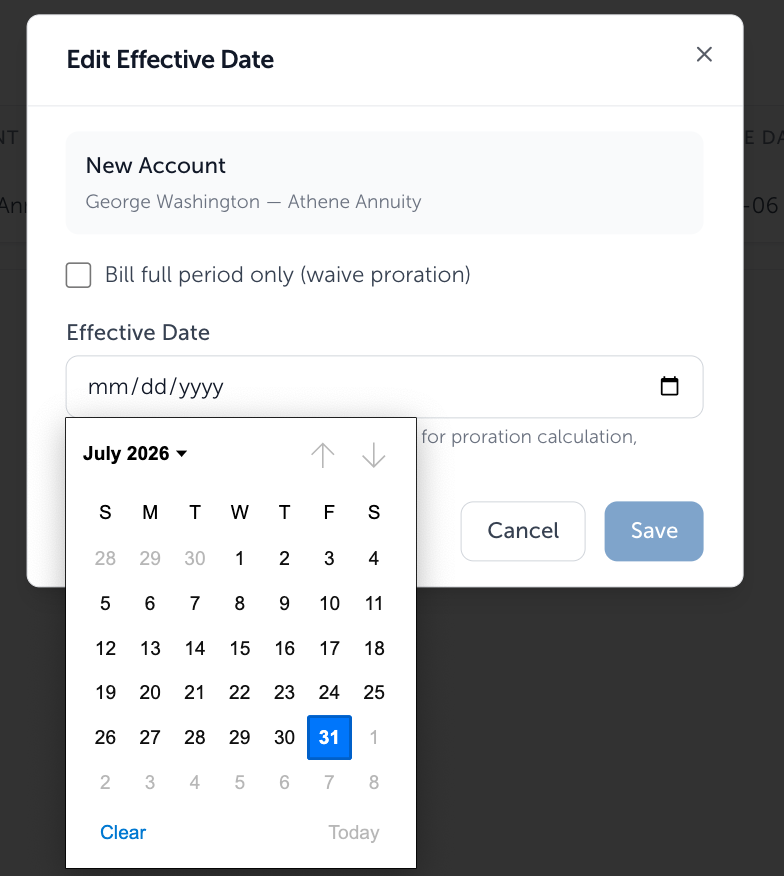
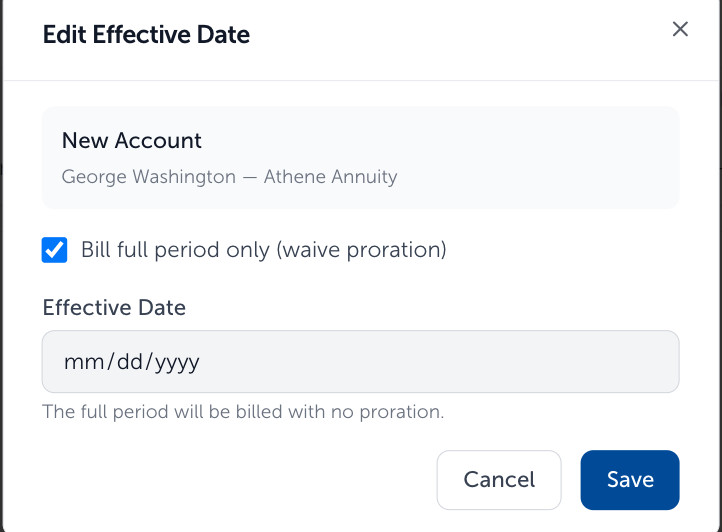
For a "New Account", click “Bill full period only (waive proration)” to bill the whole period instead. Clicking this disables the date field, and the row then reads Full period. Termination rows take a date only.
4. Approve:
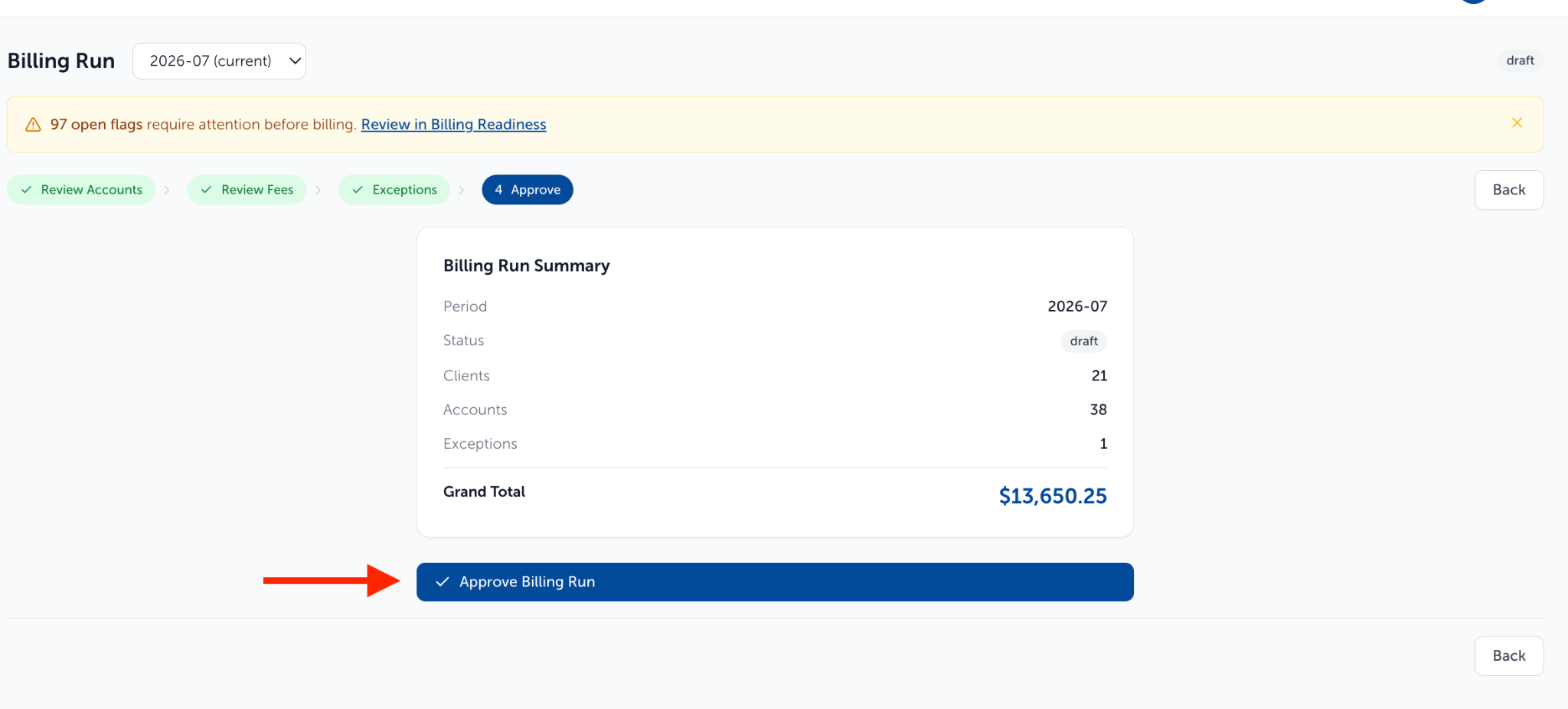
The Approve section of the Billing Run lists Period, Status, Clients, Accounts, Exceptions, and Grand Total for clients/accounts that were included in Step 1: Review Fees.
Click Approve Billing Run which changes the status to approved and the run reopens with its Overview, Generate (Invoices/Exports), and Settings tabs.
Need help? Email vipsupport@blueleaf.com with any billing questions, feedback, or issues.