
Blueleaf Billing: Switching Between Billing Cycles
By default, the Billing Run page opens on the current billing cycle, and is marked (current). You may use the drop-down menu next to the “Billing Run” heading to choose a prior billing cycle’s Billing Run or the projected cycle's Billing Run. The projected cycle's Billing Run offers the ability to review projected fees for a specific client, and also make manual adjustments ahead of time.

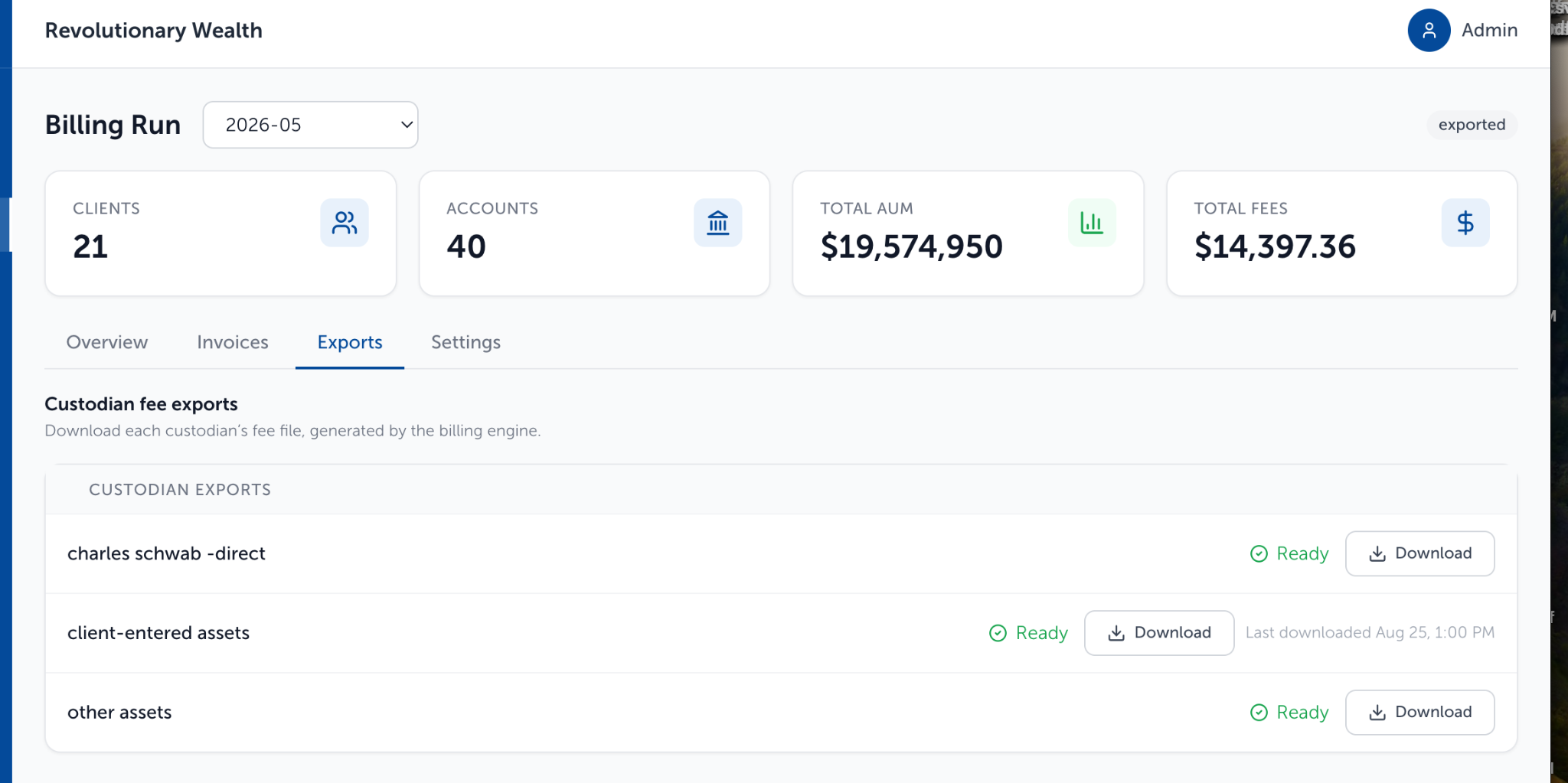
The status badge on the right will state draft, approved, or exported based on the status of the run you are viewing.
Reviewing a past cycle:
A previous period with an approved status displays the previous periods' "Overview, Generate, and Settings" tabs. A previous period with an exported status displays the previous periods’ “Overview, Invoices, Exports, and Settings” tabs.
- Overview: Displays the per-client fee amounts with a grand total display
- Generate: Configure formats and generate the invoices and payment files
- Invoices: Displays each client’s invoice, and has a “Download All Invoices” or "Send Invoices" button
- Exports: Manages the payment files for each custodian that was exported
- Settings: Allows you to rerun the billing run while maintaining the numbers from the original run for record keeping
Getting the files again:
On the Exports tab, click Download beside a custodian’s export file. A time stamp for the last time the file was downloaded will show next to the button. Nothing regenerates; you get the file produced when the run was exported.
Need help? Email vipsupport@blueleaf.com with any billing questions, feedback, or issues.