
Blueleaf Billing: Understanding Billing Anomaly Alerts
An AUM Anomaly flag or Fee Change Anomaly flag means an account moved more than your threshold against the prior period. Both flags come from the thresholds (%) set in the Billing Readiness Settings in Firm Settings. Both types are fyi which means they do not stop you approving a billing run.
- AUM Anomalies: flag watches the account’s AUM.
- Fee Change Anomaly: flag watches the fee.
Select the Billing Run at the top of the Billing Readiness Dashboard, then set the Type dropdown to AUM Anomaly or Fee Change Anomaly.

The Description column details the size of the move and the figures behind it. It truncates in the table, and the “Resolve” button shows the details in full.
Resolving these flags:
Click Resolve on the row. The dialog shows the flag and its description, and gives you a Resolution Notes box. Write what you found and click “Mark as Resolved”
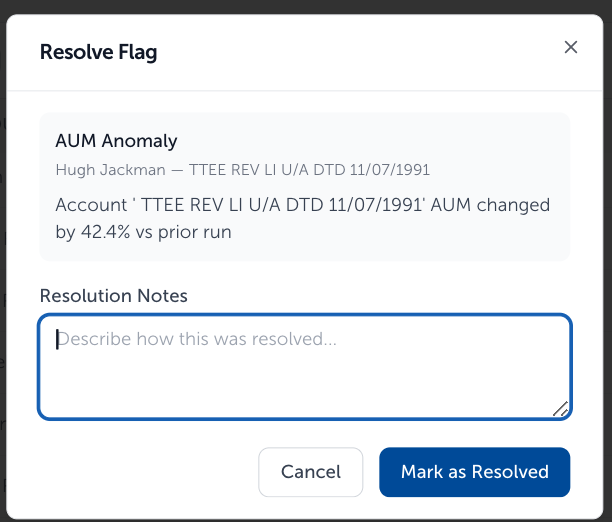
Resolving records the check. It does not change the fee. The entry lands in the Compliance Log with the date, the client, and the account.
Bulk Resolving Flags:
There is the ability to bulk resolve certain billing readiness flags, including insufficient cash and aum/fee anomalies. Other flags are typically actionable and ask for a specific action (eg: assigning a fee schedule), so those are not bulk resolvable.
Using the checkboxes available to the left of the flag to select then click "Resolve". A pop-up box will appear where you can then add a resolution note, and click "Resolve" to save.


Undo Billing Readiness Flag:
On the Billing Readiness page, click the "Resolved" status filter then click "Undo" in the action column for the reopen the resolved flag:

A pop-up box will appear asking you to confirm the change by clicking "Reopen flag":

Where they show up in a run:
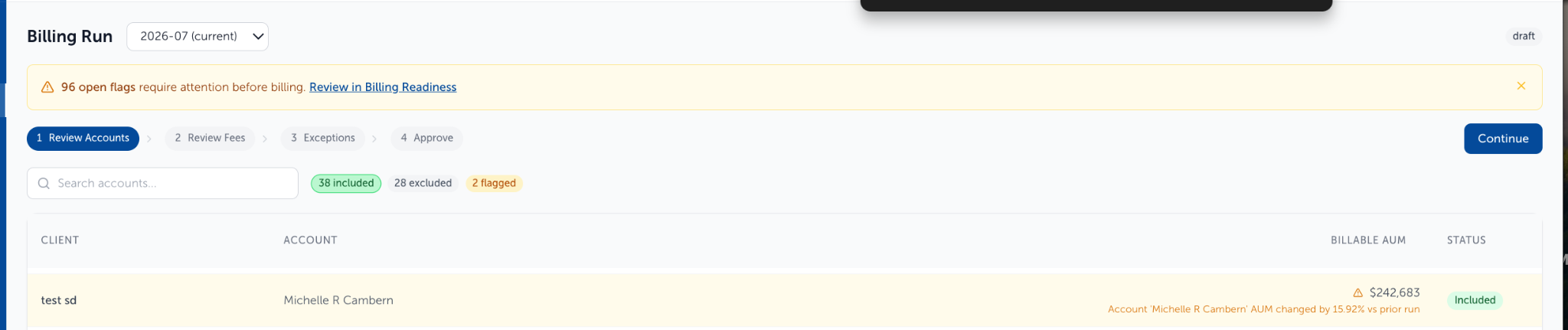
A Billing Run in Draft status shows a banner with the count of open flags and a link, “Review in Billing Readiness”. You can click this link to access the flag details:

An open AUM Anomaly highlights the account in Review Accounts, with the description under its Billable AUM and a flagged filter beside the included and excluded counts.
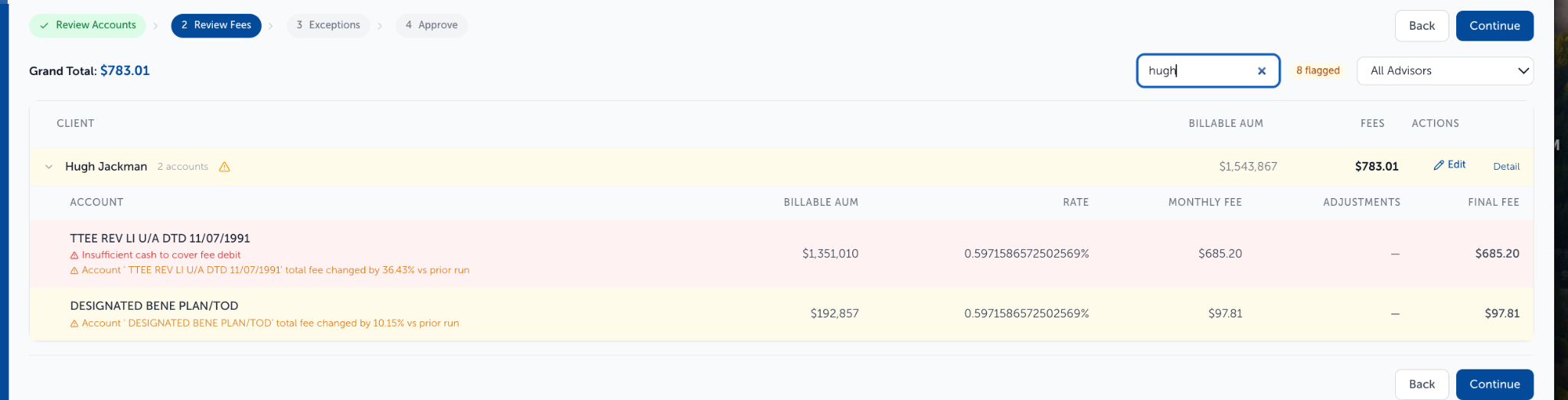
An open Fee Change Anomaly shows under the account name in Review Fees.
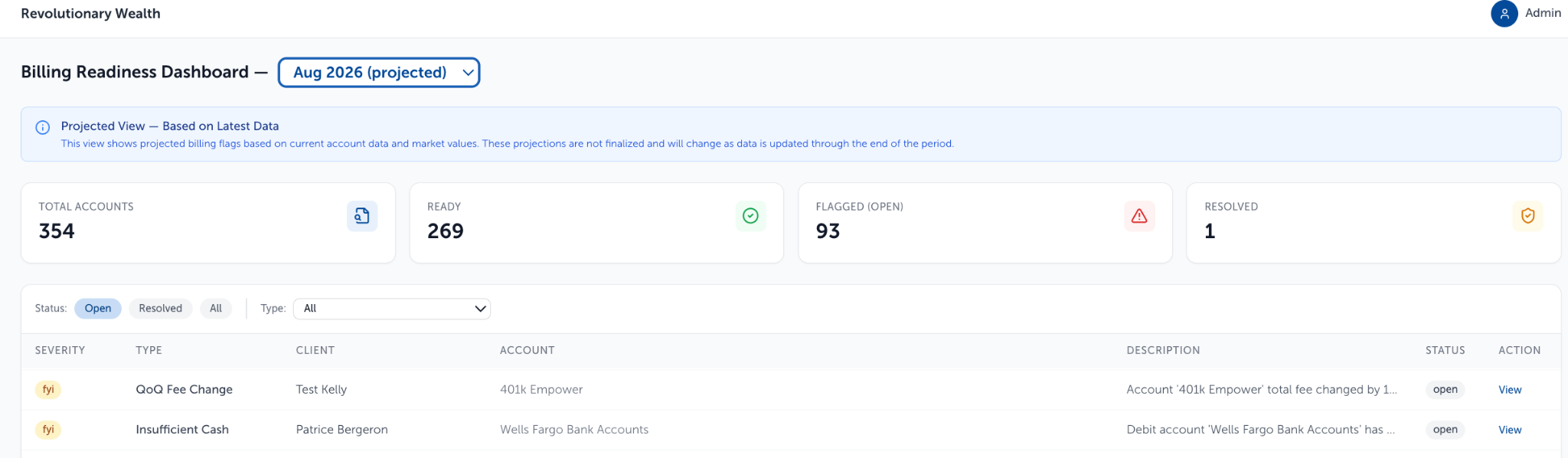
On the projected run, these flags are estimates from current data. The row action is View, not Resolve.
Need help? Email vipsupport@blueleaf.com with any billing questions, feedback, or issues.