
Blueleaf Billing: Billing Readiness Overview
The Billing Readiness Dashboard lists everything the billing run flagged for review and lets you clear each item before you bill. Billing Readiness opens on the current or projected billing run, with the line beside the current run showing the "data as of date" and whether you bill in advance or arrears.
The tiles across the top show Total Accounts, Ready, Flagged (Open), Resolved, and Data Imports (for current not projected). Data Imports applies only to custodial feeds and has its own Data Import Status card (see Checking Data Import Status below for more information):

Actionable and fyi:
Every flag carries one of two severity levels
Actionable - means the row needs user action before you bill.

fyi - is informational and does not block billing.

Filter with Status - Open, Resolved, or All, or with the Type drop-down to filter for a single flag type.

Resolving a flagged row:
Each row names the flag severity, flag type, the client and account, and the description.
Several types of flags offer the fix in the prompt itself when you click Resolve:
- No Schedule - Pick a fee schedule for the client, or leave it unset and resolve with a note.
- Missing Data - Click Exclude this account from billing if the account is closed or is no longer expected to update. That sets the same Exclude checkbox as in the client’s accounts table, so it carries forward.
- Unassigned Accounts - Accounts are assigned in Blueleaf. The prompt carries an “Open the Blueleaf Dashboard” link. Come back to billing and resolve once they are assigned.
- Combined Billing Partner Missing - The prompt carries a View client link, so you can fix the client’s combined billing.
- New Account - Adjust the Effective Date used for proration, or click the “Bill full period only (waive proration)” option
Write Resolution Notes and click Mark as Resolved. The note is stored with the flag in the Compliance Log at the bottom of the page to read it back, dated, with the client and account.
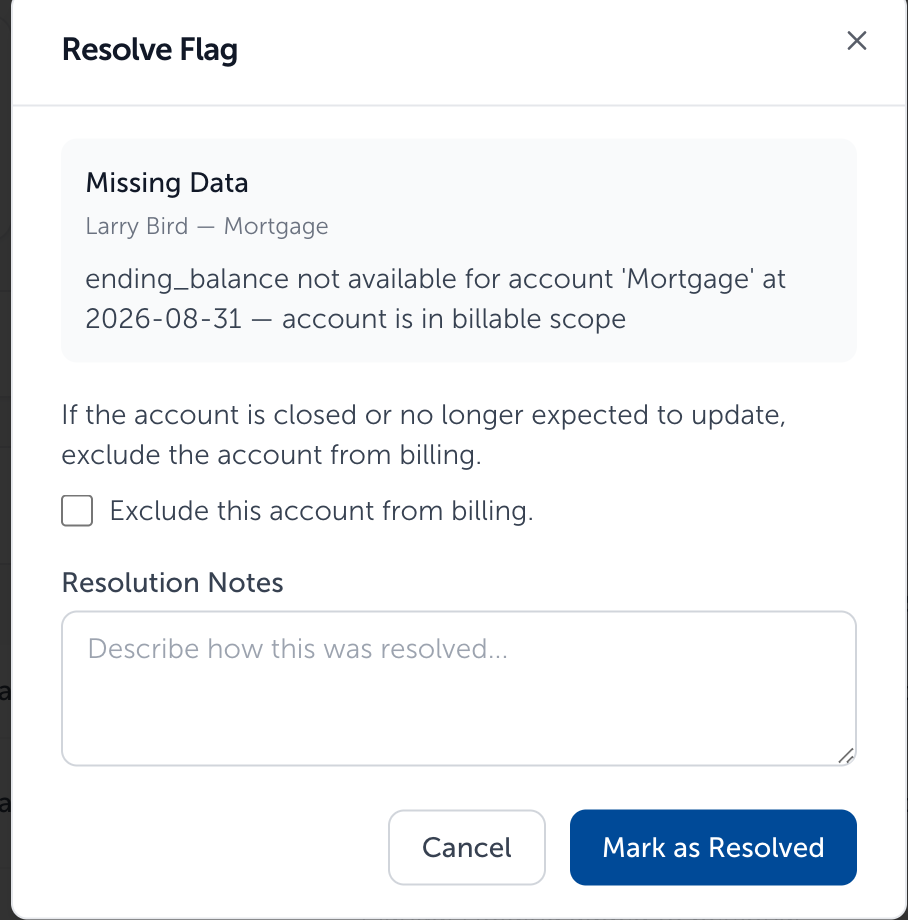
Note: Resolving flags needs the appropriate role permissions, and without the right permissions the Resolve button is disabled.
Bulk Resolving Flags:
There is the ability to bulk resolve certain billing readiness flags, including insufficient cash and aum/fee anomalies. Other flags are typically actionable and ask for a specific action (eg: assigning a fee schedule), so those are not bulk resolvable.
Using the checkboxes available to the left of the flag to select then click "Resolve". A pop-up box will appear where you can then add a resolution note, and click "Resolve" to save.


Checking Data Import Status:
Data Import Status tells you whether each custodian has sent the balances your run needs. Check it before you bill. Expand a custodian to see the feeds beneath it, each with its own status and the date data last arrived.
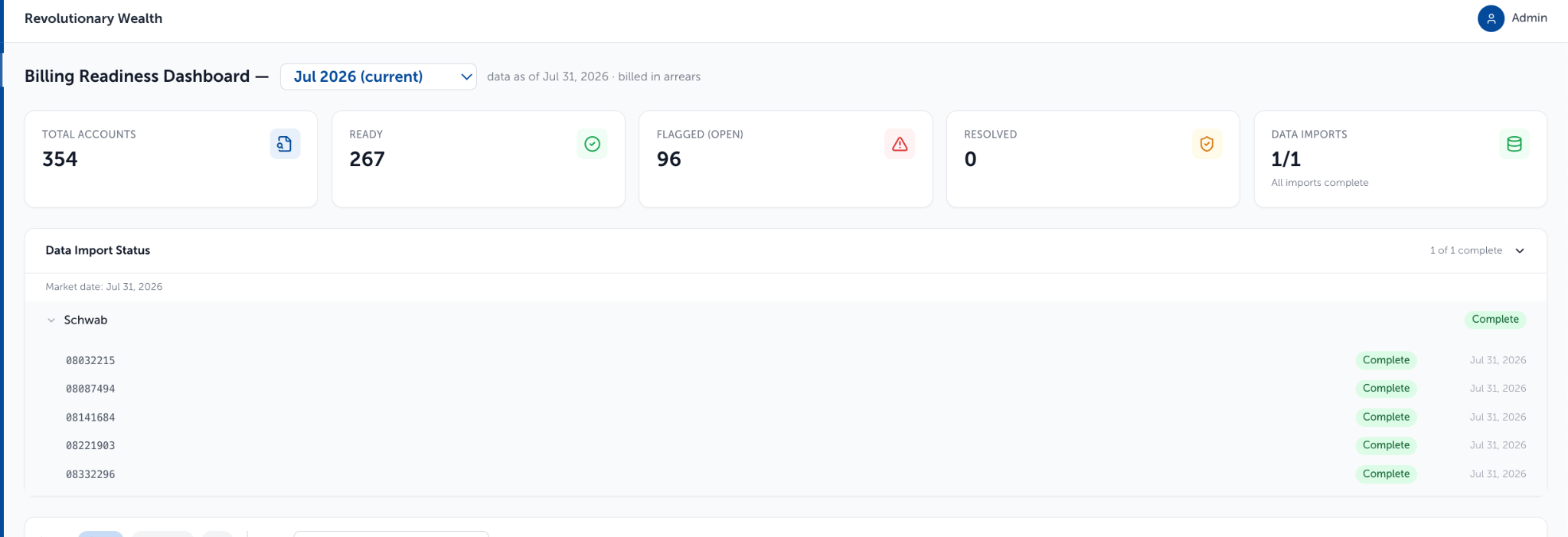
Go to Billing Readiness. The Data Imports tile shows how many custodians have reported, and the Data Import Status card below breaks that down by custodian. Click the card header to open it. The header carries the same count, as “1 of 2 complete”.

Custodian Statuses:
Complete: Every feed for that custodian reported on that date. Good to bill.
Pending: Data is expected, but has not been imported. Check again later.
Inactive: The feed is stale or retired, and it does not hold up a run.
Open a Billing Run in draft status while a custodian status is “Pending”, and the run shows an amber warning naming that custodian.
This covers custodial feeds only. Held-away accounts are not reported here; check those directly in Blueleaf: https://secure.blueleaf.com/advisor/accounts
Projected run drop-down:
The dropdown beside the title also offers a projected run, built from current account data and market values before the period closes. For projected runs, many fyi flags show “View” instead of “Resolve”, and its figures change as data arrives. The Data Import Status card and the Compliance Log show on the current run only.

Need help? Email vipsupport@blueleaf.com with any billing questions, feedback, or issues.