
Blueleaf Billing: Excluding an Account from Billing
This article covers the steps for excluding an account from Blueleaf Billing. Use Exclude when an account should remain on the client but should not be billed—for example, when assets have moved to another custodian or the account is outside your advisory agreement.
- Go to Clients & Accounts and select the client.
- Find the account you want to exclude in the account table.
- Select the Exclude checkbox on the account row.
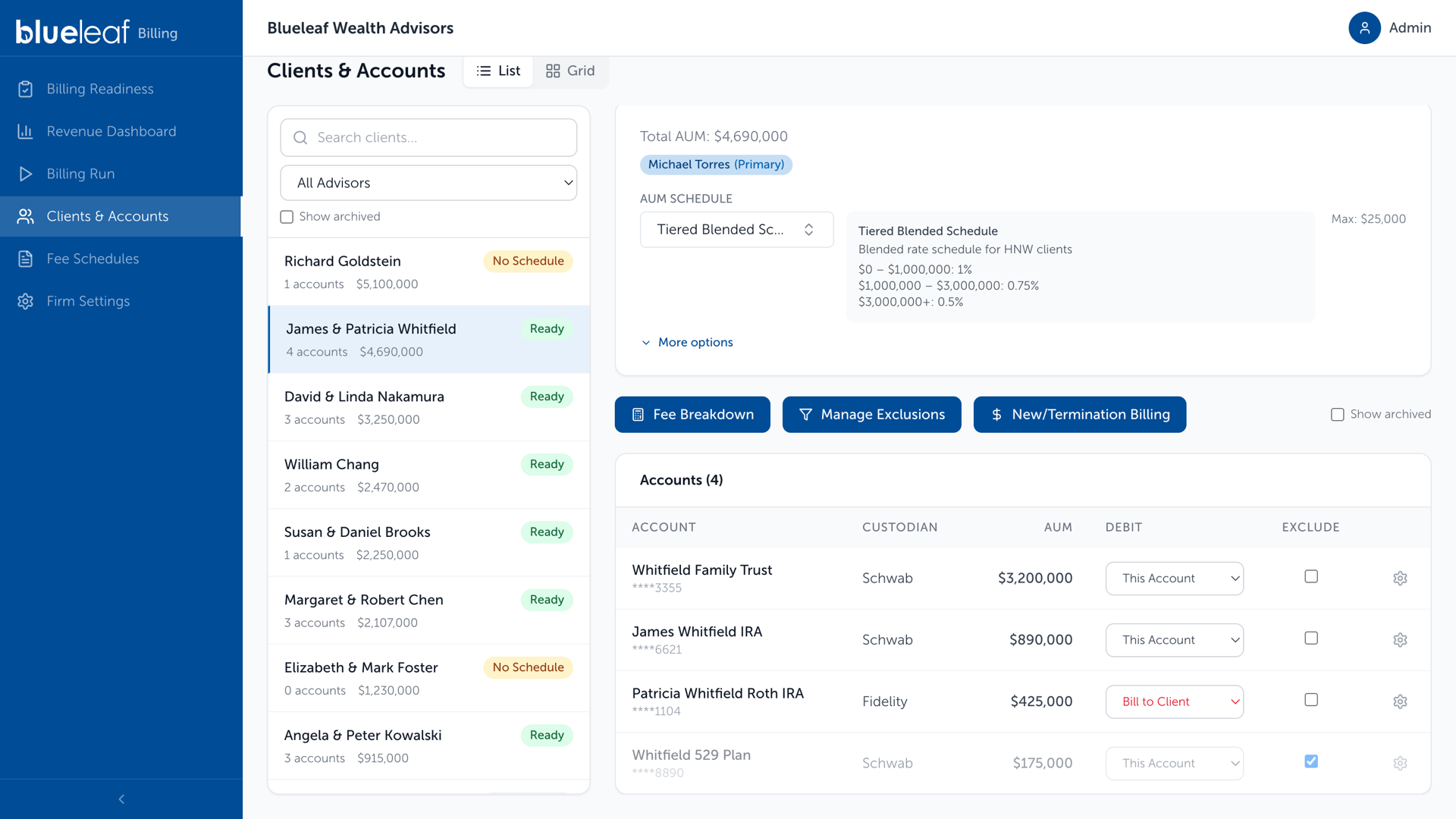
- Confirm that the row is greyed out. The account remains on the client and keeps its balance, but it no longer produces a fee.
- To exclude accounts in bulk, click "Grid" next to Client & Accounts
- Select the "Accounts" tab
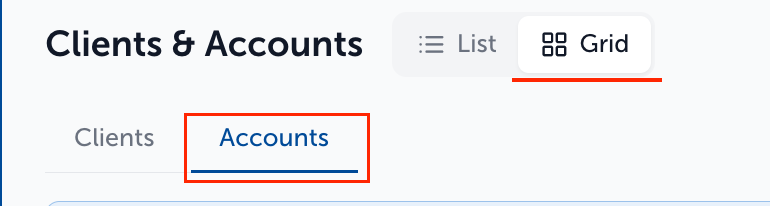
- Select all accounts you wish to exclude
- Select "Exclude from Billing" from the action drop-down
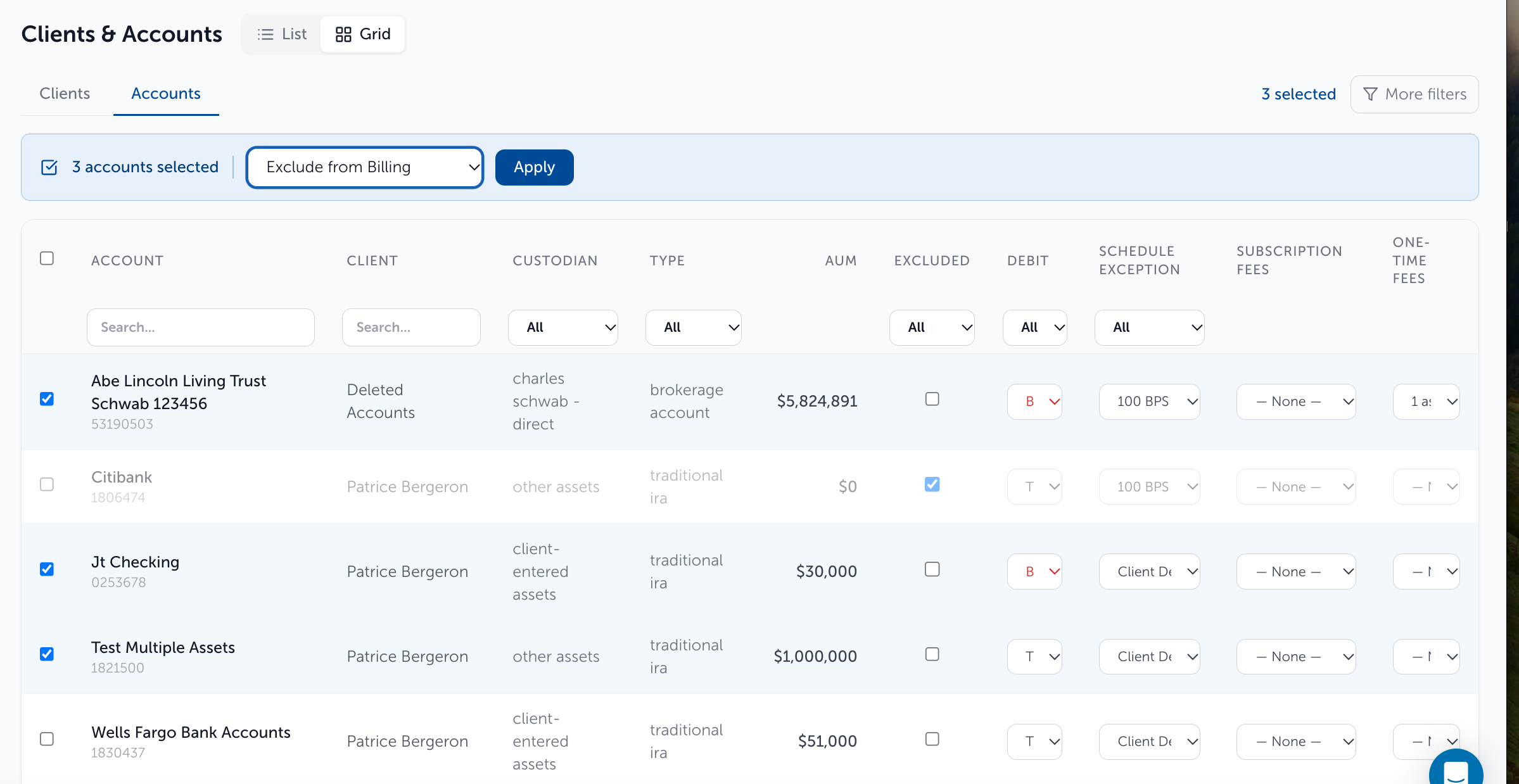
- Click "Apply" to make the changes
The exclusion persists automatically, so you do not need to reapply it each billing cycle.
Need help? Email vipsupport@blueleaf.com with any billing questions, feedback, or issues.