
Blueleaf Billing: Prorating New and Departing Clients
When an account opens or closes mid-cycle, a row appears in Mid-Period Changes on the Exceptions step of the Bill Run. The Proration Factor is calculated automatically; your job is simply to verify that the date used is correct.
The Proration Factor is the number of days billed divided by the number of days in the billing period.
A first bill:
To bill a new account outside your normal billing cycle:
- Go to Clients & Accounts, select the client then select New/Termination Billing.
- Choose “New Account — Partial Period”
- Select the accounts you want to bill. Each account is billed from its earliest eligible date, shown beside the account, through the end of the billing period.

- Make sure all selected accounts fall within the same billing period. Accounts outside that period are flagged so you can remove them from the selection.
- Click Create Off-Cycle Run. The new run opens automatically.
In Firm Settings, you can turn on Always Bill New Accounts for Partial Period. When enabled, new accounts that open mid-period are automatically included on your next standard billing run, so you don't need to create a separate off-cycle run.
A final bill:
- Open the client and click New/Termination Billing. If your Accounting Method is Arrears, this button is labeled Termination Billing.
- Select the termination action:
- Advance: Select Termination Refund to credit the fee for the days from the termination date through the end of the billing period.
- Arrears: Select Termination Fee to bill for the days from the start of the billing period through the termination date.
- Enter the Termination Date.
- Check the billing period shown beneath the termination date to make sure it is correct.
- Click Create Off-Cycle Run.
Checking the result:
- Open the Billing Run and go to the Exceptions tab.
- Review each exception row. The Effective Date and Proration Factor are shown for each row. The Proration Factor displays both the percentage and the number of billed days.
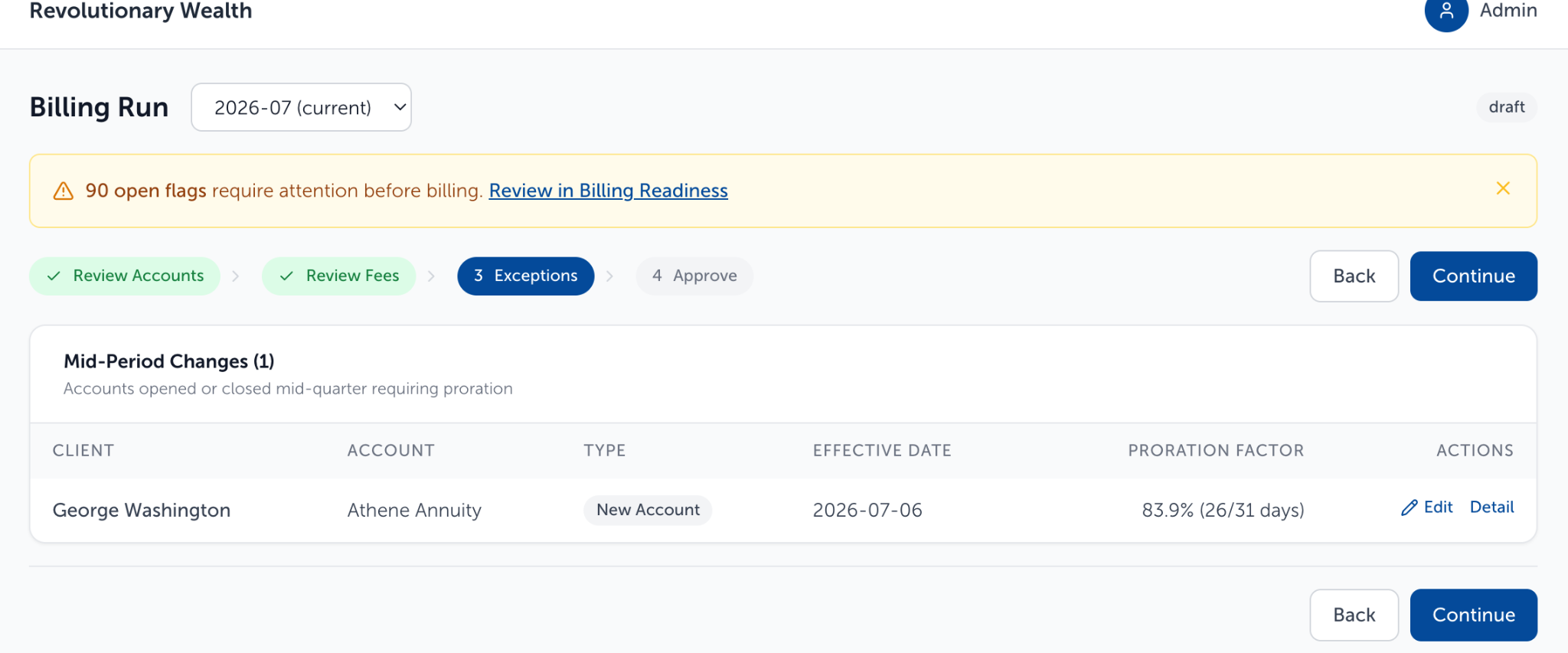
- To change the effective date, click Edit. The Edit Effective Date dialog opens.
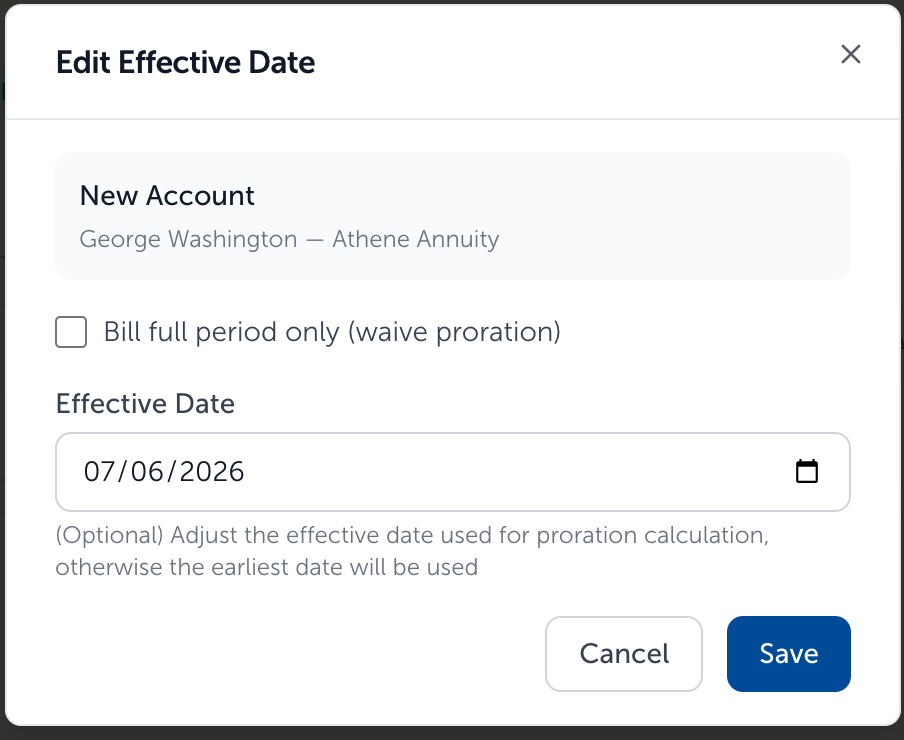
- Select a new date within the billing run’s period, then click Save. The Proration Factor recalculates automatically.
- For a new account exception, you can waive proration by selecting Bill full period only (waive proration). The account is then billed for the entire period, and both the Effective Date and Proration Factor columns display Full period.
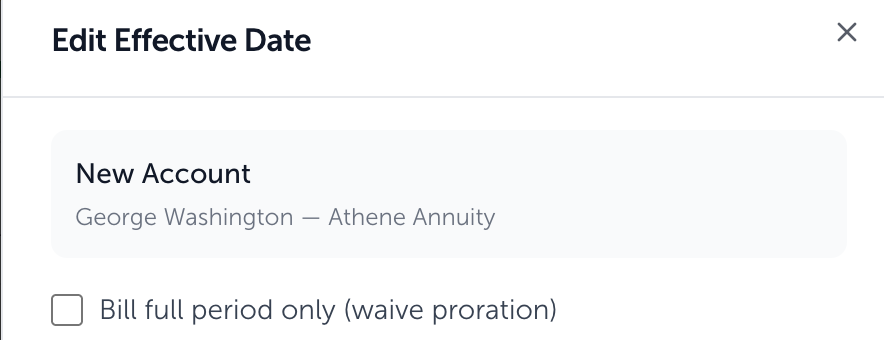
- Termination exceptions do not offer the Bill full period only option.
Need help? Email vipsupport@blueleaf.com with any billing questions, feedback, or issues.