
Blueleaf Billing: Combined Household Billing
This article goes over how to create combined billing groups for a client. Combined Billing groups several clients under one primary, so a tiered fee schedule is applied to the group’s combined assets rather than to each client’s own assets.
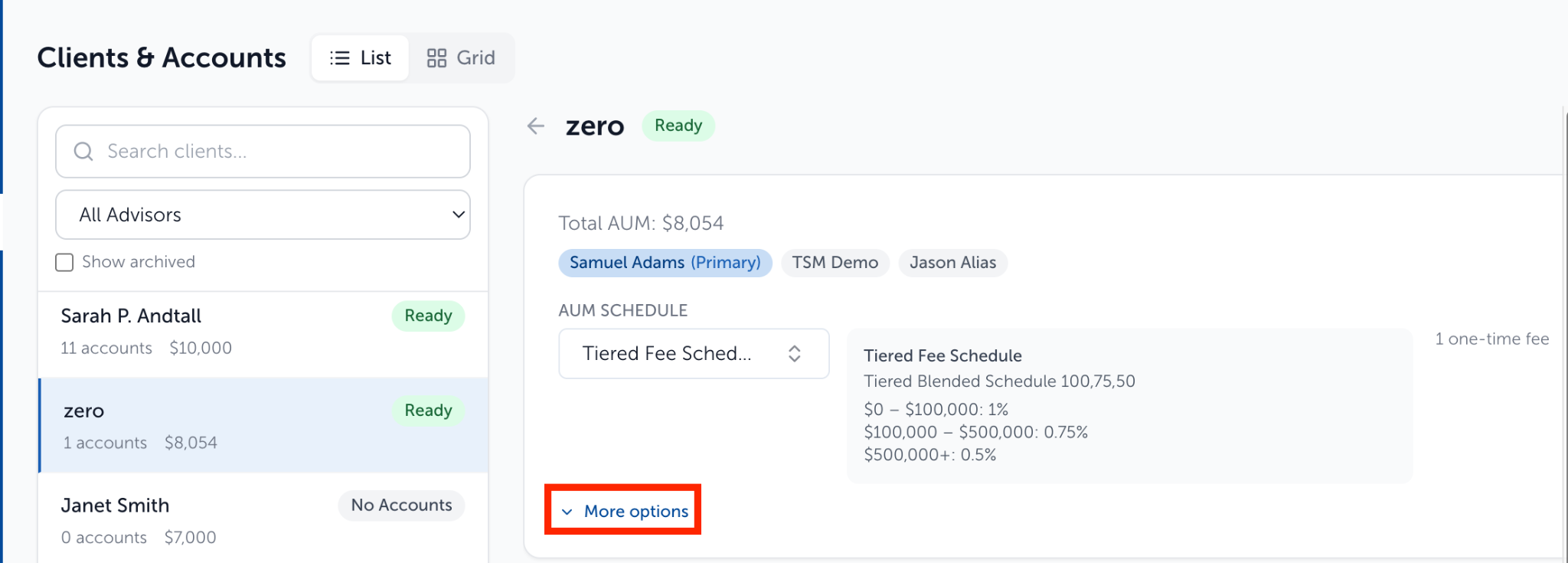
- Go to Clients & Accounts
- Select the client that will be the primary client
- Click “More Options” then “Combine Billing”
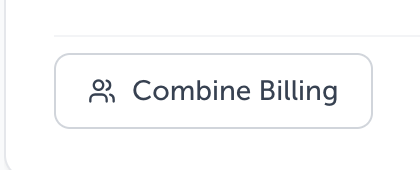
- Type a name in the search box and click each client to include (archived clients do not appear)

- Click Save
What changes?
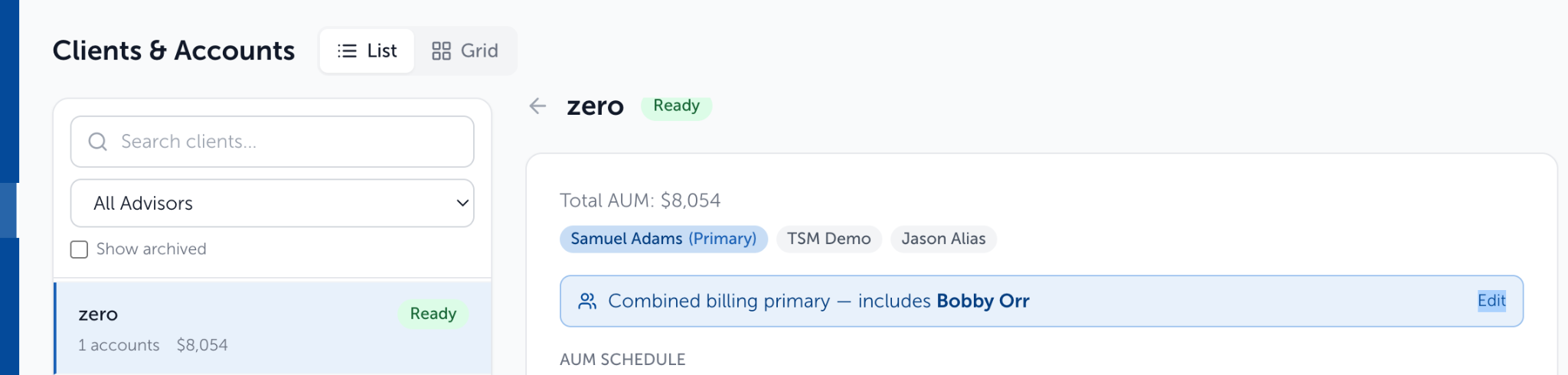
The primary client’s card shows a banner reading “Combined billing primary” followed by the clients you picked, with an Edit button that reopens the same window.
Each included client’s card shows “Combined billing under” the primary client, with a Remove button that takes that client back out of the group.
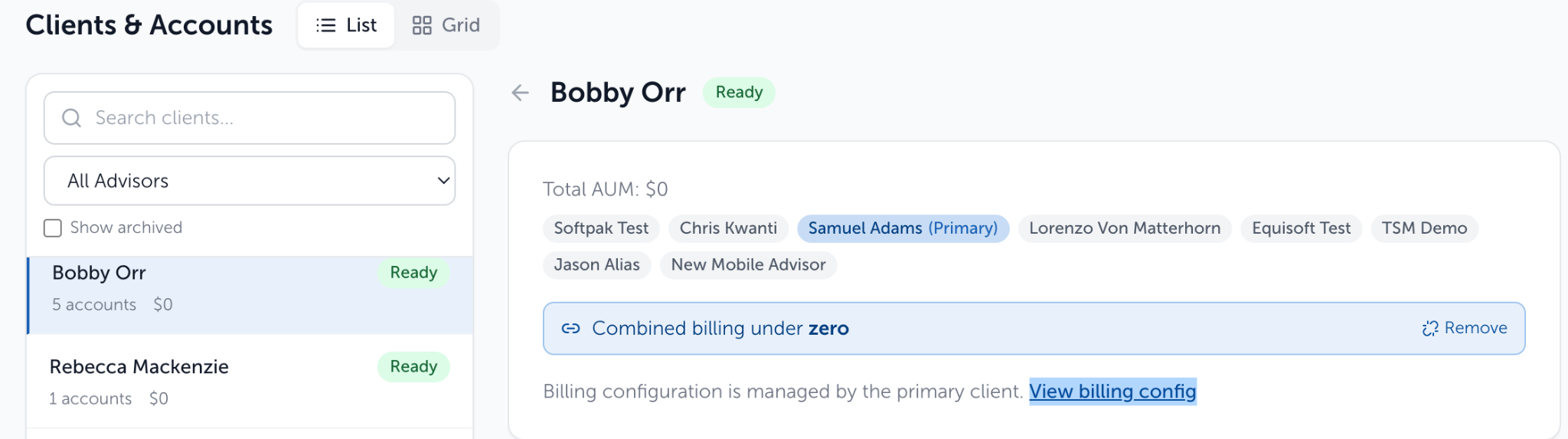
A member client’s card no longer shows its own AUM Schedule or More options. Instead, it reads “Billing configuration is managed by the primary client” and includes a View billing config button linking to the primary.
The member’s Accounts table remains available, including the per-account Actions menu. Its status shows Ready once the primary client has an AUM Schedule.
You can debit fees for an account from a different client within a "Combined Billing" group.
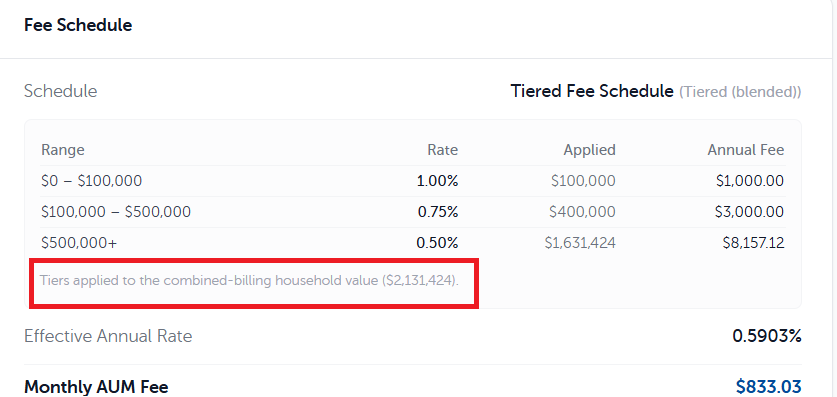
For tiered schedules, Fee Breakdown applies the tiers to the household total and labels the value “Tiers applied to the combined-billing household value.”
Combined Billing Partner Missing Flag:
This actionable flag appears on the Billing Readiness page, when a client in a combined-billing group points at a member client that no longer exists or is not billable.
- You would click “Resolve” on the row
- The pop-up box will show a “View Client” link to the flagged client
- Take that client out of the group with the “Remove” button.
- Go back to the flag and click “Mark as Resolved”
Need help? Email vipsupport@blueleaf.com with any billing questions, feedback, or issues.