
Blueleaf Billing: Assign Fee Schedule at the Account-level
This article goes over how to set up a fee schedule for an account (AUM Schedule Exception) that differs from the main fee schedule assigned at the client level.
- Go to Clients & Accounts (List View)
- Select the client
- In the accounts table, click the gear icon on the right side of the account
- Choose “AUM Schedule Exception”

- Pick a fee schedule from the drop-down list. The box closes and saves as soon as you pick.
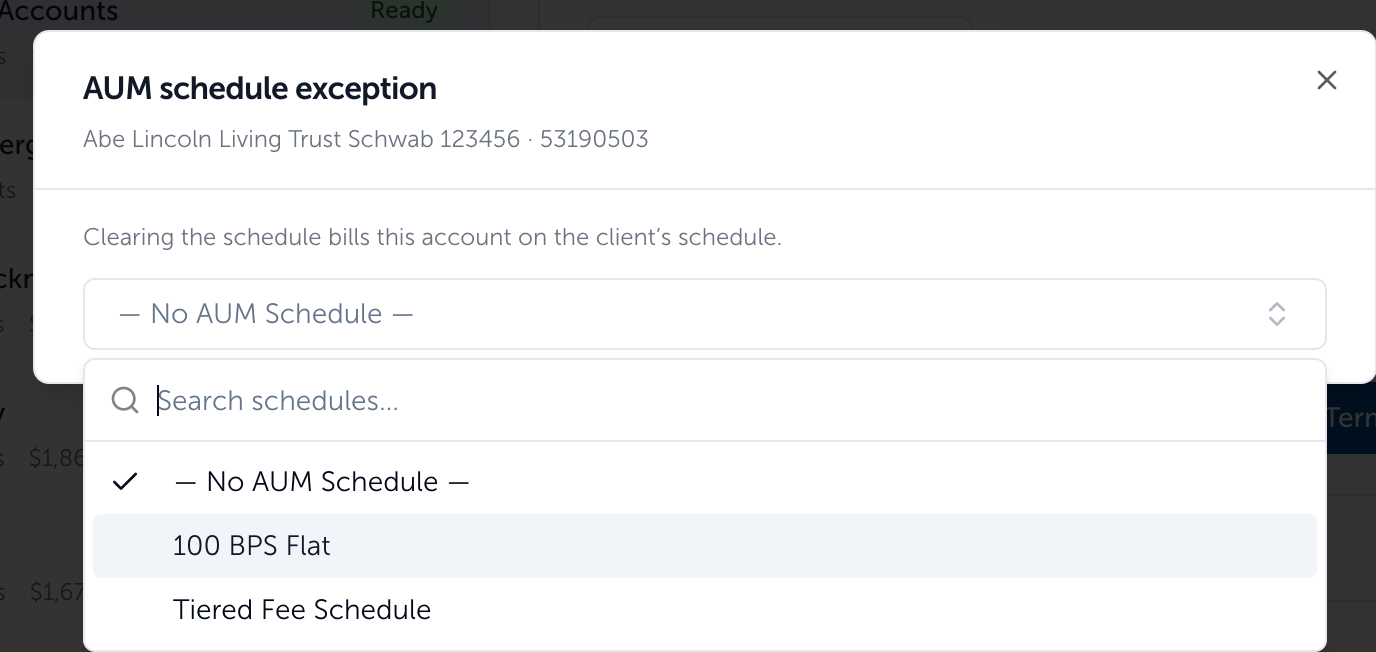
- That account now bills on the schedule you chose. Every other account on the client stays on the client’s AUM Schedule.
- To remove the account-level fee schedule, follow steps 1-5 again and choose “ — No AUM Schedule —” which then sets the account back to the client’s fee schedule.
Note: The gear is greyed out on archived accounts and on any account that has no billing configuration yet.
Assign account-level fee schedules in bulk:
- Go to Clients & Accounts page
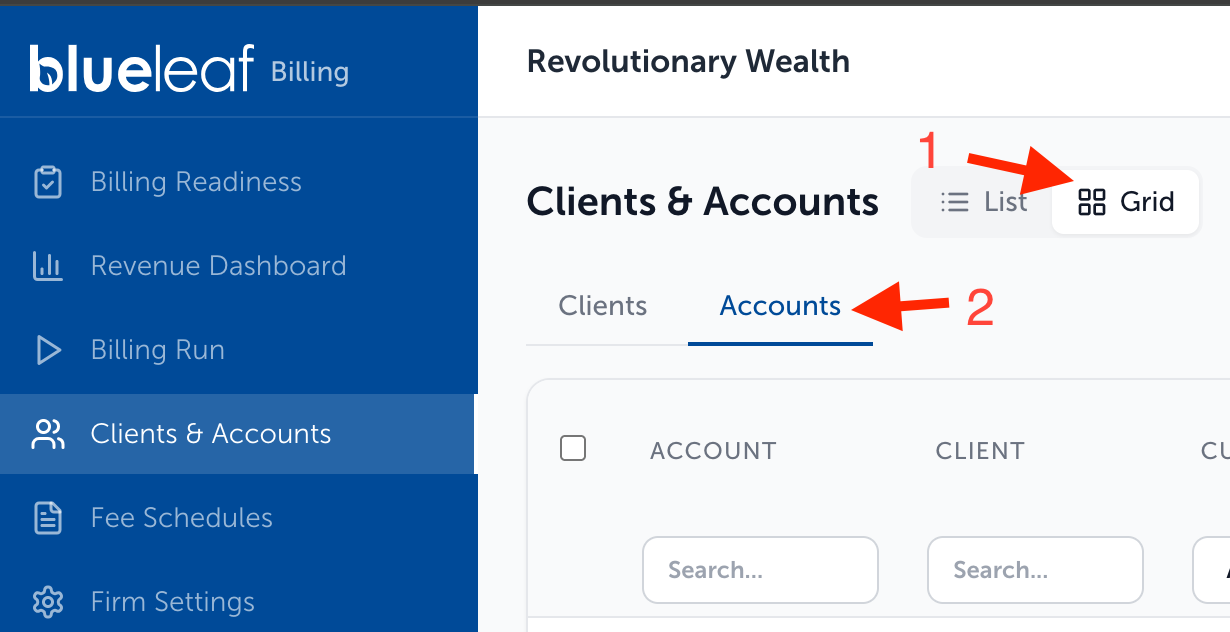
- Switch to Grid View then select the Accounts tab
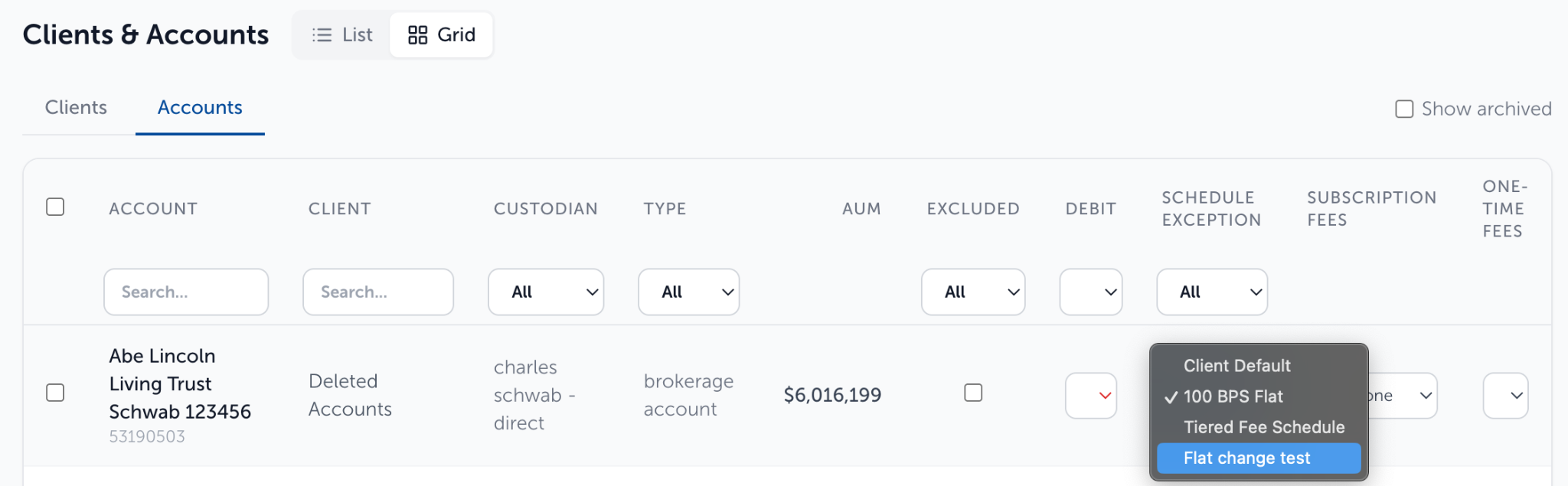
- In the Grid View, the “Schedule Exception” column shows each account’s own schedule or “Client Default” if no AUM Schedule Exception is applied. You can make the changes individually here.
- To complete this action in bulk, select any account you wish to assign an AUM Schedule Exception for.
- Choose Set Schedule Exception from drop-down, then choose the fee schedule
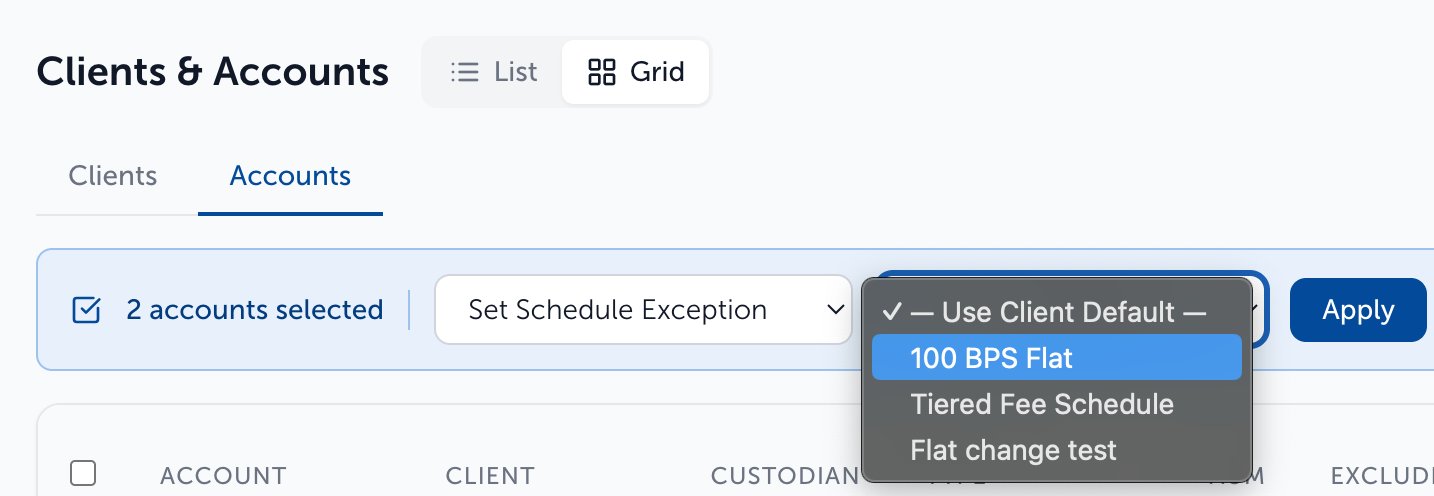
- Click Apply to save changes
Need help? Email vipsupport@blueleaf.com with any billing questions, feedback, or issues.