
Blueleaf Billing: Setting Client-Level Minimum and Maximum Fees
A cap applies to the client’s total fees for the period across all accounts, including AUM, subscription, and one-time fees. When a cap applies, the adjustment is distributed across the client’s accounts based on billable value. You’ll see the adjustment in Fee Breakdown and a Min Fee Applied or Max Fee Applied flag in Billing Readiness.
Fee caps are set at the client level, not on the fee schedule. AUM schedules define the rate or Rate Tiers, so set a cap separately for each client who needs one.
- Go to Clients & Accounts and select the client.
- Click More options.
- Enter an amount for Minimum Fee, Maximum Fee, or both.

- Leave a field blank if you don’t want that cap. To remove an existing cap, clear the amount and click Save.
- Click Save.
Note: The fee period follows your Billing Frequency: (/quarter) for Quarterly or (/month) for Monthly.
Setting caps for clients in bulk:
- Go to Clients & Accounts page
- Open Grid View and select the Clients tab.
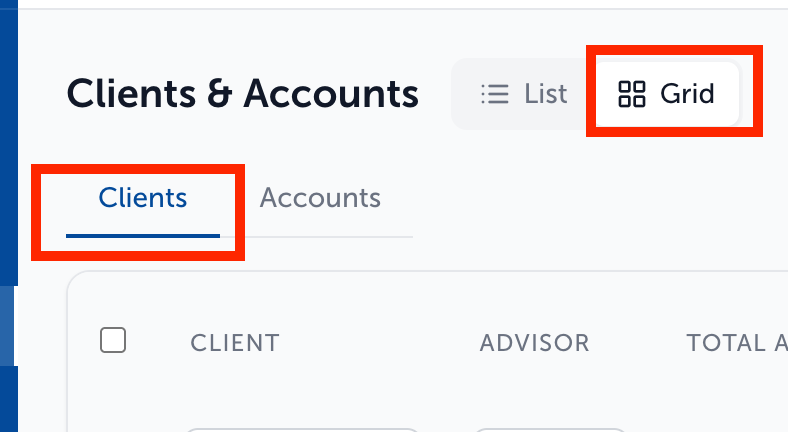
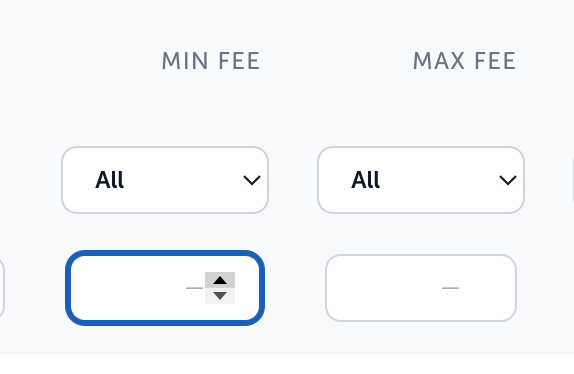
- Edit Min Fee or Max Fee directly in the grid for a single client
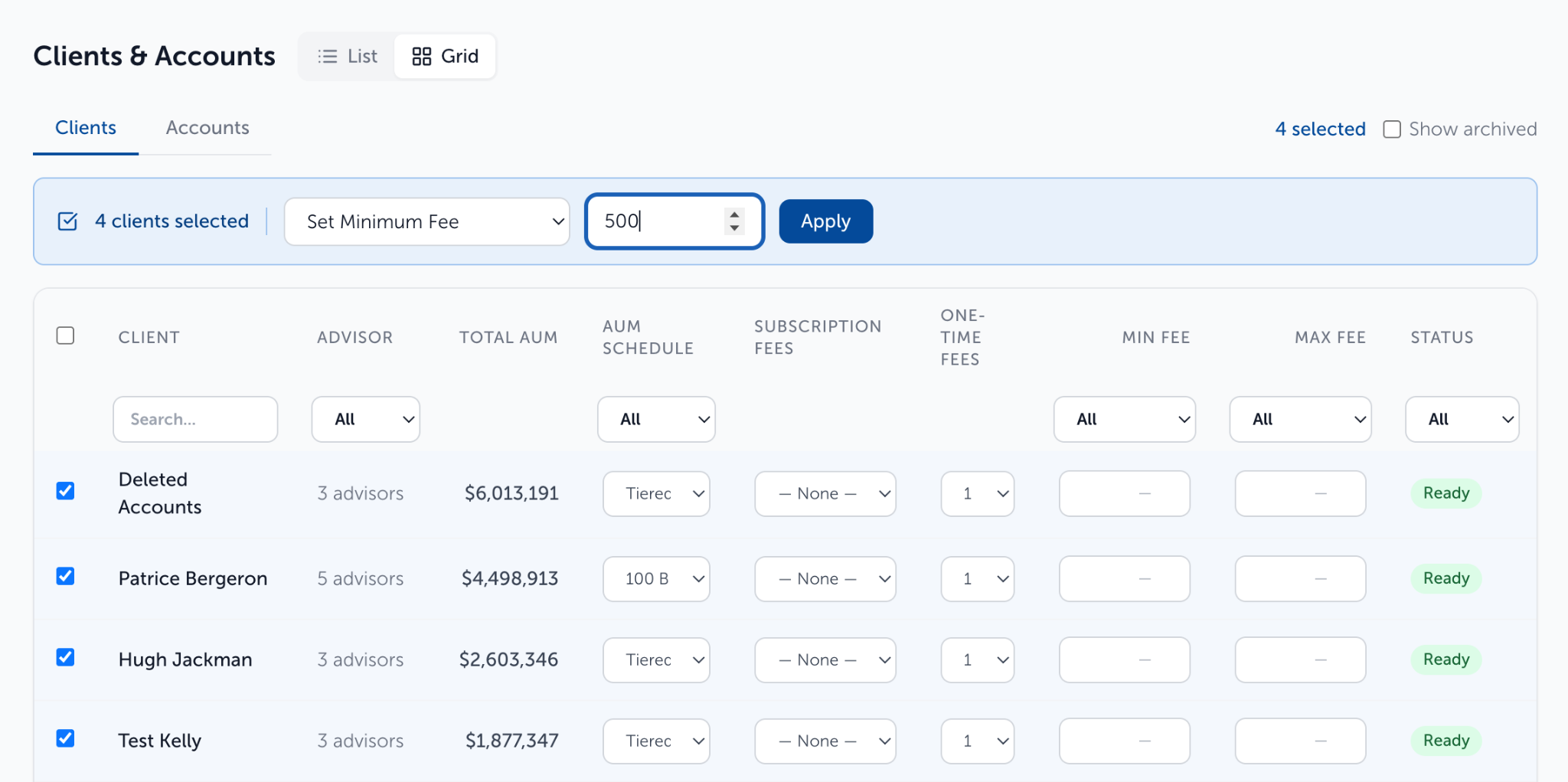
- For bulk updates, select the clients, choose Set Minimum Fee or Set Maximum Fee, enter the amount, and click Apply. It can take a minute to apply throughout.
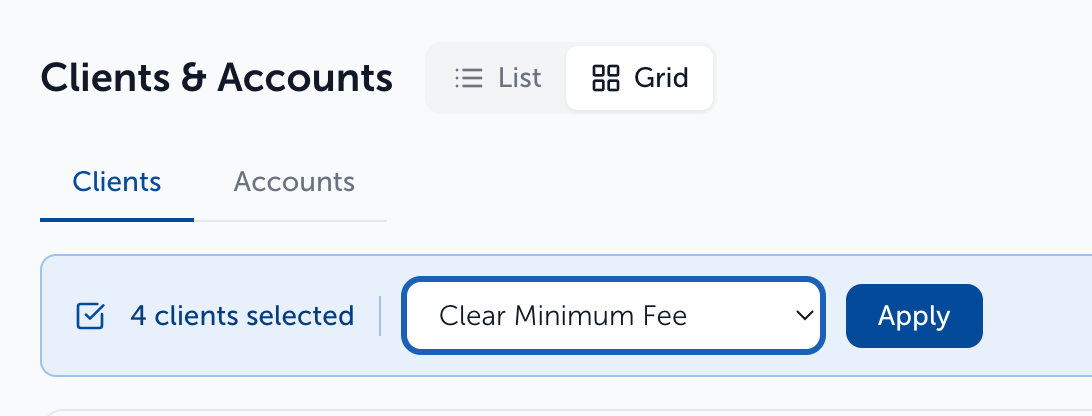
- To remove caps in bulk, choose Clear Minimum Fee or Clear Maximum Fee and click Apply. It can take a minute to apply throughout.
Note: Clients billed under a combined billing primary use the primary client’s caps. Their client card shows “Billing configuration is managed by the primary client.” Set the caps on the primary client instead.
Need help? Email vipsupport@blueleaf.com with any billing questions, feedback, or issues.