
Blueleaf Billing: Excluding Holdings/Securities from Billable Asset Value
Excluding Holdings/Securities at Firm Level:
Excluded Holdings at firm level takes a ticker out of billable assets for every client and every account.
- Go to Firm Settings → Billing Settings.
- Under Default Billing Rules, locate Excluded Holdings below Billed Institutions.
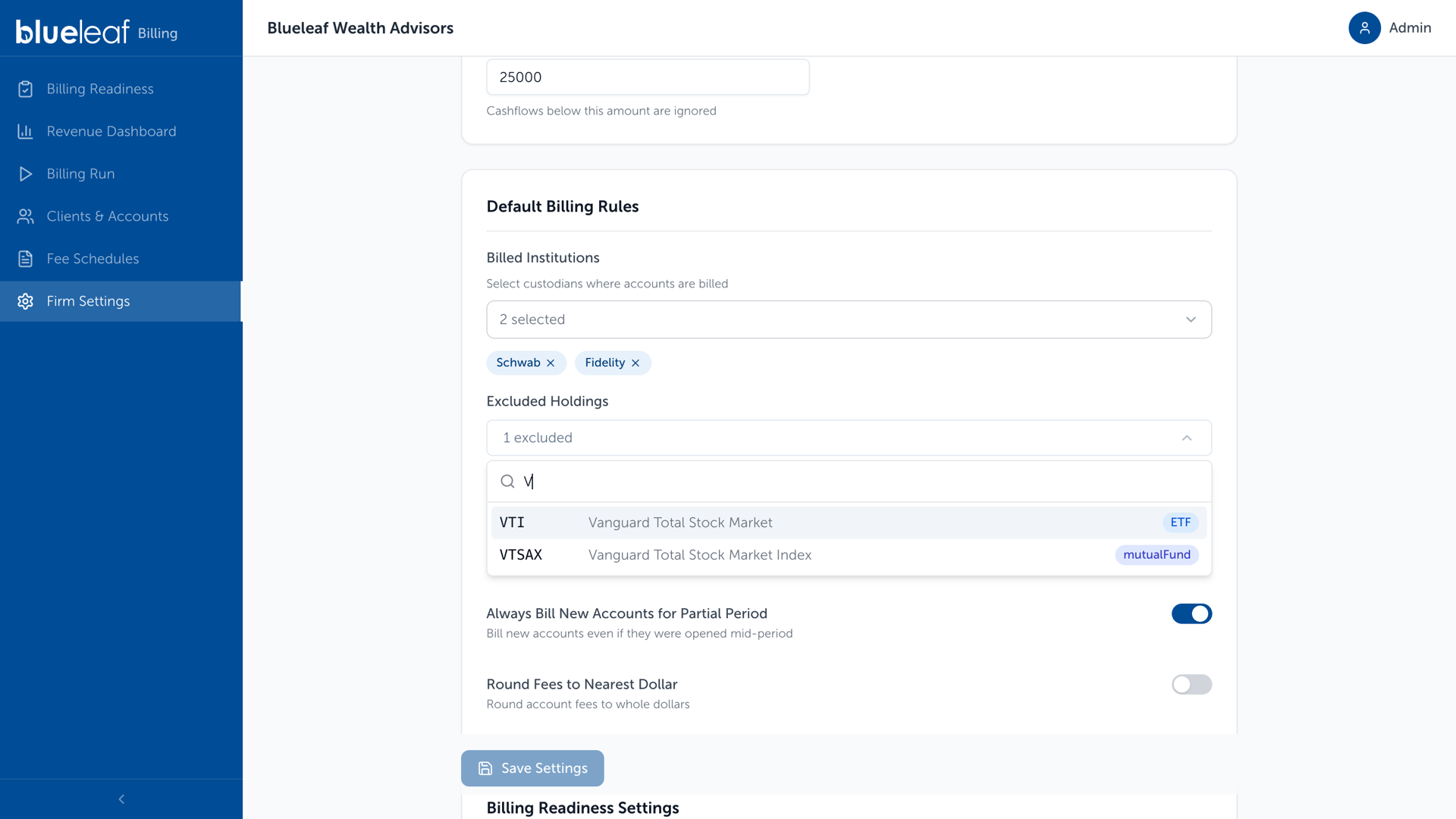
- Click the Excluded Holdings field and search by ticker.
- Select a security to exclude. Results show the ticker, security name, and type.
- Selected securities appear as chips below the field. Click the X on a chip to remove it.
- To exclude cash, search for CASH. Money market funds can be searched by their individual tickers.
- Click Save Settings.
Note: Firm-wide exclusions apply to every client, and client rules add to these firm-wide exclusions.
Manage Client Exclusions:
Add an exclusion rule on the client. The security stays in the account, but its value stops counting toward billable assets.
- Go to Clients & Accounts
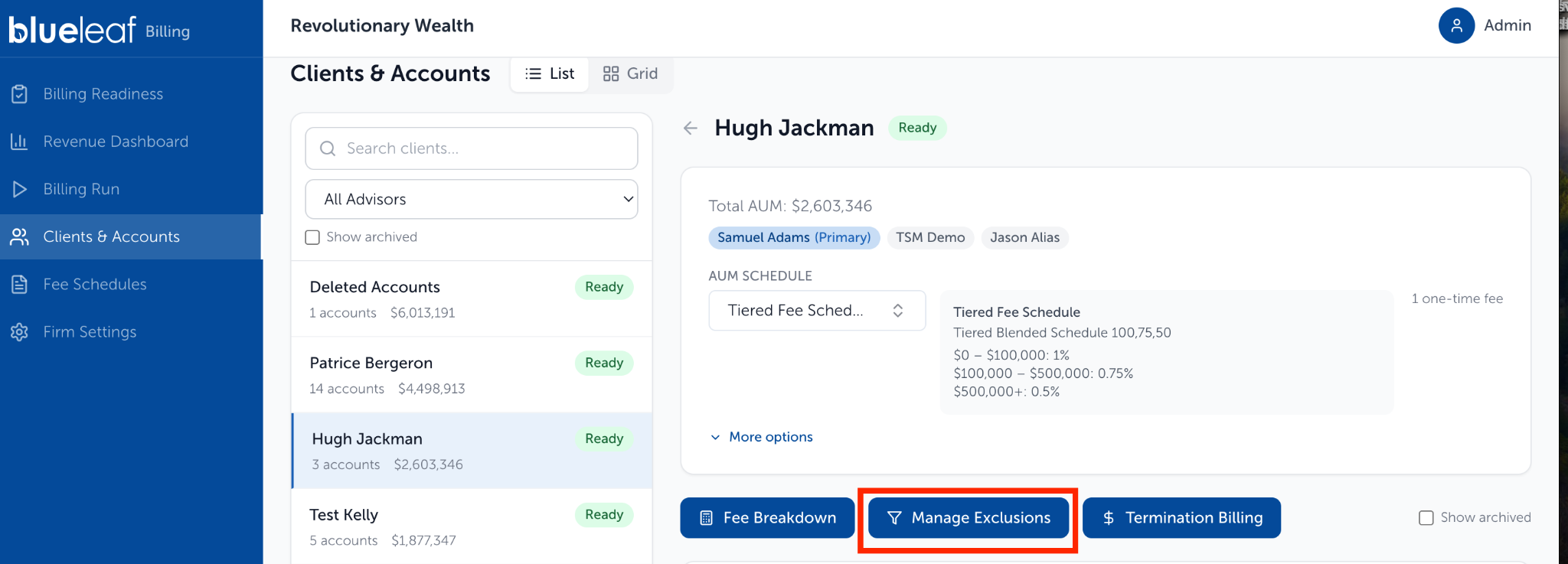
- Select a client and click Manage Exclusions.
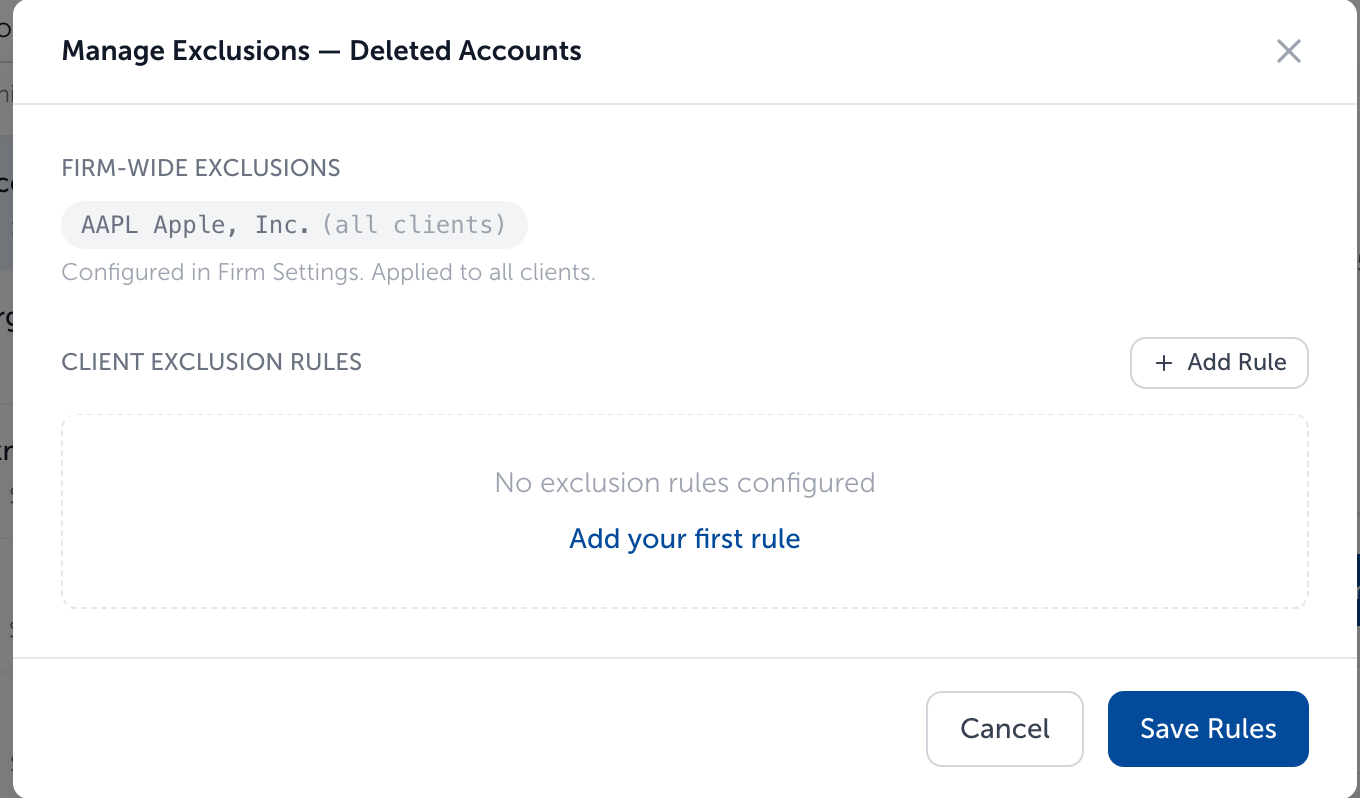
- Review Firm-Wide Exclusions at the top of the dialog. These exclusions are greyed out, tagged (all clients), and can only be changed in Firm Settings.
- Under Client Exclusion Rules, click + Add Rule for each holding you want to exclude.
- Select the Holding and choose Applies To:
- All Accounts for the client
- A specific client account
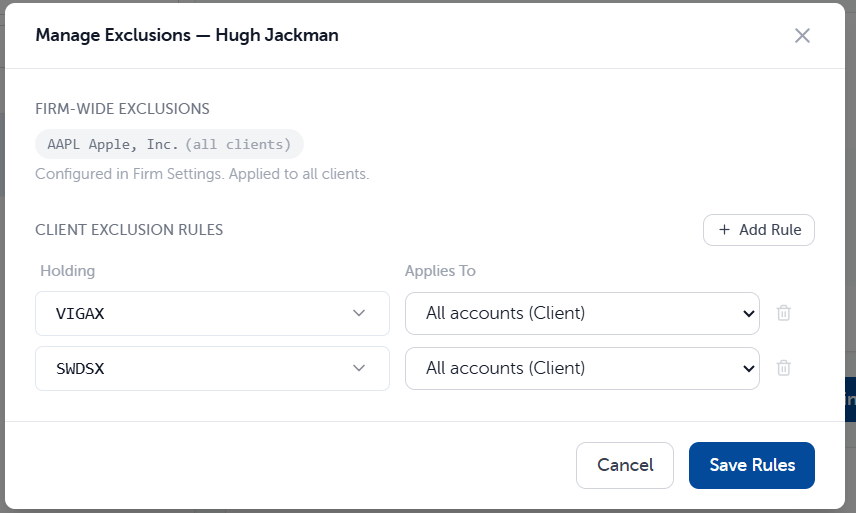
- Click Save Rules.
Note: Adding client rules only expands the exclusions for that client. You cannot override or remove a firm-wide exclusion for an individual client from this dialog.
Assign client-level exclusions in bulk:
To set the same exclusion on several clients or accounts at once:
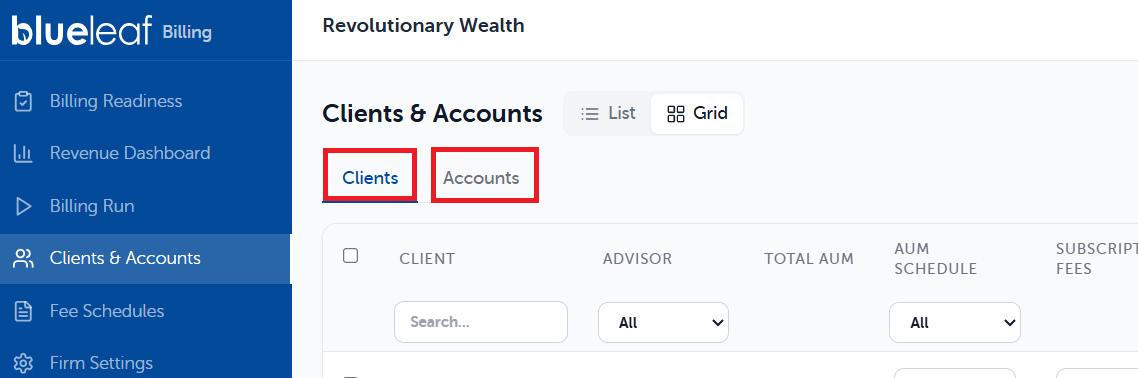
1) Open the Grid view of Clients & Accounts, select either the Client or Accounts tab at the top:
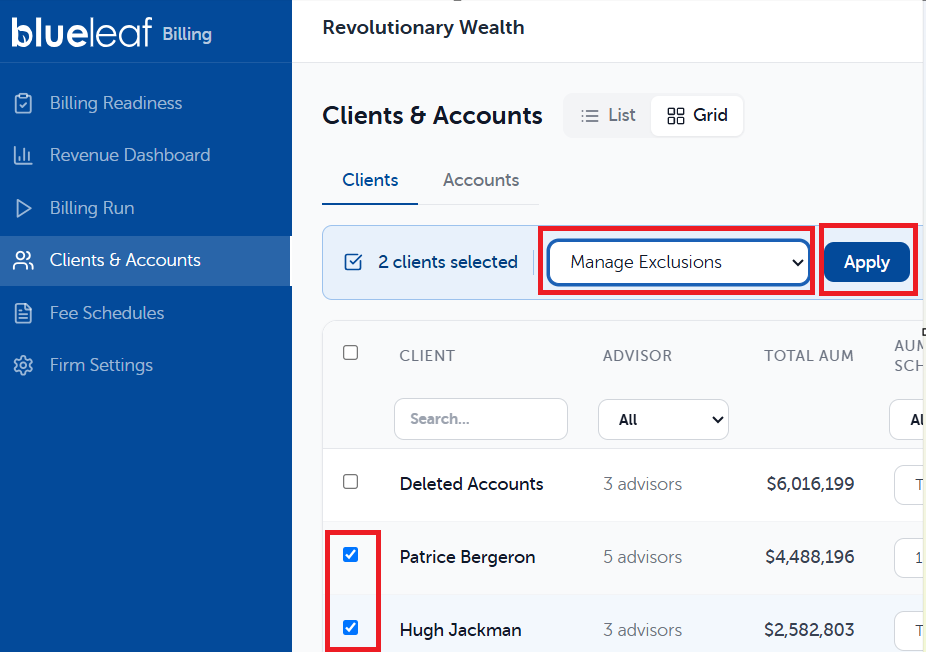
2) Select the rows of either the clients or accounts that apply by checking the box to the left of the row and then choose Manage Exclusions from the drop down box at the top and click Apply.
This will open the Manage Exclusion window where you can search for and apply holding exclusions for either the clients or accounts selected.
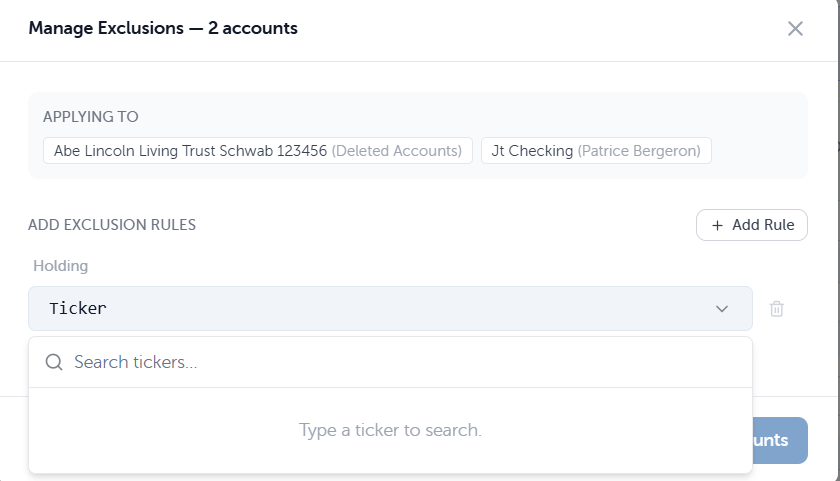
The rules are added to what each client already has. Rules added from the Accounts tab are scoped to the accounts you selected.
Checking it worked:
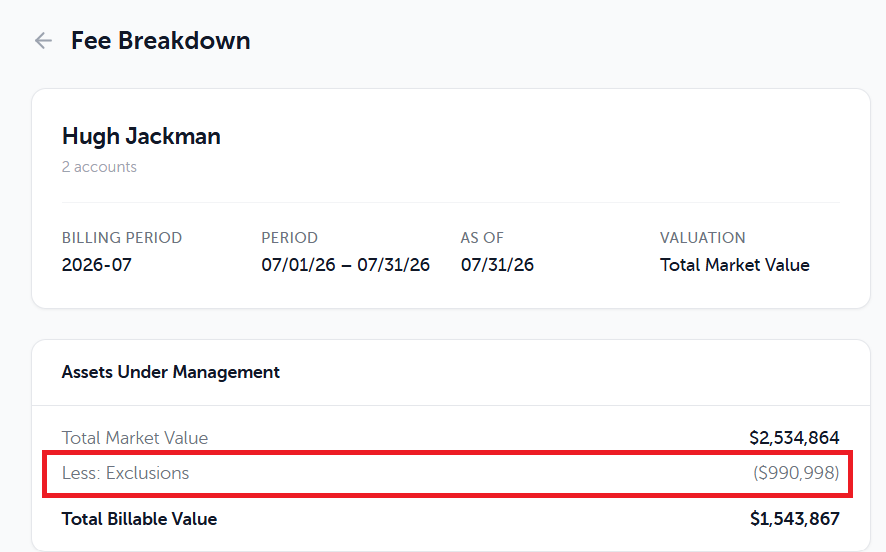
To confirm the exclusion(s) saved, ensure you are in the List View and are viewing a specific client. Click on Fee Breakdown (next to Managed Exclusions). The Assets Under Management card shows a Less: Exclusions line between market value and Total Billable Value. That line covers holding and account exclusions together.
Need help? Email vipsupport@blueleaf.com with any billing questions, feedback, or issues.