
Blueleaf Billing: Adding One-Time Fees
A one-time fee is a fixed dollar charge you define once and attach to a single billing run. Use it for onboarding, a plan review, or anything else outside your normal schedule.
Create One-Time Fee:
- Go to Fee Schedules and select the One-Time Fees tab.
- Click New Fee.

- Enter the Fee Name, Description, and Amount ($).
- Click Create Fee.
The fee is added to the table but does not charge any clients or accounts until you assign it to a client or account.
Assign it to a client:
- Go to Clients & Accounts, select the client, and click More options.
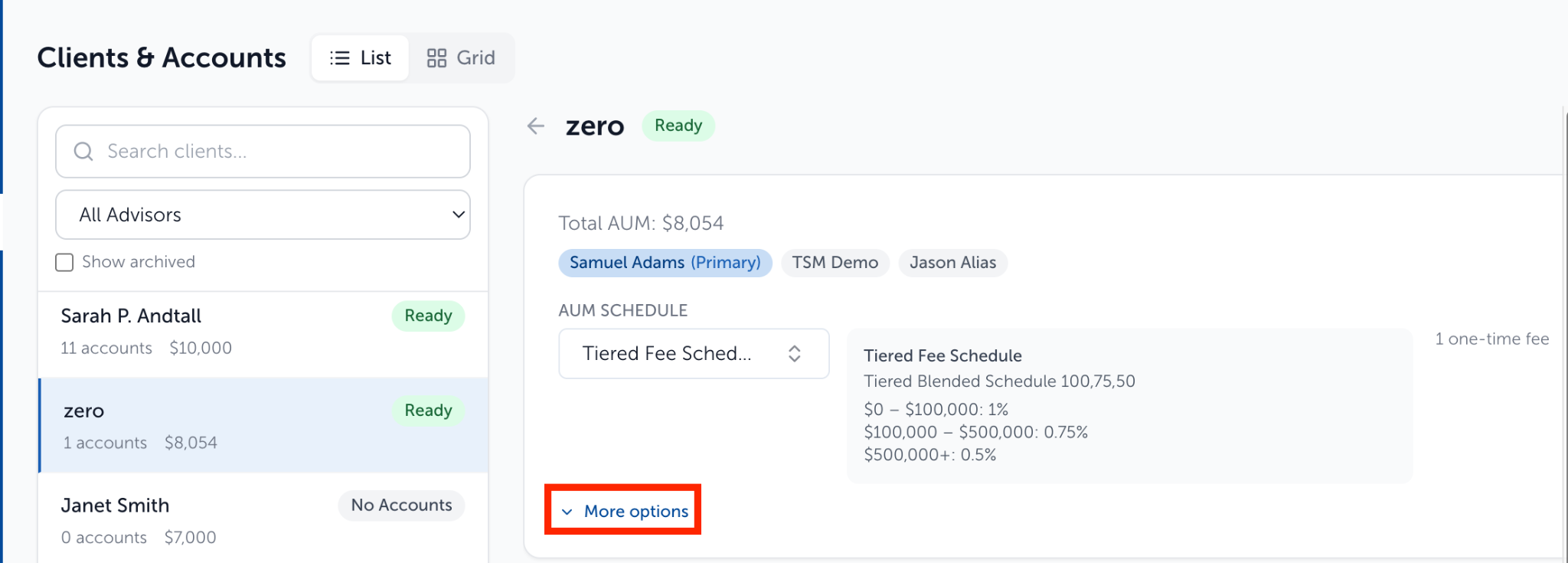
- Under One-Time Fees, open + Add one-time fee
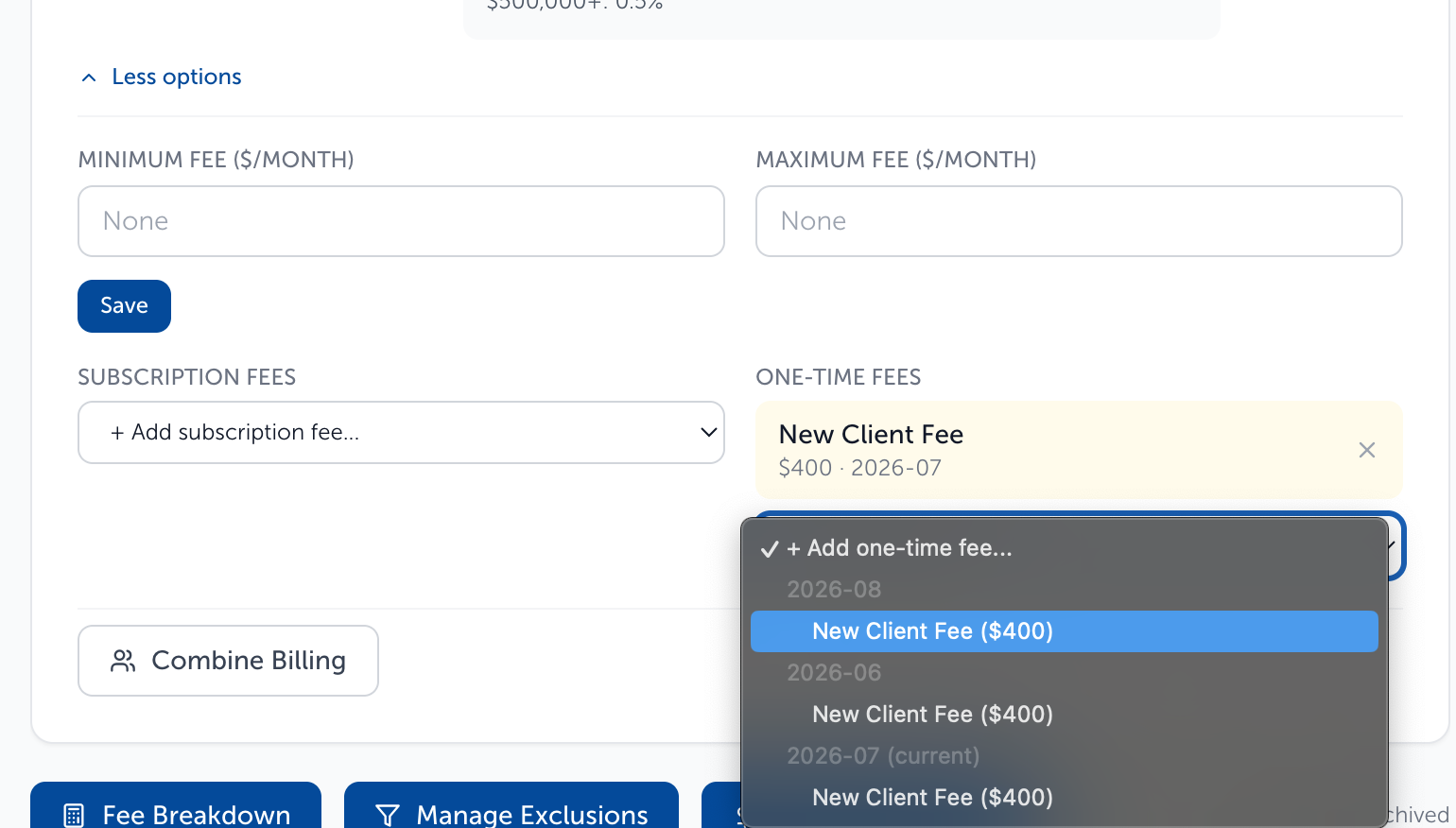
- Select the fee under the draft billing run for the period you want it billed.
- The fee attaches automatically—no separate save is required.
- To remove a fee, click the X next to its name.
Assign it to one account:
- Go to Clients & Accounts > select client
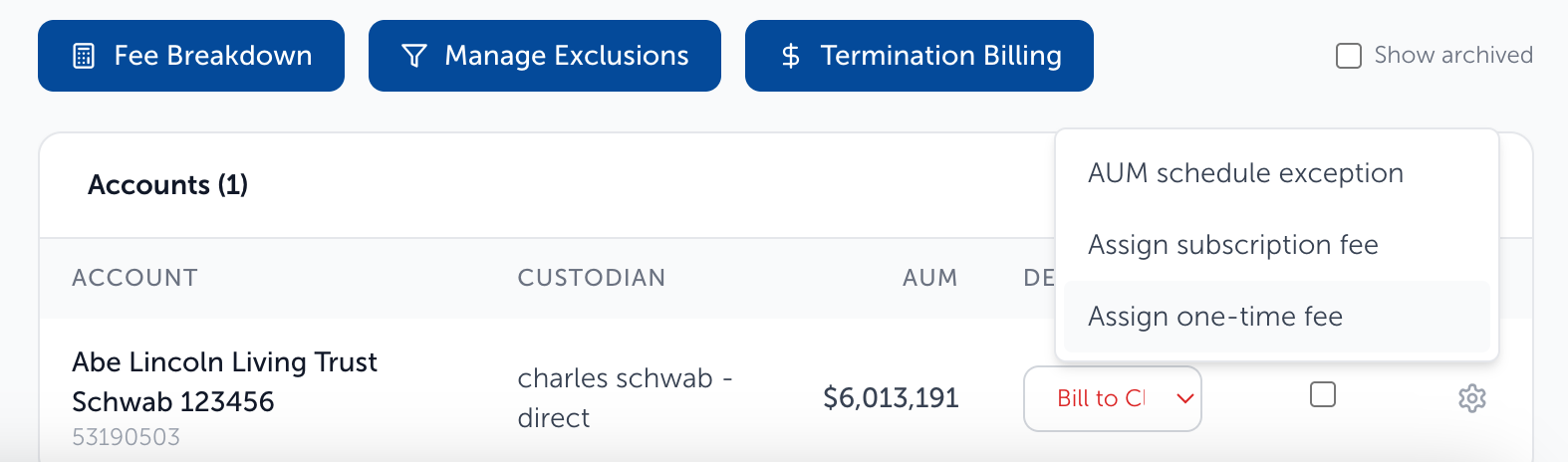
- In the client’s Accounts table, click the gear icon on the account row.
- Select Assign One-Time Fee.
- Choose the fee under the draft billing run for the period you want it billed.
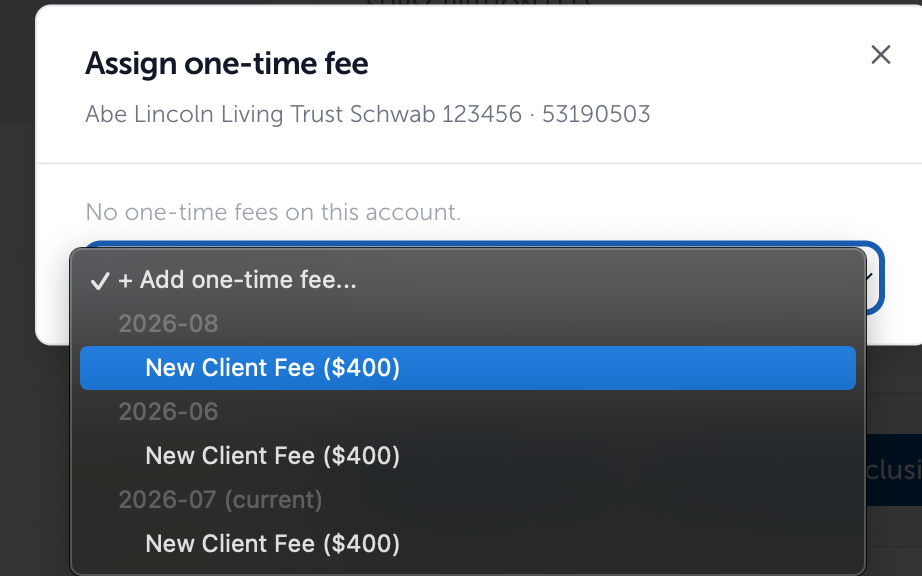
- The fee attaches automatically—no separate save is required.
- To remove a fee, click the X next to its name.
Note: Attach the fee at the client level to bill it once for the whole client, or at the account level to bill it against one account.
What to expect:
One-time fees can only be attached to a draft billing run. If no draft run is available, create one first. Attached fees appear in a highlighted row with the amount and billing period and apply only to that run. Click X to remove a fee.
To retire a fee, click the trashbin icon in Fee Schedules. Archived fees can be restored with Restore.
Need help? Email vipsupport@blueleaf.com with any billing questions, feedback, or issues.