Reviewing and Responding to Posts
The conversation doesn't end when a post is published and delivered to your clients, it's only just beginning. In order to keep your clients invested you will want to develop a cadence to respond to them as they begin commenting and reacting to your posts. You can respond to those comments in order to keep the conversation going, or add additional context where questions arise.
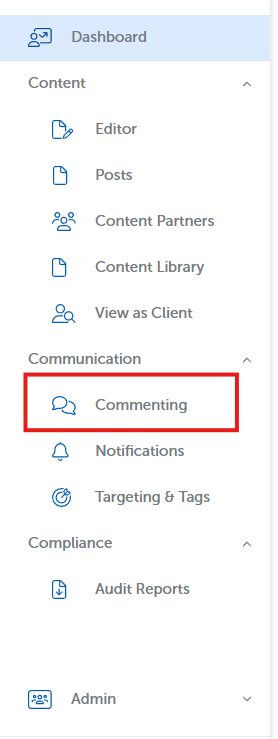
From the Engage Dashboard, select the Commenting tab along the left navigation bar.
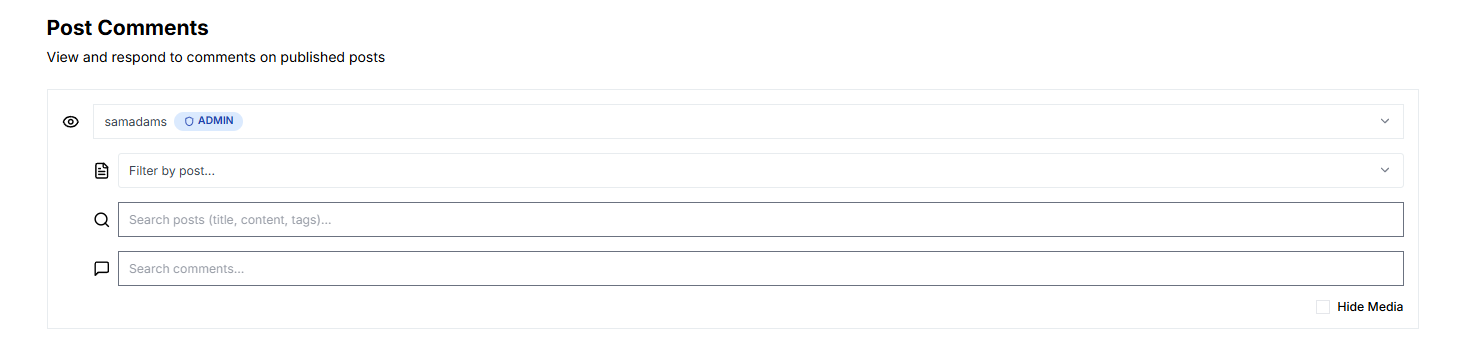
On the subsequent page, you can sort and filter through published posts by either selecting a specific Author, or by using a search bar to locate particular post titles or comments. Use these filters to locate any number of posts you are interested in reviewing. The Hide Media checkbox can be used to hide any published post containing an image, video, PDF, or other form of non-textual media.
Posts will appear below the filter bar along the left side of the screen with comments and reactions to that post on the right.
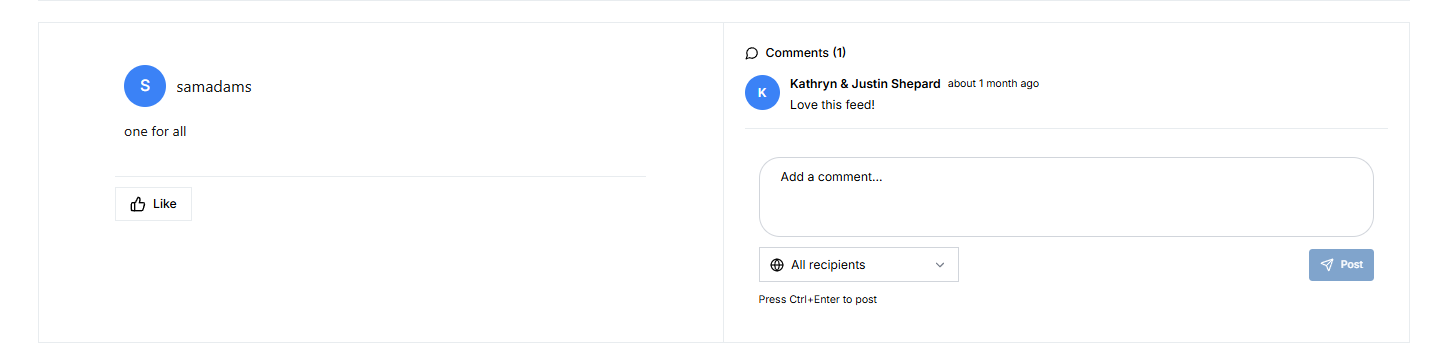
From here you can then respond to comments to either specific clients or to everyone who received the post by using the dropdown menu below the comment box. Use this to answer questions from clients that may require sensitive information about their portfolio, without those comments then appearing for your other clients. You can also leave a general comment that will appear on the post to all clients by leaving the selection as "All Recipients".
When used in conjunction with notifications that alert you to new comments, you can keep your clients actively part of the conversation. These notifications may be set from your profile settings in Engage under the Notifications tab.
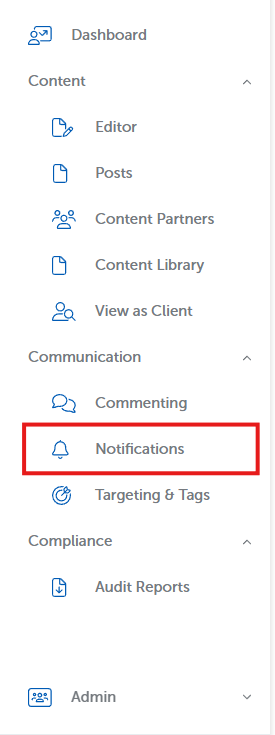
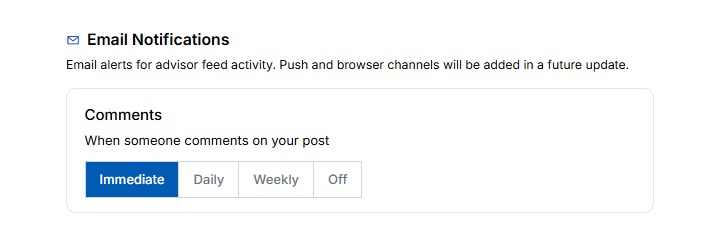
Towards the bottom of the subsequent screen you can select your update frequency between immediately, daily, weekly, or turn them off altogether.