
User Management & Permissions
Firm owners can create and manage other Engage user logins to ensure security and limit access to clients to the specific advisors they work with. These settings are all accessed from the "Admin" subtab along the left navigation bar while logged into Engage. If you do not see this tab, you likely do not have firm owner permissions.
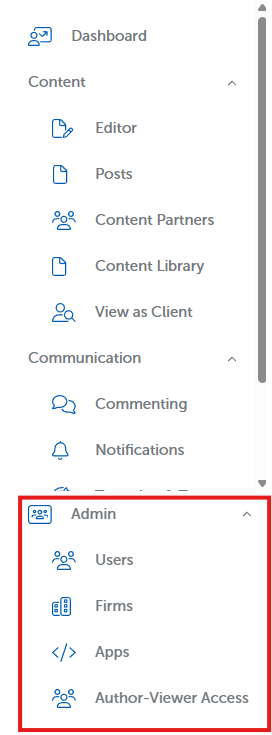
Users
The "Users" tab lists all current Engage users. This includes both clients and other members of your firm. They are organized by their role, which determines the permissions they have. From this tab you can change the role each user is provisioned with, create new users, and edit notification preferences for those users. New users may be created from the blue "Create User" button in the upper right of the list.
Each user is provisioned with a role. These roles are:
Admins
Admins are given permission to edit clients, create posts, manage content, and otherwise have access to everything in Engage. This should be limited to those who will be directly handling Blueleaf Engage, not just managing clients, but also the firm itself.
Author
Authors have the ability to create posts for a subset of clients they are given access to, either by you or your Admins. These are most commonly advisors working directly with clients, but not managing the firm. They cannot change any firm level settings and only have access to the clients you provision.
Compliance Officer
If your firm has compliance settings enabled you can give Compliance Officer permissions to users. This allows the user to review draft posts submitted by Authors before they are published. Ideal for CCOs or internal auditors. They do not have direct access to clients, but do see all posts each author submits for publication.
Viewers
These are your clients. They do not have access to anything internally within Engage. They receive posts created by Authors or Admins.
You may edit any listed user by clicking the pencil icon next to their name. The trashcan icon deletes the user. Lastly, the three dotted button allows you to manage the email notification preferences of that user.

Author-Viewer Access
The Author-Viewer Access tab allows you to determine which Viewers each Author can post to. Use the drop down menu at the top of the screen to select an author. This will then show a list of all viewers, along with a column denoting whether or not that author has access to that viewer.
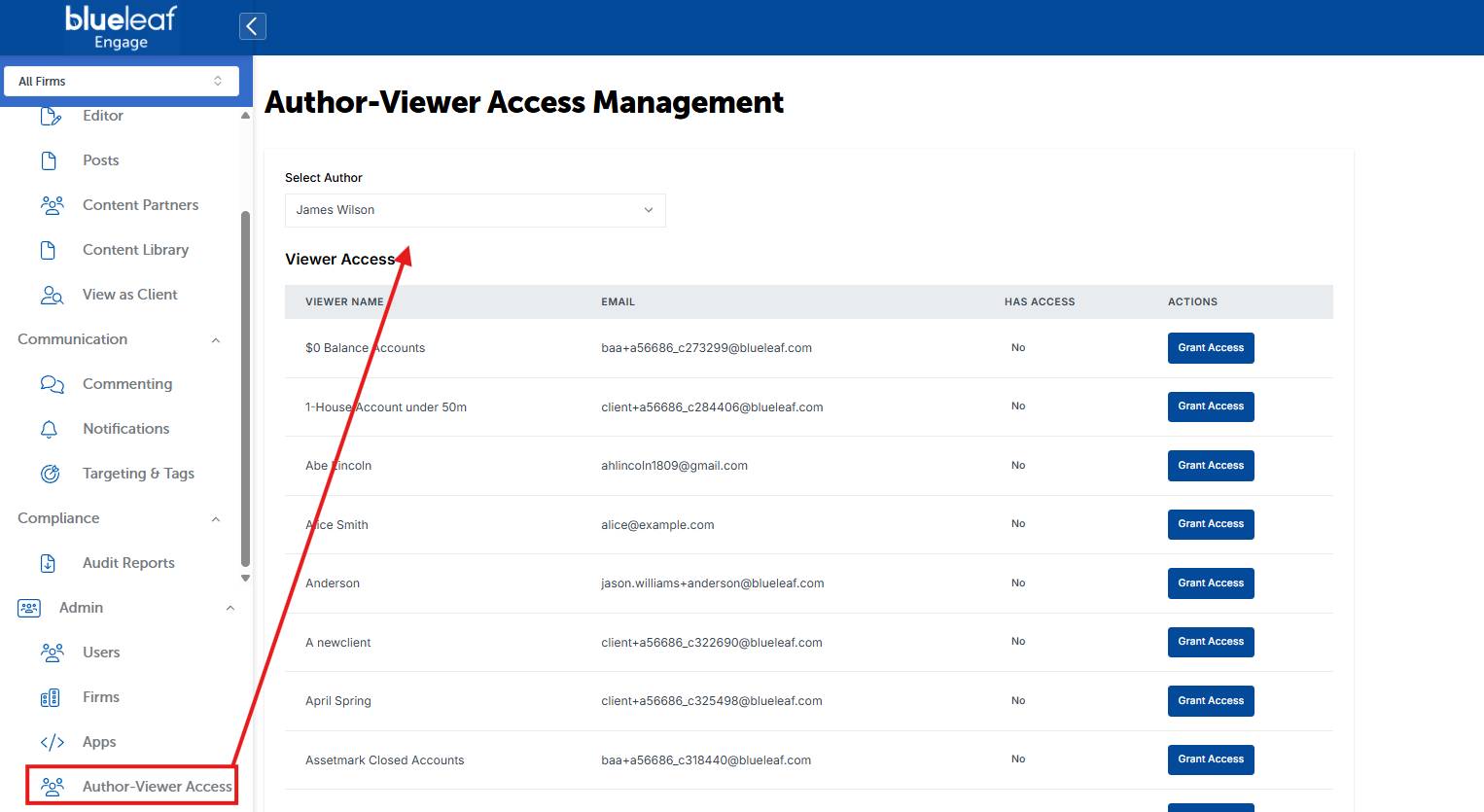
You can then allow that Author to post to a Viewer by clicking "Grant Access" in the 4th column. Access is revoked similarly by clicking the "Revoke Access" button listed next to Viewers an Author may access.
